
How to Change SVG Color: Online, in CSS, in Figma and in Canva
Change an SVG color in two clicks online, or with CSS, currentColor, Tailwind, Figma and Canva. Where the color hides in the file and why it stays put.

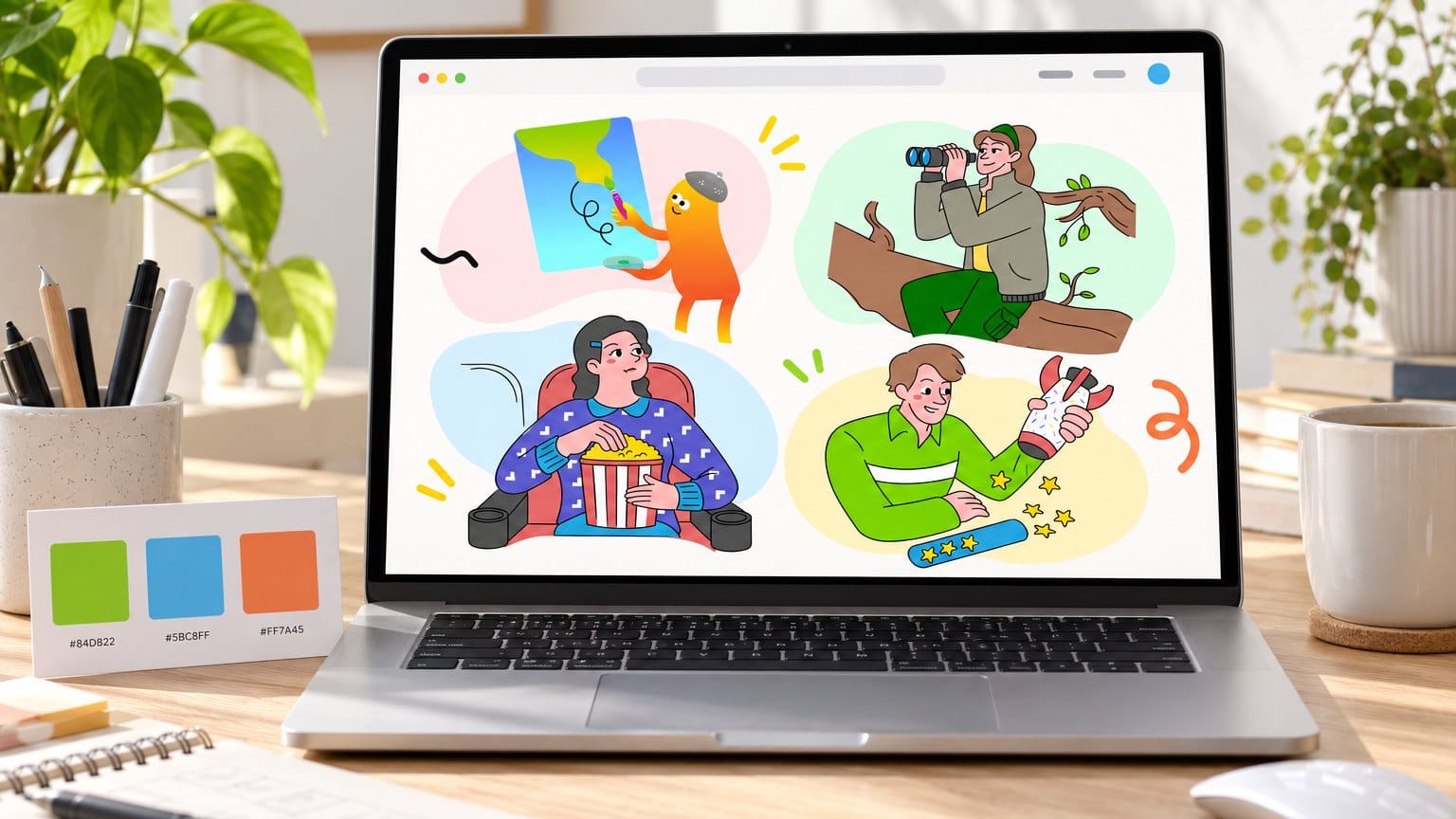
You've got the icon. Right shape, right weight, licence sorted, and it's blue. Your brand is orange, the page ships Thursday, and the file won't change no matter what you throw at it.
That's the whole trouble with SVG colour: it can hide in five different places inside one file, and most tools only reach some of them. This guide covers each route a designer or front end developer runs into, with one free illustration from our free illustrations page as the running example. Two clicks online first, then CSS, currentColor and Tailwind for hover states, then Figma, Canva and Webflow, and where each one stops working.
Why an SVG color change sometimes does nothing
Where the colour lives inside the file
Open any SVG in a text editor and you'll see it's plain XML. The colour you want to change sits in one of a handful of spots, and the tool you're using has to know where to look. Here's the map.
| Where the colour sits | What it looks like in the file | Who can change it |
|---|---|---|
| A fill or stroke attribute | fill="#2F6DF6" on the path | Any tool, including a text editor |
| An inline style attribute | style="fill: #2F6DF6" on the path | The online editor, Figma, a text editor |
| A gradient stop | stop with a stop color inside a linearGradient | The online editor and Figma, one stop at a time |
| A class rule in a style block | A style element at the top with .st0 { fill: #2F6DF6 } | A text editor, not the online editor |
| No value at all | A path with no fill, rendered black by default | The online editor lists it as a black swatch, CSS can set it |
Most icon exports use the first row, so most tools cope. Illustrator and Inkscape exports often use inline styles or a class block, and gradients hide their colours in stop elements that a quick find and replace on fill will never touch.
Black artwork with no fill is black by default
A path with no fill attribute at all renders black, because black is the SVG default. There is no value in the file to find, so a tool that only reads fill and stroke attributes reports zero colours. That's why a plain black icon can look impossible to recolour even though it's the simplest file of the lot.
An SVG in an img tag is a sealed file
When you load the icon with an img tag, the browser treats it like a JPG. Your page CSS cannot reach inside it, so a rule like .icon { fill: red } does nothing, and the same goes for an SVG used as a CSS background image.
That one limit explains most of the "my SVG won't change colour" threads online. The fix is further down.
How to change SVG color online in two clicks
If you'd rather not touch code at all, the SVG Color Editor on our site reads the file, lists every colour it finds as a swatch, and writes your new values back into it. Here is the full run with one free illustration.
Step 1: download one free illustration
Head to the free illustrations page and pick a pack. I'm using the Free Doodle Pop Colorful Activities Illustrations because its flat colours and black outlines show the swaps clearly. Downloading needs a free account and no card, and it's the SVG files you want, since a PNG has no colour values left to edit.
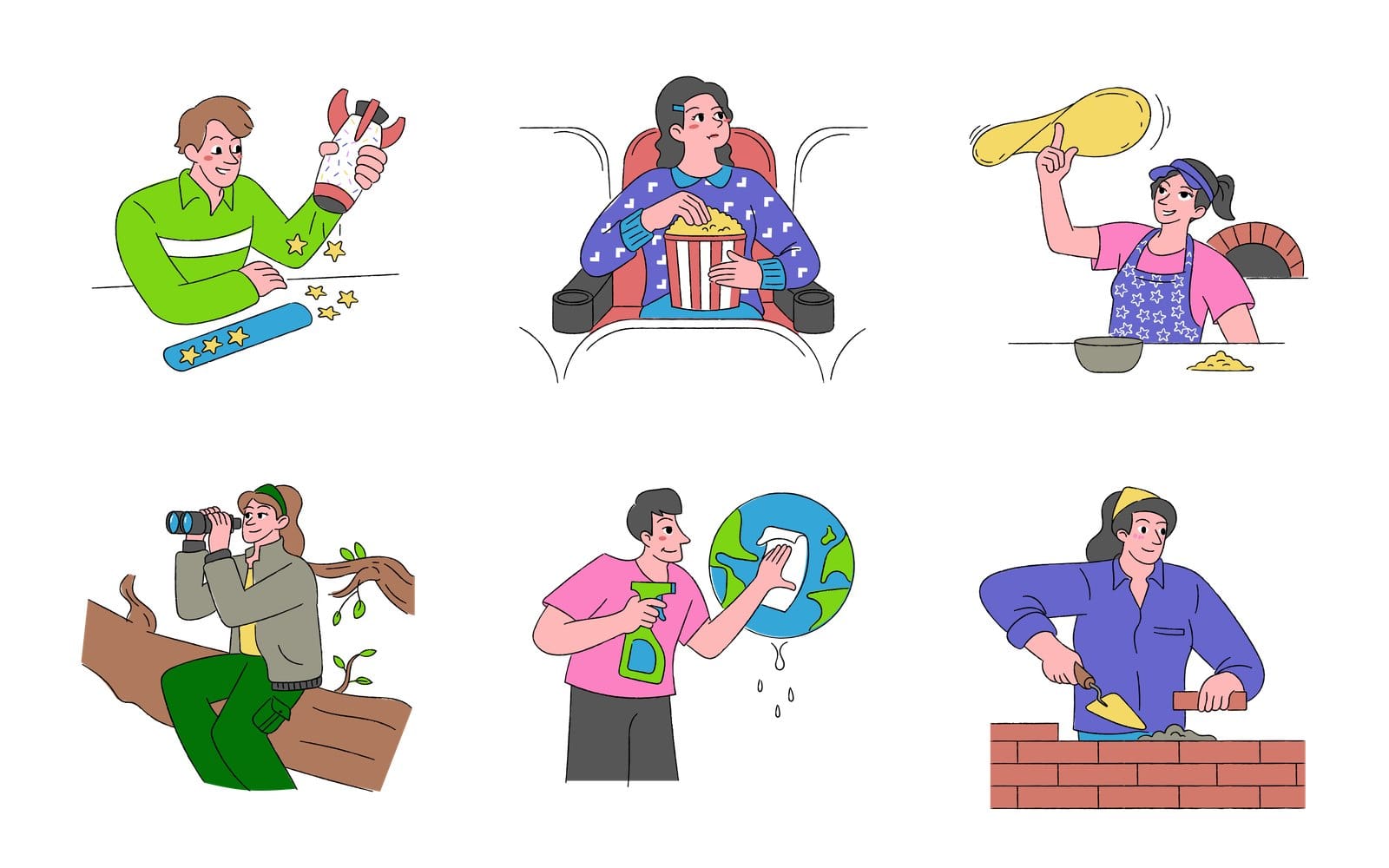
Step 2: drop the file or paste its code
On the editor page, drop the SVG in, pick it with "Choose a file", or paste the markup straight from your code editor. The editor collects colours from fill and stroke attributes, gradient stops and inline style attributes, and it always checks for paths that are black by default.
No file at hand? Press "Try it on a sample" and the editor loads one for you. Hex, RGB, HSL and named colours are all read, and each one shows up as hex for editing.
Step 3: click a swatch and type your hex
Under "Colours found" you get one swatch per colour. Click the green, type your brand hex, and every shape that used that green changes at once. The black outline in the Doodle Pop file gets a swatch of its own too, so softening the lines to a dark navy is one more swap.
Changed your mind? "Reset colours" puts every value back to what it was when the file loaded, so you can experiment without keeping a backup copy.
Step 4: download SVG, PNG or copy the code
"Download SVG" gives you the file back with your new colours written in, while paths, groups, ids and gradients stay exactly as they were. "Download PNG" renders the recoloured artwork, and ticking "Custom size" lets you type an exact width and height in pixels first. "Copy the SVG code" is the one I use most, because the markup drops straight into a Webflow embed or inline in a page.
What the editor does not do
Two limits worth knowing before you rely on it. The editor reads inline style attributes but not class rules in a style block, so an Illustrator export that colours shapes through classes can show fewer swatches than the artwork has. If that happens, open the file in a text editor, copy each class colour onto its shapes as a fill attribute, and load it again.
The other point is about your file. Every SVG you drop, pick or paste into the editor is copied to our server the moment it arrives, so treat it like any other upload and keep confidential artwork for a local tool.
How to change SVG color with CSS
For anything that lives in a web page, CSS is the better route, because the colour then follows your theme instead of being baked into the file. These are the patterns I reach for, in the order I'd try them.
Inline the SVG and set fill or stroke
Paste the SVG markup directly into your HTML instead of linking it. Now the paths are part of the document, and a rule like .icon path { fill: #FF7A45 } works the same as styling any other element. Line icons use stroke rather than fill, so check which one the file sets before you write the rule.
One catch: a fill attribute on the path beats any colour it would inherit from its parent, though a CSS rule aimed at the path itself beats the attribute. If your rule still changes nothing, look for an inline style on the path, which outranks your stylesheet, and delete it.
Use currentColor so the icon follows the text
The cleanest trick in the box is fill="currentColor" on the path. MDN describes currentColor as the value of the element's own color property, which means the icon takes whatever text colour its parent has. Put the icon inside a link, style the link's color, and the icon matches with no extra rule.

That's the effect in the mockup above: four small bot illustrations from our library in a dark settings menu, all in one pale accent, with the hovered one brighter. Built with currentColor, that's one colour declaration on the nav and none on the icons.
Change SVG color on hover and in dark mode
With currentColor in place, hover is a single line: .nav a:hover { color: #84D822 } and the icon brightens with the label. Dark mode works the same way. If you toggle a dark class on the body, write .dark .nav a { color: #e5e7eb } and every icon in the nav follows.
Without currentColor you'd target the path directly, .icon:hover path { fill: #84D822 }, which also works but means one rule per icon colour. Add transition: fill 150ms on the path if you want the change to ease rather than snap.
Change SVG color in Tailwind with fill current
Tailwind ships two utilities for this, fill current and stroke current, each written with a hyphen joining the two words. Each one sets the SVG's fill or stroke to the current text colour, so you pair it with a text colour class on the parent and a hover text class for the state. Nothing to configure, and the icon colour lives in the same place as every other colour in the component.
The img tag: inline it or use a CSS mask
If the icon must stay an img tag, you have two options. The first is to inline it after all, which is what I'd do for anything under a few kilobytes. The second is a CSS mask: give a div the icon as its mask with mask: url(icon.svg), set its size and position, and paint the div with background: currentColor so it picks up the text colour like an inline icon would.
The mask route keeps the file external and cacheable, but it throws away any colour inside the SVG, so it only suits single colour icons. If you still support older browsers, add the webkit prefixed version of the mask property next to the standard one.
How to change SVG color in Figma
Figma is the fastest route when you have a dozen files to recolour and no code in sight. The labels below are from Figma's help pages as of October 2026.
Import the SVG and it becomes an editable vector layer
Drag the file onto the canvas and Figma converts the SVG into vector layers, so the artwork is as editable as something you drew in Figma itself. If a shape comes in black when it shouldn't, it's probably the default black case again, and you give it a fill like any other layer.
Select the whole group and use Selection colors
Select the imported artwork and look at the right sidebar. The "Selection colors" section lists each distinct fill once, no matter how many layers use it, with a swatch and a hex field beside each. Change the hex there and every layer with that colour updates together, which is the same idea as the online editor's swatches.
Click the target icon to pick every layer that uses one colour
Hover a colour in Selection colors and a small target icon appears. Clicking it selects every layer using that colour, handy when you want to apply a gradient or an effect rather than a flat swap. Once you're done, select the artwork again, pick SVG in the Export section of the right sidebar, and the recoloured file is back in your downloads folder.
How to change SVG color in Canva
Canva can recolour an uploaded SVG, but with less control than Figma, and the behaviour depends on how the file was built. Here's what works as of October 2026.
Upload the SVG and click the swatches in the toolbar
Upload the file through the Uploads tab and drag it onto the design. Select it, and the colours Canva found appear as small swatches in the toolbar above the canvas. Click one, pick a new colour, and that colour changes across the artwork.
Canva's help says uploaded SVG shapes can be resized or recoloured, but corners, strokes and the shape itself can't be edited.
When no swatches appear
Some files show no swatches at all. Canva's help doesn't list the reasons, so treat these as suspects rather than rules: colours set through class rules in a style block, or a gradient Canva can't map.
The quick fix is to recolour the file in the online editor first, download the SVG, and upload that version, so Canva only needs to display it. If the colours sit in a style block, move them onto the shapes in a text editor before you start, because the online editor can't see them either.
How to change SVG color in Webflow
Webflow has the img tag problem baked into its asset panel, and the workaround is the embed element. Webflow community threads report the same two facts repeatedly, so take them as community reports rather than official limits.
Image asset versus Embed element
An SVG uploaded as an image asset renders in an img tag, so CSS in the Designer cannot touch its colour. Paste the SVG markup into an Embed element instead and the paths become part of the page, which puts every CSS route above back on the table.
Replace the fill with currentColor before you paste
Before pasting, swap the hard coded fill for currentColor in the markup, then set the text colour on the embed's parent in the Designer. Hover and dark mode states then work through the normal style panel. Keep the embed short too: forum posts put the custom code cap at about 10,000 characters, so a detailed illustration may not fit and is better served as an image.
How to recolor a whole SVG illustration set to your brand palette
A single icon is one thing. The job that eats an afternoon is a pack of 40 illustrations that all need to land on your three brand colours, and that's where a little planning pays off.
Pick three brand hexes first
Decide on the exact hex values before you open a single file. Two main colours and an accent cover most flat illustration styles, and black outlines can usually stay black. If you're starting from scratch, the colour theory guide walks through building a palette from a wheel, and the swatch card in the feature picture at the top shows one such set: #84D822, #5BC8FF and #FF7A45.
Recolour one, then repeat the same swaps
Do the first illustration carefully and write down each swap, old hex to new hex. Then load the next file with "Load another SVG" and apply the same swaps in the same order. A pack is usually drawn from one shared palette, so most swatches in file two match file one, and the job turns mechanical after the first couple.
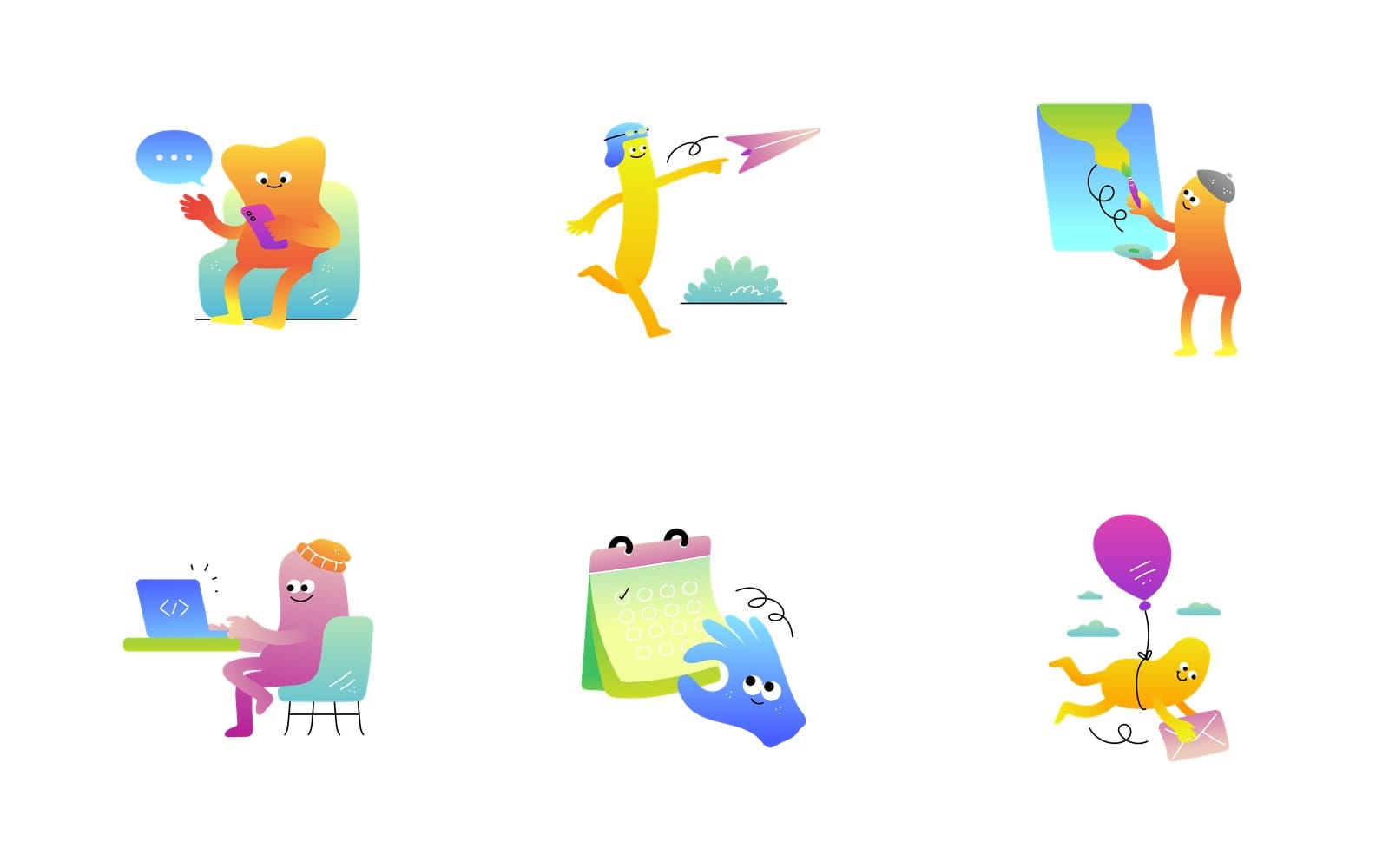
Gradient illustrations: change each stop and keep the shading
Gradient packs like the one above are the hard case. Every stop colour shows up as its own swatch in the editor, so a two stop gradient is two swaps, and a character with three gradients can mean six. Keep each light stop lighter and each dark stop darker than your new base colour, or the shading stops making sense.
| Your situation | Best route | Watch out for |
|---|---|---|
| A file to hand over, no code | The online SVG Color Editor | Class based colours in a style block show fewer swatches |
| An icon in a web page or app | Inline SVG plus currentColor | A hard coded fill attribute overrides inherited colour |
| An icon you must keep as an img tag | A CSS mask painted with your colour | Only single colour icons, older browsers need the webkit prefix |
| A whole pack to rebrand | Figma's Selection colors, or the editor file by file | Every gradient stop colour is its own swap |
| A Canva or Webflow design | Recolour online first, then upload or embed | Style block colours need moving first, and forum posts cap Webflow embeds at about 10,000 characters |
Can you use a recoloured SVG commercially
Changing the colours doesn't change the licence. Whatever terms came with the file still apply to the orange version, so check them before the recoloured artwork lands on a client's site.
Free packs: commercial use with a visible credit link
Our free packs can go into commercial projects as long as you add a visible credit, something like "Illustrations by GetIllustrations.com", linking back to our site. Recolouring doesn't lift that condition, so the orange version needs the credit too.
Paid licences remove the attribution
If a credit link is impossible, say on a client's product page, a paid licence removes the attribution requirement. The full wording, including what each licence covers, is on the license page.
Every illustration begins with a human illustrator
Since AI comes up whenever people talk about recolouring artwork: every illustration in the GetIllustrations library begins with a human illustrator. Four packs carry a "Remixed by AI" label so you can tell them apart, and our SVG files are built from separate shapes, which is why a colour swap holds up. Machine generated art tends to arrive as one flattened raster, with no shapes for a colour editor to grab.
Questions about changing SVG colors
Why does my SVG not change color with CSS?
Most of the time the SVG is loaded with an img tag or as a background image, so page CSS can't reach inside it. Inline the markup or use a CSS mask. If it is inline and still stuck, an inline style on the path is outranking your rule, or a fill attribute on the path is blocking the colour you set on its parent.
How do I change the color of an SVG in an img tag?
You can't, directly. Either recolour the file itself with the online editor and save a new copy, or swap the img for a CSS mask painted with your colour. For a single colour icon the mask is quick and keeps caching intact.
How do I change SVG color on hover?
Set the path's fill to currentColor, then write a hover rule on the parent that changes its color property. One rule handles the label and the icon together, and the same approach powers dark mode and active states.
Why can I not change the SVG color in Canva?
Canva only shows swatches for colours it can map, and its help doesn't say which files fall outside that. Colours set through a style block and complex gradients are the usual suspects. Move any style block colours onto the shapes in a text editor, recolour the file online, then upload the new SVG so Canva only has to display it.
Does recolouring an SVG online lose quality?
No. An SVG is drawn from shapes rather than pixels, and the editor only changes colour values, so the downloaded SVG stays as sharp as the original at any size. Quality only enters the picture if you export a PNG, and the "Custom size" option lets you pick a width large enough for the job.
Grab a free pack, settle on your three hexes and recolour the first file carefully. Everything after that is the same list of swaps on repeat.