
How to Design a Black Friday Sale Banner With Illustrations (Hero, Announcement Bar, Email and Instagram Sizes)
Black Friday sale banner design, step by step: one illustration pack, recoloured to your brand, contrast checked, then hero, email and Instagram sizes.

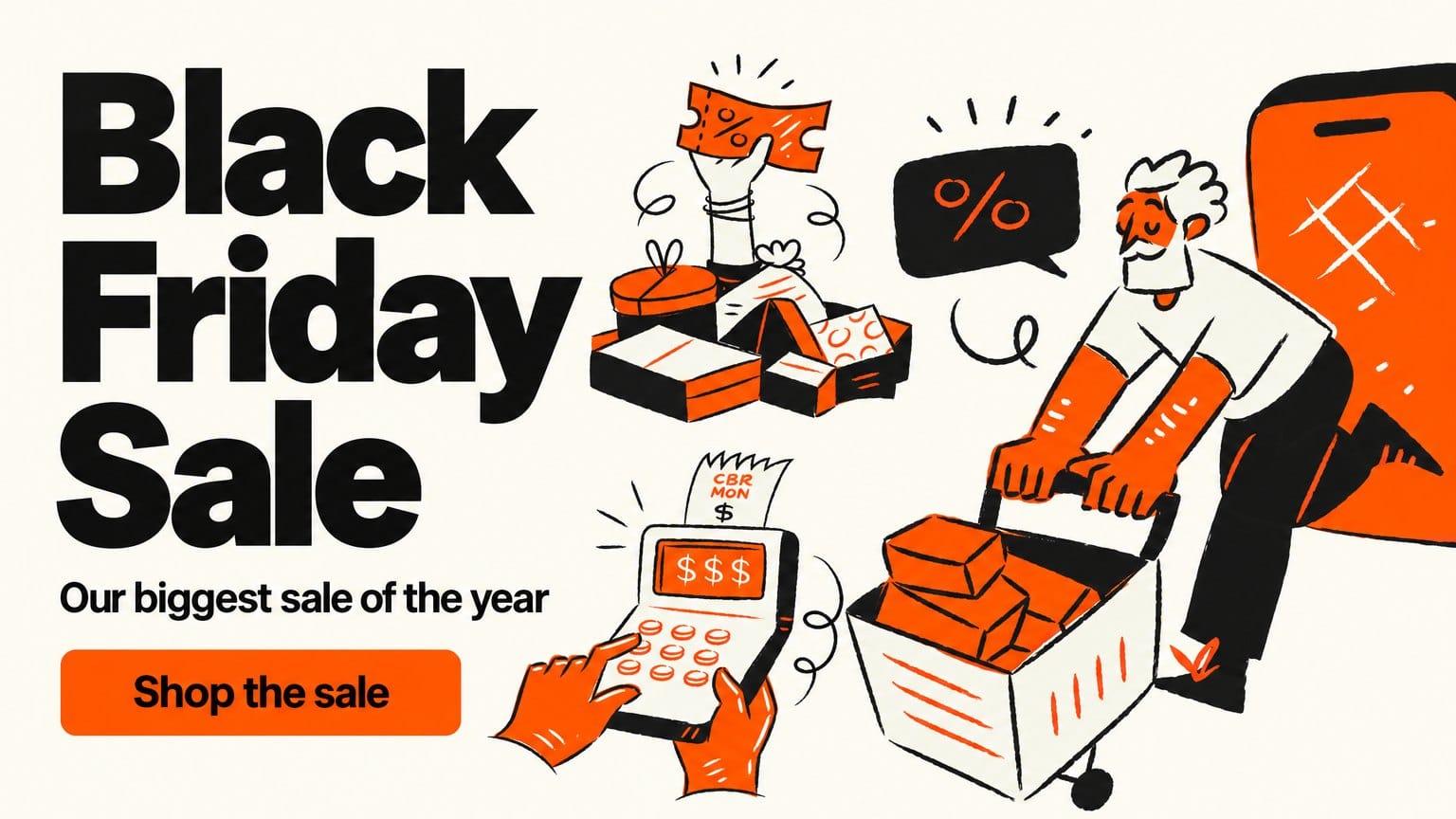
It's the first week of November and the brief lands: a homepage hero, an announcement bar, an email header, an Instagram post and a story for Black Friday, all due Friday. You open a template gallery and every result is the same black rectangle with neon yellow type and a Shop Now button. None of it looks like your brand, and the sale starts in three weeks.
This guide takes another route to Black Friday sale banner design. You pick one sale illustration pack, decide whether to recolour it or keep its finish, check the contrast, then lay the same artwork into the five files a campaign ships. It works in Figma, Canva, Webflow or whatever you build in, and it starts with a pack from our illustration packs, where every drawing begins with a human illustrator.
What makes a Black Friday sale banner work
Five parts and nothing else
A sale banner needs the offer, the deadline, one button, one picture and your brand colours. That's the whole list. Everything you add after that competes with the discount for attention, and the weak banners I see tend to have three pictures and no deadline.
The number is the headline and the illustration is the mood
The offer does the selling, so set it in the largest type on the banner. The illustration sets the tone before anyone reads a word, which is why a hand drawn shopper and a neon starburst sell the same discount to two different crowds. Keep the artwork out of the text column so the two never fight.
The mockups in this guide say Black Friday Sale where your number goes. They're layouts, not a live offer, so read the big black type as the place your discount lands.
Why the phone crop matters more than the desktop one
US shoppers spent 11.8 billion dollars online on Black Friday 2025, up 9.1 percent on the year, according to Adobe Analytics figures reported by Digital Commerce 360. Phones carried 6.5 billion of that, which is 55.2 percent. Test the phone version of your hero first, because that's where most of the buying happens.
How to choose a Black Friday illustration pack that fits your brand
Pick a pack, not a single image, so every size shares one style
One stock image gets you one banner. A pack gets you a shopper for the hero, a coupon for the announcement bar, a cash register for the email and the same shopper again for the Instagram post, all in one style and one palette. The hero above the title is built from three pieces of Aurora Black Friday: a white haired shopper pushing a cart of boxes under a percent speech bubble, a hand holding up a coupon above a pile of gift boxes, and two hands tapping a cash register, every one in the same orange and black.
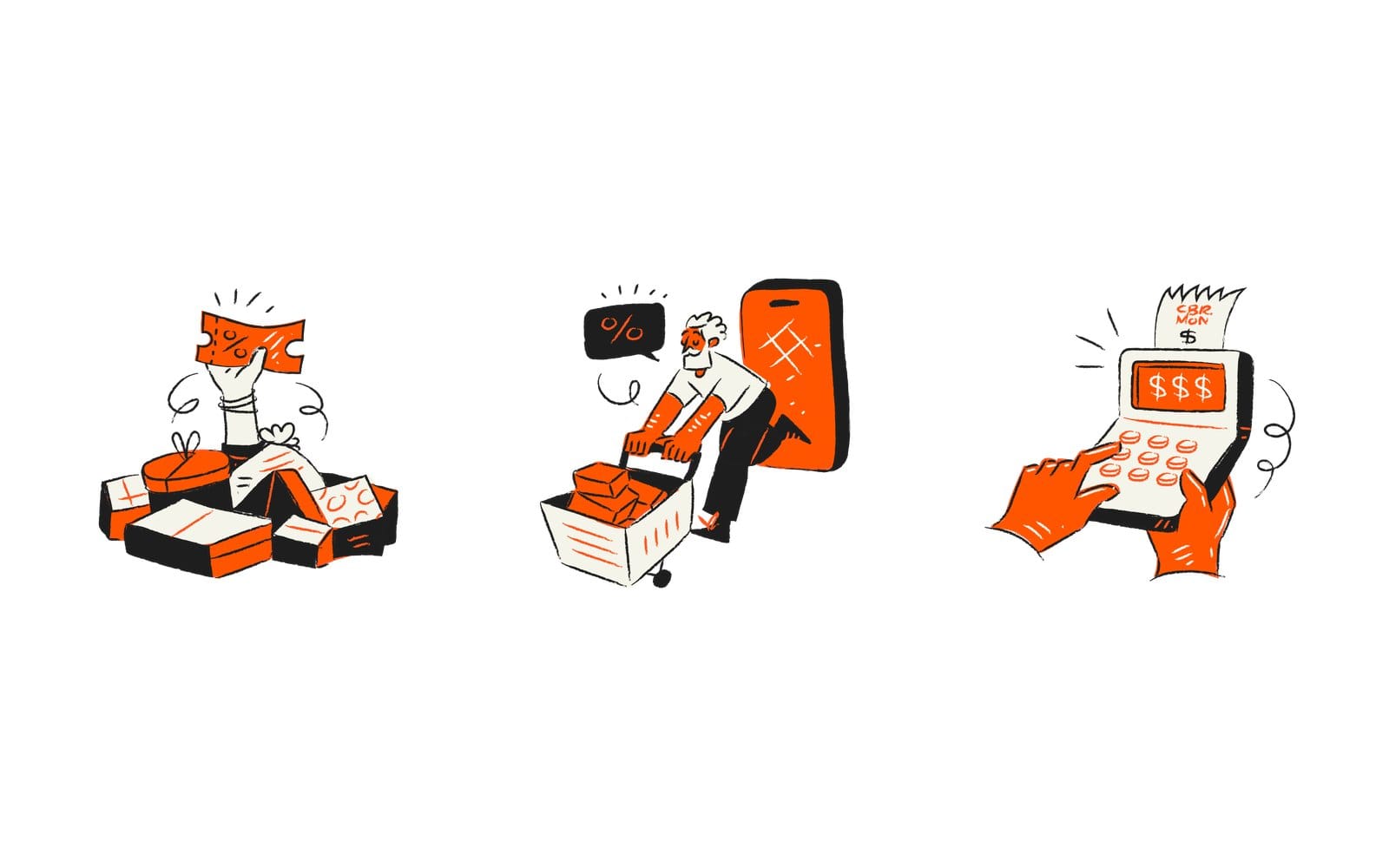
Those are the three on white, before they're placed anywhere. The pack holds 25 Black Friday and Cyber Monday pieces in that hand drawn halftone style, in AI, SVG and PNG, so the three in the hero leave 22 more for the rest of the campaign.
The sale subjects to look for in a pack
- A megaphone or a horn, for the announcement and the hero.
- A percent sign, a coupon or a price tag, for the offer itself and the announcement bar.
- An hourglass, a clock or a calendar, for the deadline and the last day email.
- A shopper with a cart or a bag, for the hero, the post and the product cards.
- A cash register or a delivery figure, for the email header and the shipping promise.
Match the style to the store
A hand drawn style like Aurora reads as energy, which suits a store that wants the sale to feel like an event rather than a markdown. Colourful flat styles suit retail and consumer apps, where the colour does the work. Outline and single colour styles suit SaaS and B2B, where a loud sale can feel out of character.
For a software sale there's also Flagship Chapter 1, a set of SaaS illustrations with a coupon on a phone, an hourglass, a megaphone and a delivery runner in it. It's drawn in a gradient style, so expect more swaps when you recolour it.
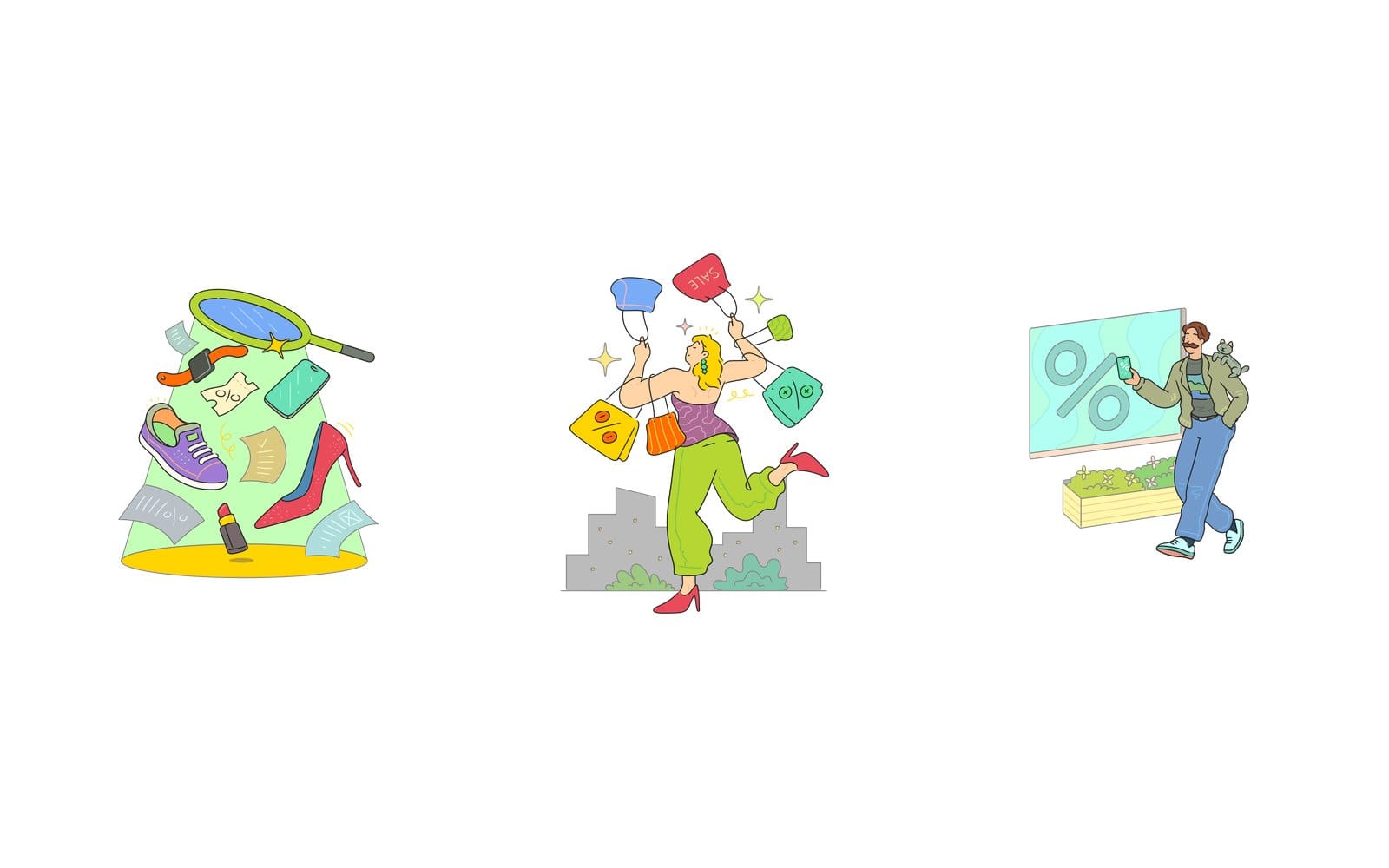
The three above are the colourful retail option, from a limited pack drawn in one palette: sale items under a magnifying glass, a shopper swinging bags marked sale, and a man with a cat on his shoulder in front of a giant percent sign. The same lime and teal turn up in all three, and the coral and purple in the first two. That repetition is what you're shopping for, because it's what makes the recolouring step later take minutes rather than an afternoon.
Where to find Black Friday sale illustrations
Three packs in the library were drawn for Black Friday itself, 25 illustrations each: Aurora Black Friday in a halftone style, Hannah Black Friday in bold outline, and Grain Shopping with carts, deliveries and discounts. Goodle Shopping and Magic adds 50 more, and Color Shopping is one more shopping set to compare. Across the whole library 299 illustrations are tagged sale or discount as I write this, so try those two words in the illustration search, or browse by style on the illustration packs page.
How to recolour a sale illustration to your brand colours
The free SVG Color Editor does this in the browser. Drop the SVG in, click a colour, type a new hex code and download. One thing to know before you start: a copy of every file you drop in is sent to our server, and the same goes for anything you upload to the Design Studio later.
Open the SVG in the SVG Color Editor, click a colour, type the hex
- Open the SVG Color Editor and drop in one SVG from the pack.
- Click a colour you want to change and type the hex from your brand guide, say your navy for the line colour.
- Repeat for the remaining colours. A flat pack with a shared palette usually needs a handful of swaps per piece.
- Press Download SVG to keep it vector, or tick Custom size, type a width and height and press Download PNG for a raster at exactly that size.
- Press Load another SVG and make the same swaps on the next piece. Reset colours takes you back to the original if a swap goes wrong.
Write the swaps down and repeat them on every piece
The editor's own use cases call this recolouring a whole set: packs share a palette, so the same swaps make every piece match. Write them down as a list, old hex to new hex, and apply them in the same order to each illustration. With the list beside you, every piece after the first is mostly typing.
Make a dark version for the hero and a light version for email
If your hero sits on a dark brand colour and your email sits on white, each piece needs two versions. Swap the line colour to a pale tint for the dark background and keep the darker line for the light one, then save both files with the background in the name. The editor's use cases call this a campaign colourway, a seasonal variant of the same artwork.
Check text contrast with the Contrast Checker on the Color Wheel page
Open the Color Wheel page, switch to the Contrast Checker tab, enter the text colour and the background colour, and read the four badges: AA Normal at 4.5 to 1, AA Large at 3 to 1, AAA Normal at 7 to 1 and AAA Large at 4.5 to 1. WebAIM explains where the numbers come from: WCAG level AA asks for 4.5 to 1 on normal text, and 3 to 1 on large text, buttons and meaningful graphics. Large means 18 point, or 14 point bold.
What the editor cannot do
It works on SVG files only, so a PNG or JPG won't open, and a raster image embedded inside an SVG stays as it is. Gradients are two or more colours per shape, so a gradient pack means more swaps and a check on both backgrounds.
Aurora is the easy case, with one orange, one black and a pale cream fill: the orange becomes your accent, the black your darkest brand colour, the cream your lightest, and that's a piece done. A texture in another tint, or a gradient, means more colours to swap, so count them in one piece before you commit to the whole pack. And if you like the pack's own palette, do what the mockups in this guide do and keep it, carrying your brand colour in the background and the type instead.
Black Friday banner sizes for the hero, announcement bar, email and Instagram
These are the sizes I'd build in 2026. The Instagram and email numbers come from third party guides and common practice, not from the platforms' own documentation, so check them against your email tool and your theme before you export.
| Placement | Design size in pixels | Shown at | What to watch |
|---|---|---|---|
| Homepage hero | 1920 by 600 | Full width, stacked or cropped on phones | Offer and button in the left 40 percent |
| Announcement bar | 1920 by 48, as a mockup | 48 pixels tall on desktop | Export only the 24 pixel icon, the text stays live HTML |
| Email header | 1200 by 400 | 600 pixels wide in the inbox | About 200 KB, offer in live text under it |
| Instagram post | 1080 by 1080 | Square in the feed | 1080 by 1350 portrait takes more of the screen |
| Instagram story | 1080 by 1920 | Full phone screen | Keep the top and bottom clear for the interface |
One master artboard, five files
Set up one 1920 by 600 artboard with the illustration on the right and the text on the left, and build the other sizes from it. The square post and the story reuse the same illustration and type with the text moved above or below the artwork. The announcement bar borrows one small element from the same pack, never the full scene.
Export PNG at a typed size, or SVG where the platform takes it
For the illustration on its own, tick Custom size in the SVG Color Editor, type the width and height it fills in your layout, and Download PNG renders at exactly that size. The finished banner with its type comes out of whatever you laid it out in. On your own site keep the SVG and let it scale, but email clients and Instagram want PNG or JPG at the design size.
How to design a Black Friday website hero banner
Offer and button in the left 40 percent, illustration bleeding off the right
Keep the headline, the deadline line and the single button in the left 40 percent. Give the illustration the right 60 percent and let it run off the edge a little, which reads as confident rather than pasted on. Make the button the highest contrast element on the banner, well above the 3 to 1 that WCAG asks of buttons.
The hero above the title is that layout. Black Friday Sale sits in the left column with one line under it and a single orange button reading Shop the sale, the shopper and his cart fill the right side with a giant orange phone behind him running off the edge, and the coupon and the cash register sit between the text and the shopper, all on cream. It's a mockup we built from the Aurora pieces, not a live store, so put its orange and cream through the Contrast Checker before you copy them.
Use your brand background, not default black
Black with yellow is the template look. If your brand is navy, use navy. If it's cream, a cream Black Friday hero stands out because so few stores bother to make one, and the hero at the top of this article is on cream for exactly that reason: the orange and black artwork does the shouting, so the background doesn't have to.
Black Friday banner ideas that don't need black and neon
Each of these pairs one subject from a pack with your own background colour.
- A megaphone character on the right, turned toward the offer on the left, on your main brand colour.
- A shopper with bags walking in from the edge, for a store where the sale should feel fun.
- An hourglass or a clock beside the deadline line, saved for the last day.
- A delivery figure for the shipping deadline banner that follows the sale.
- A large percent sign drawn in the pack's style, sitting behind the offer number so the type stays on top.
Design for the phone stack and the side crop at the same time
Depending on your theme, a phone either stacks the hero, text first and illustration under it, or crops the wide image from the sides. Design the illustration so it still reads at about 360 pixels wide and survives losing a slice off either edge. Test it at phone width in the browser before sign off, not after.
How to design a Black Friday announcement bar
One line, one 24 pixel icon from the same pack, one link
On most stores the bar sits on every page, which makes it the hardest working row of pixels in the campaign. Make it 48 pixels tall on desktop with a 24 pixel icon from the same pack, the coupon or the percent sign, and one link to the sale page. On phones let the text wrap to two lines and no more, and if it needs three, cut words.
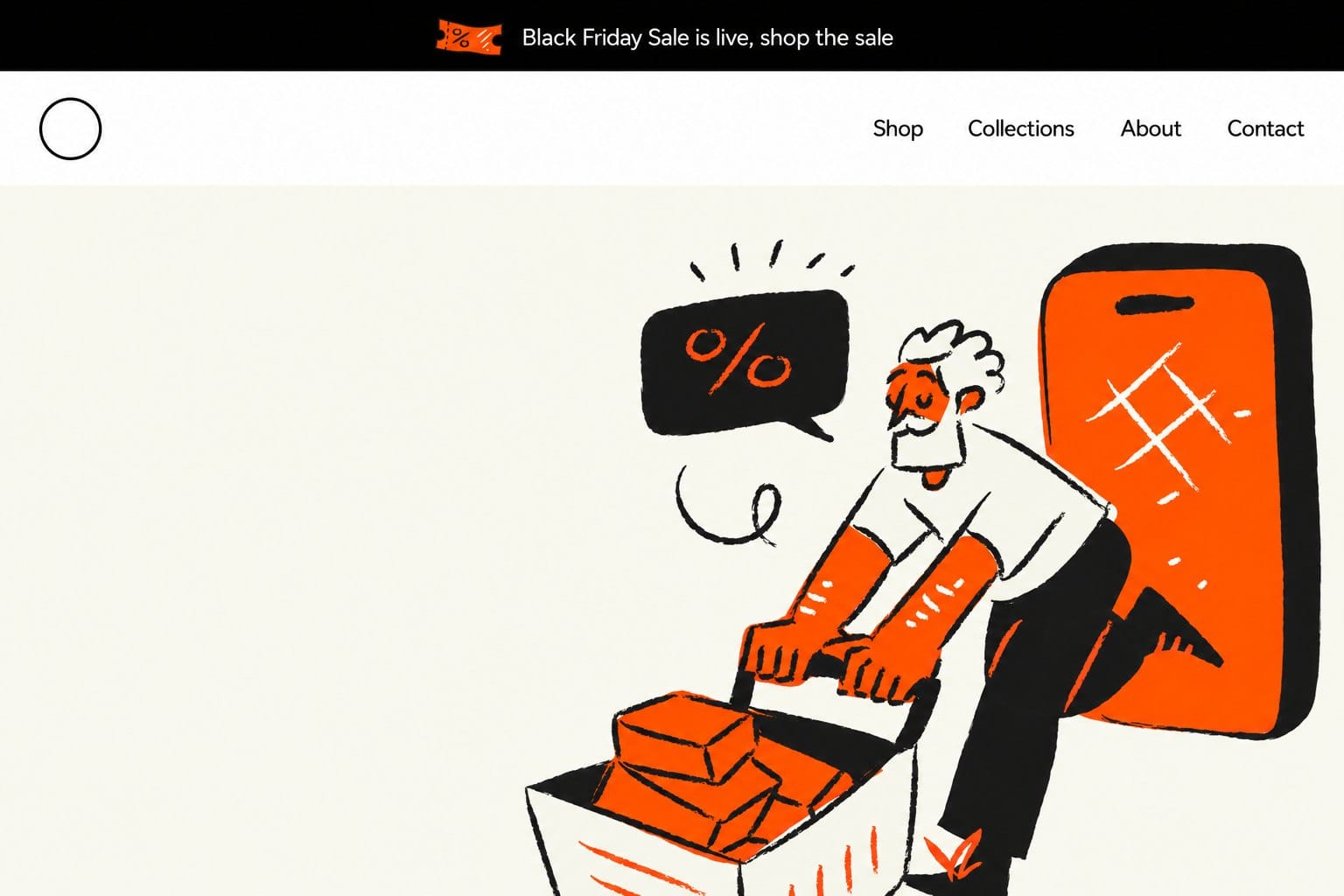
That's the bar and the hero together: a black strip across the top with the small orange coupon from the pack and one white line, Black Friday Sale is live, shop the sale, then the store's own navigation, then the cream hero with the same shopper. The bar borrows one element and the hero gets the full scene. Its line only says the sale is on and links to it, and leaves the offer to the hero.
Live text in the theme, not an image
The bar's text should be HTML in your theme, not a picture, so it stays sharp and screen readers can read it. That makes the 1920 by 48 in the table a mockup size for checking the bar against the hero. The only file you export for the bar is the icon.
A close button, and a countdown only if the deadline is real
Give people a close button. Add a countdown only if the sale ends when the clock hits zero, because a timer that resets at midnight is the fastest way to lose trust I know. Count down to the moment your offer ends, which is midnight at the end of November 27 if you run Black Friday alone, or later if you run the whole week.
How to design a Black Friday email header
Design at 1200 wide and display at 600
Most email templates are built 600 to 640 pixels wide because of Outlook on Windows, as Tabular's email size guide explains. Design the header at twice the width, 1200 pixels for a 600 display, so it stays sharp on high resolution screens, then set the image's width attribute to 600 in the HTML. If you build it in the Design Studio, type 1200 by 400 as a custom size rather than starting from the Email Header preset, which is 600 by 200.
Put the offer in live text under the image
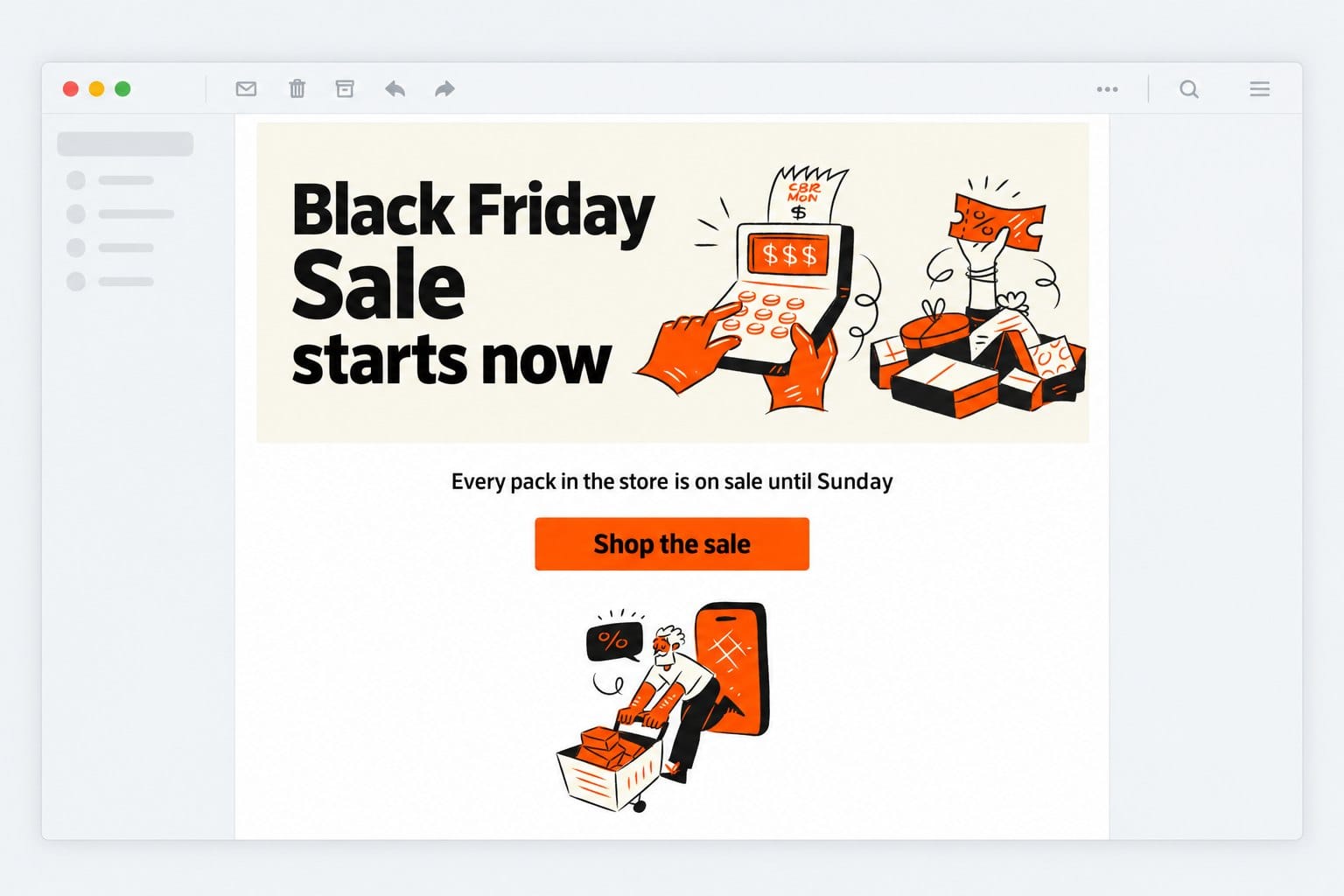
The mockup email above is built the way this section describes. Its cream header image carries the words Black Friday Sale starts now beside the cash register and the coupon, then comes a line of live text, Every pack in the store is on sale until Sunday, then one orange button, then the small shopper at the foot of the email. A sale name can live in the picture, but the offer line can't.
Some email clients hold back images until the reader chooses to load them. If the discount lives inside the header image, those readers see an empty box where the offer should be. Put the illustration in the image, the offer in live text under it, and the offer again in the image's alt text.
Keep the image near 200 KB and the HTML under 102 KB
Aim for about 200 KB per image and keep the whole email's HTML under 102 KB, because Gmail clips messages over that limit. A flat recoloured illustration at 1200 by 400 should come in well under that 200 KB target, but check the file size before you send. The HTML limit is about your template, not the picture, so trim unused table rows there.
How to design a Black Friday Instagram post and story
What size is a Black Friday Instagram post and story
The feed takes 1080 by 1080 square or 1080 by 1350 portrait, and stories and reels are 1080 by 1920, according to Hopper HQ's dimensions guide. Those are a third party's numbers, so treat them as a starting point. In the Design Studio the presets are called Instagram Promo at 1080 by 1080 and Story Gradient at 1080 by 1920, or you can type any size, which is how you'd get the 1080 by 1350 portrait.
Same recoloured SVG, headline above or below the artwork
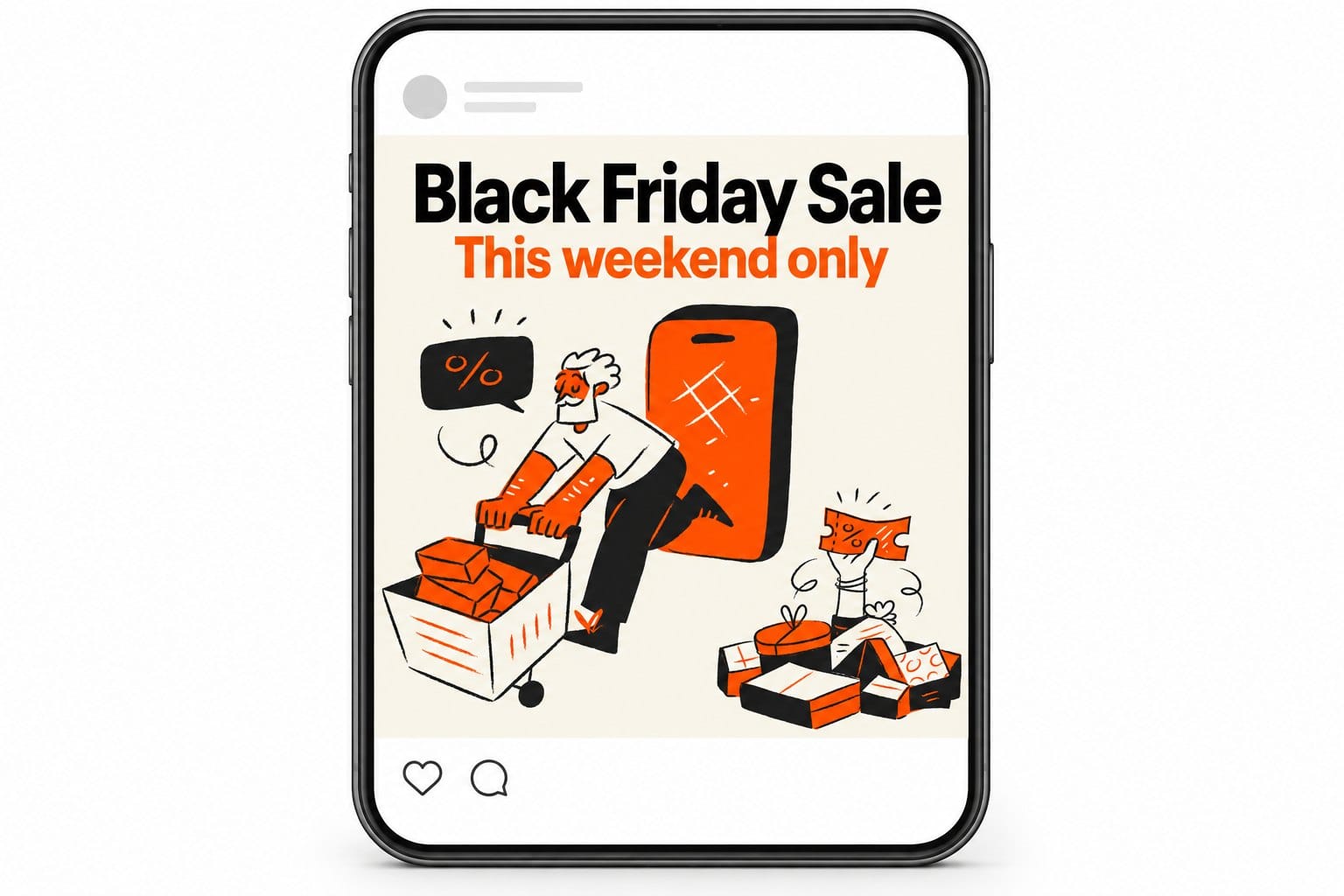
The post above is the square one. Black Friday Sale runs across the top in black with This weekend only in orange under it, and the shopper, the coupon and the gift boxes fill the lower two thirds, on the same cream as the hero. It's the hero's artwork rearranged, with the headline above it instead of beside it.
Upload the recoloured SVG, add the offer in a pairing from the font pairing tool, and export PNG. The studio exports at 1x on the free tier and up to 4x on Premium, plus SVG and PDF, and the full illustration library inside it needs Premium too. It won't resize one design into every size for you, so build the post and the story as two canvases.
Keep the top and bottom of the story clear
Instagram draws the account name over the top of a story and the reply bar over the bottom. Keep the offer and the illustration in the middle band and nothing important near either edge. Stories are tall, so a single figure like the shopper with his cart fills the frame better than a wide scene.
How to ship a Black Friday banner set in one week
| Day | Do | Done when |
|---|---|---|
| Monday | Pick the pack, write the colour swaps as old hex to new hex | One pack chosen, swaps on paper |
| Tuesday | Recolour every piece in the SVG Color Editor, check contrast on the Color Wheel page | Dark and light versions saved, every text pair at 4.5 to 1 |
| Wednesday | Build the 1920 by 600 hero and the announcement bar icon | Hero reads at 360 pixels wide |
| Thursday | Email header, Instagram post and story from the same artboard | Header under 200 KB, offer in live text |
| Friday | Phone test, images blocked test, schedule the bar, the hero and the email | Everything scheduled before you leave |
Why the hero comes first
Every other file is a crop or a rearrangement of the hero, so it has to exist before they can. The phone test on Friday then catches the one crop you forgot.
What to do when the Black Friday banner goes wrong
The recoloured illustration shows a colour you never picked
A gradient or an embedded raster is almost always the cause. Open the file again, look for a shape with two colours, and swap both, or pick a flatter piece from the same pack.
The hero looks great on desktop and broken on a phone
Your theme is cropping from the sides and the illustration's main subject sat at the edge. Move the subject toward the centre of the right column, or export a second file for the phone hero at about 720 wide.
The offer disappears in email
It was baked into the image and the reader has images off. Move it to live text under the header, and put it in the alt text as well.
The contrast check fails on your brand colour
Don't change the brand colour, change where the text sits. Put the text on a solid block of your darkest or lightest brand colour, or move the line that fails up to the large text size, where 3 to 1 is enough.
Black Friday banner mistakes to avoid
The five I see every November
- Black and neon yellow because the template did it. Your own colours are what make the banner look like your store.
- A countdown that resets. One real deadline beats a fake one every year.
- A different illustration style on each channel. The email, the hero and the story should look like one campaign.
- Text under 4.5 to 1 contrast on a dark background. Run it through the Contrast Checker first.
- The offer baked into the email image. Use live text, or the reader with images blocked never sees it.
Can you use stock illustrations in a Black Friday banner commercially
With a paid licence, yes. Our licence page lists marketing, social media and video among the permitted uses, and modify, adapt and recolour among the things you may do, so recolouring a pack for a sale is covered. No attribution is required on a paid licence, so there's no credit line to place anywhere.
What free illustrations need: a visible credit
Free packs use a separate Free License that covers personal and commercial use, as long as you give GetIllustrations a visible credit. It doesn't have to sit on the banner itself: the licence page suggests a line such as Illustrations by GetIllustrations.com, linked to our site, in your footer or on a credits page. If you'd rather not credit at all, a paid licence needs no credit, and the free illustrations are still the easiest way to try a style before you buy.
Every pack begins with a human illustrator, and what Remixed by AI means
Every illustration in the library begins with a human illustrator. Four packs carry a Remixed by AI label on their pack page, so you can see it before you buy and decide for yourself. We spell this out because a sale banner is one of the most public things a store puts out all year, and you should know what's in it.
Black Friday banner questions people ask
What size should a Black Friday banner be?
Build the hero at 1920 by 600 and mock up the announcement bar at 1920 by 48. The email header is 1200 by 400 shown at 600 wide, the Instagram post 1080 by 1080 or 1080 by 1350, and the story 1080 by 1920. Start from one master artboard and rework it, rather than designing five banners from scratch.
What colours work for a Black Friday banner besides black and yellow?
Your brand's own colours. Navy with lime or cream with terracotta reads as Black Friday the moment the offer and the deadline are on it. Whatever you choose, keep the text at 4.5 to 1 contrast or better.
Can I recolour an illustration I bought to match my brand?
Yes. The paid licence lists modify, adapt and recolour as permitted, and the SVG Color Editor does it in the browser. Keep the original SVG so you can go back.
How many banner files do I need for one Black Friday campaign?
Five is the realistic minimum: the hero, the announcement bar icon, the email header, the Instagram post and the story. If your theme doesn't crop the hero well on phones, a sixth file for the phone hero is worth the extra half hour.
When should a Black Friday banner go live on the website?
Black Friday 2026 is November 27. I'd put the announcement bar up on the Monday of that week, switch the hero on the evening before, and send the email on the morning itself. Plenty of stores run the whole week, so if you do, give the countdown the real end date rather than Friday.
Pick the pack this week, write your colour swaps down before you open the editor, and build the hero first. The other four files come out of it.