
How to Use Illustrations in a Presentation (PowerPoint, Google Slides and Keynote)
Illustrations for presentations: which file goes in PowerPoint, Google Slides and Keynote, the PNG width a 16:9 slide needs, and how to recolour a set.

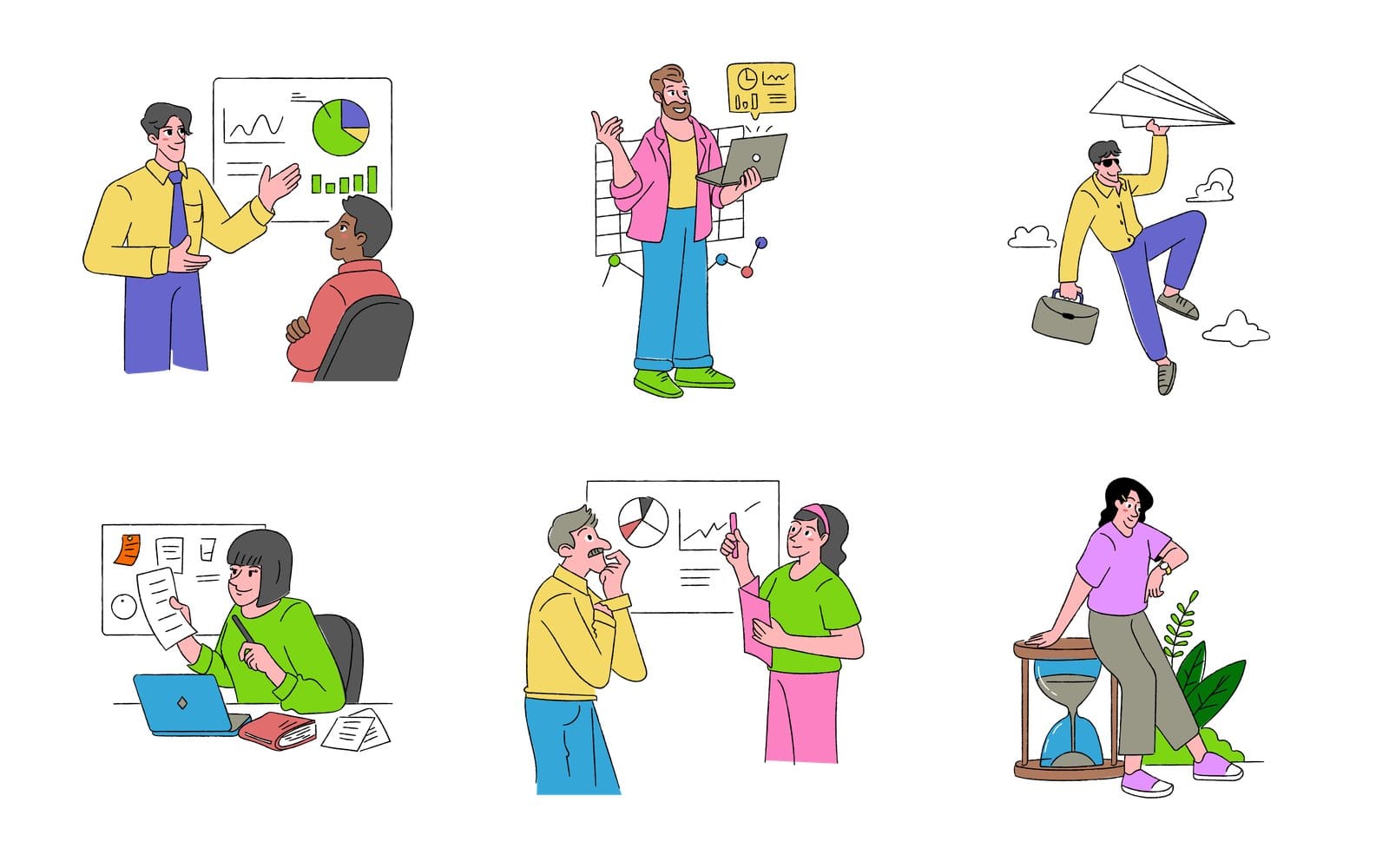
It's Thursday, the deck is due Friday, and slide 14 is still a wall of bullets. You go looking for something to break it up and come back with a rocket from one site, a flat character from another and an icon that matches neither. The deck now looks like three people made it.
This guide fixes that in one sitting. It covers illustrations for presentations in PowerPoint, Google Slides and Keynote: which file to drop in, what width a PNG needs on a 16:9 slide, how to recolour a whole set to your palette, and what happens to the artwork when the deck becomes a PDF. And since someone always asks who drew them, every illustration in the GetIllustrations library begins with a human illustrator, and the four packs remixed by AI carry a Remixed by AI mark on their covers.
Which illustrations work in a presentation
Pick one pack so every slide reads as one set
The biggest difference between a deck that looks designed and one that looks assembled is whether the drawings belong together. One pack means the same line weight and the same way of drawing a person, slide after slide, without you having to think about it. Mixing two packs is where the clip art look starts.
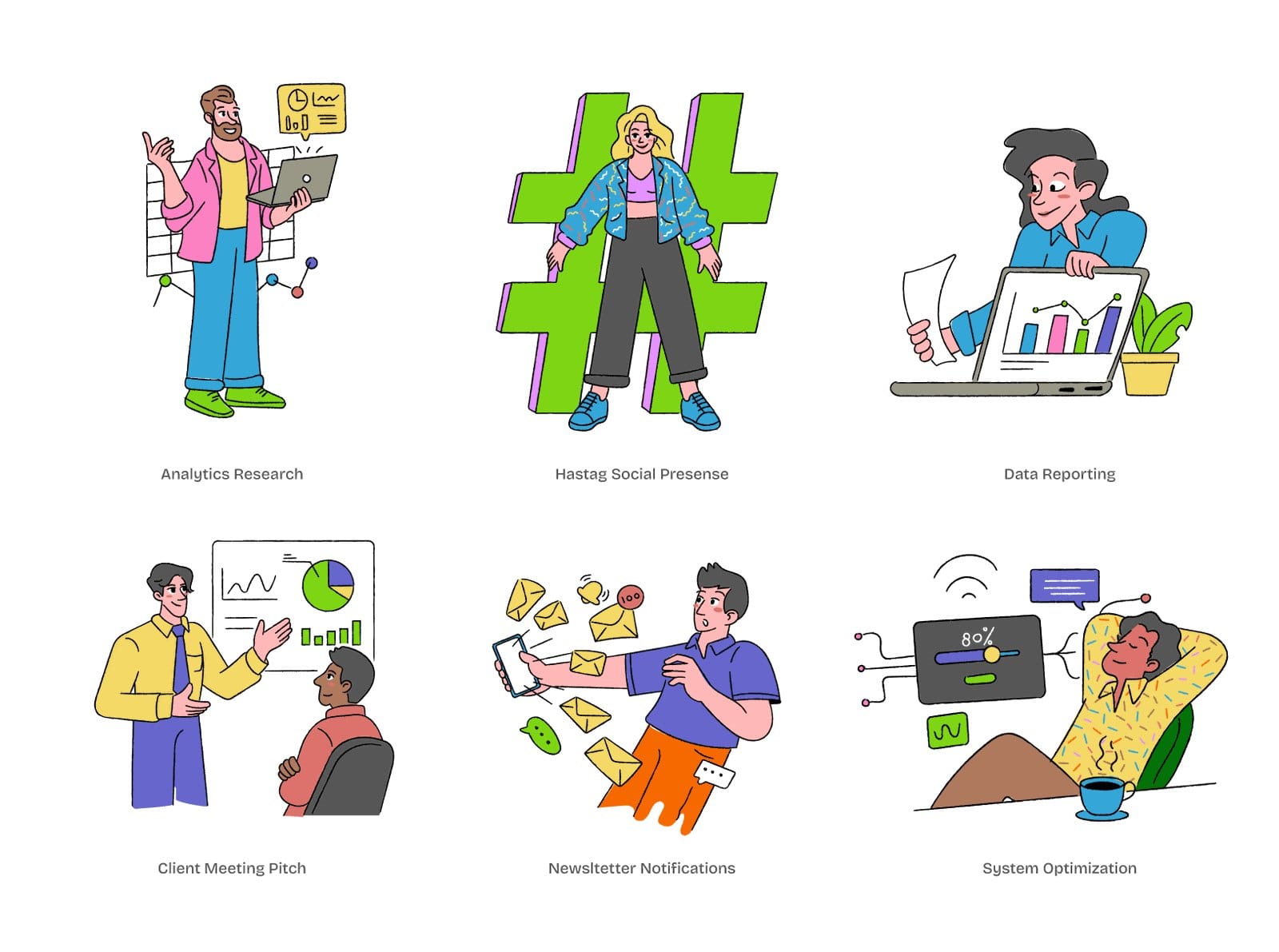
Take the Doodle Pop business set below. An analytics talk, a hashtag campaign, a report on a laptop, a client pitch, a newsletter blast and someone leaning back with a coffee, all in the same handful of colours. That's a title slide, an agenda, a results section and a closing slide covered before you've opened the app.
Match the drawing to the room: pitch, class or team review
A pitch to investors wants restraint: one drawing per section, big, with room around it. A class or school project can take more colour and more characters, because the audience is there to be kept awake. The team review sits in between, and that's where a small drawing beside each bullet earns its keep.
Style follows the same logic. In our experience flat and doodle styles read from the back of a room, while fine line drawings get lost on a projector unless they're large. If you're unsure, flat vector illustrations are the safe default for a business presentation.
Three ways to place an illustration on a slide
- Hero: one drawing filling the right half of a title or section slide, with the text on the left.
- Side panel: a drawing at about a third of the slide width beside a short list, in the same spot on every slide of that kind.
- Section divider: a single drawing centred on an otherwise empty slide, which gives the room a breath.
Pick two of the three and stick to them. The sameness is the point.
Should you use SVG or PNG for slides
What each download gives you
Each illustration on GetIllustrations downloads in three formats: SVG, PNG at 1x and PNG at 2x. The 1x PNG is up to 1020 px wide and the 2x up to 2040 px, and neither is ever upscaled past the source drawing. A pack page lists the formats that pack ships, such as SVG, PNG and often the Illustrator source, with a ZIP for each format.
SVG is the vector file, and it's the one you want wherever the app accepts it. It scales to any slide size without going soft, and PowerPoint and Keynote let you recolour it on the slide. PNG is the fallback, and a perfectly good one as long as you pick the right size.
Which file goes in which app
| App | Best file | Why |
|---|---|---|
| PowerPoint (Microsoft 365) | SVG | Inserts from Insert, Pictures, This Device and recolours in place with Graphics Fill or Convert to Shape |
| Google Slides | PNG at 2x (up to 2040 px) | Slides refuses SVG with Unsupported image type, and the 2x file stays sharp at half the slide width on a 4K screen |
| Keynote 13.1 or later | SVG | Drag it onto the slide, then Break Apart to recolour the parts as shapes |
| Any app, no recolouring | PNG at 2x | Lighter to handle than a complex SVG and looks the same on screen at normal sizes |
Short version: SVG in PowerPoint and Keynote, the 2x PNG in Google Slides. The rest of this guide is the detail.
When a PNG is the better choice even where SVG works
Some drawings have hundreds of paths, and a deck with thirty of them as SVG can make an older laptop crawl. If you're not going to recolour anything, the 2x PNG is lighter to work with and looks the same on screen at normal sizes. The same goes for a deck you're handing to someone who'll present from a machine you've never seen.
How to insert illustrations in PowerPoint
Insert, Pictures, This Device, then pick the SVG
- Download the SVG from the illustration page or the pack ZIP.
- In PowerPoint, go to Insert, Pictures, This Device and choose the SVG.
- Drag a corner handle to size it, which keeps the proportions.
- Put it in the same spot on every slide of that kind, as in the layouts above.
That's how you insert an SVG in PowerPoint for Microsoft 365 on Windows and Mac, which is what Microsoft documents for SVG. Anywhere else, the 2x PNG is the safe bet.
Recolour the whole drawing from Graphics Fill
Select the SVG and look for Graphics Fill on the Graphics Format tab. Pick a colour there and every filled part of the drawing turns that one colour, which suits a silhouette behind text or a drawing that only ever had one colour. If your ribbon doesn't show it, Convert to Shape below gets you there part by part.
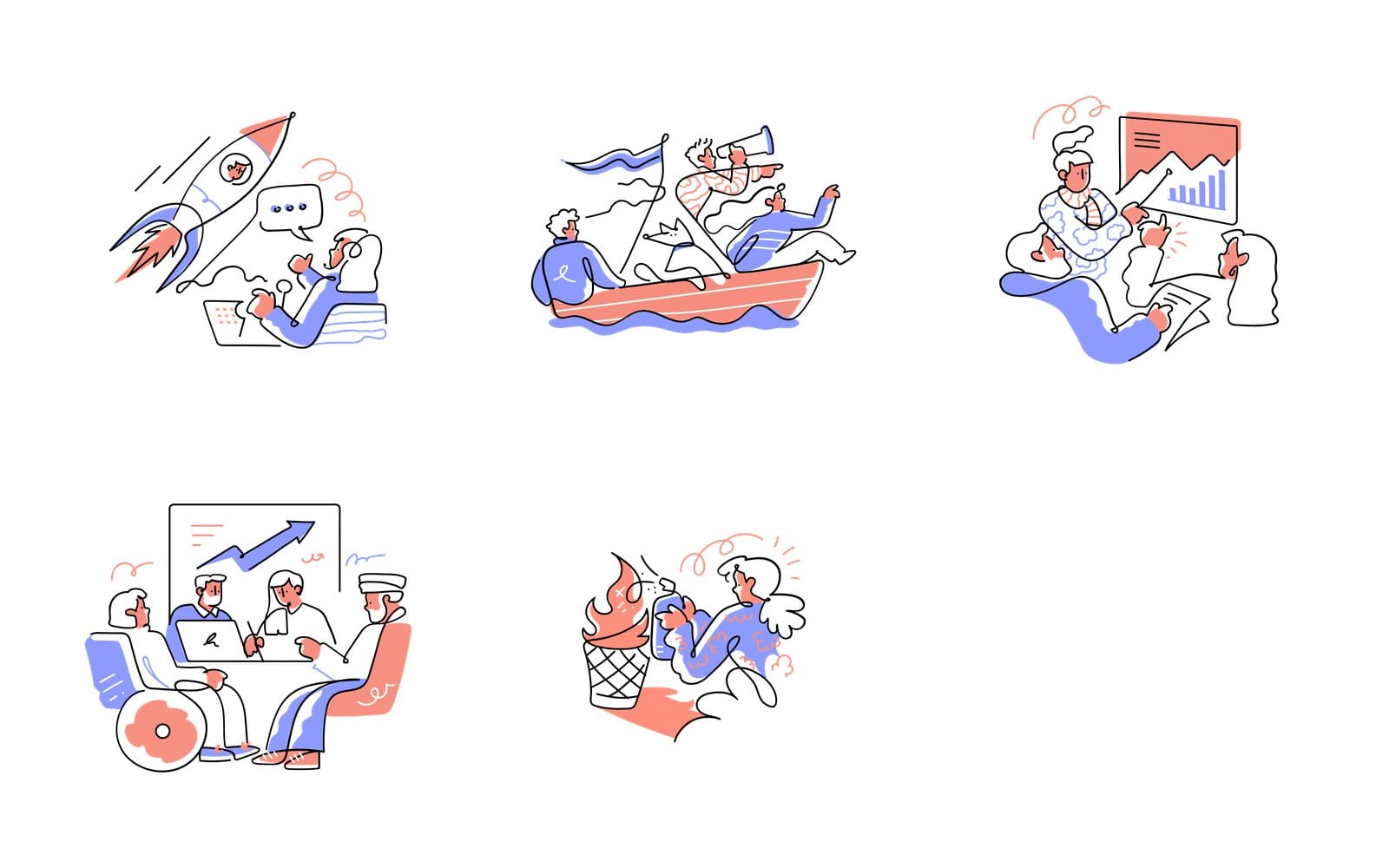
The continuous line set above is a good example of where to stop and think. It's a black line with coral and periwinkle fills, so Graphics Fill would turn the line and both fills into one colour. When you want to keep two or three colours and swap them, you need the next step.
Use Convert to Shape to recolour one part at a time
- Right click the SVG and choose Convert to Shape. PowerPoint disassembles it into editable shapes.
- Click any single part, then set its fill on the Shape Format tab.
- Select all the parts when you're done and regroup them with Shape Format, Group, Group, so they move as one.
Two warnings. Microsoft documents Convert to Shape for Microsoft 365 on Windows and Mac, so don't count on it in the web app or on a phone, and once a drawing is converted it's a group of shapes, so keep the original SVG. For a whole deck in one palette it's faster to recolour each SVG once outside PowerPoint, which the recolouring section below covers.
Stop PowerPoint shrinking your PNGs when you save
PowerPoint's default picture resolution is 220 ppi, and pictures in the file can be compressed down to it when you save. Most drawings won't show it, but one you placed small and stretch later can go soft, because the pixels it needs were thrown away on save. The setting lives under File, Options, Advanced, Image Size and Quality, it applies only to the open file unless you change it for all new documents, and it isn't available in PowerPoint for the web.
Raise the default resolution or tick Do not compress images in file before you add the pictures, not after. Compression that's already been applied doesn't come back.
How to add illustrations to Google Slides
Why Google Slides says Unsupported image type for SVG
Try to put an SVG in Google Slides and you get an Unsupported image type message. The Slides API documentation lists PNG, JPEG and GIF as the accepted types, with limits of 50 MB and 25 megapixels per image. We don't know of a setting that changes this, so plan around it.
Use the 2x PNG so it stays sharp on a big screen
- Download the 2x PNG, which is up to 2040 px wide.
- In Slides, go to Insert, Image, Upload from computer and pick it.
- Size it on the slide. A drawing filling half the width of a 16:9 slide needs at least 960 px at Full HD, so the 2x file has room to spare.
Why 2x rather than 1x: a 1020 px PNG filling half of a 1920 px slide is at its limit, and on a 4K screen or a zoomed PDF it goes soft. The 2x file covers a full width hero on a Full HD screen and a half width drawing on 4K. That's our own guidance, worked out from the pixel counts above.
Recolour before you upload with the SVG Color Editor
Slides can't swap one colour inside a PNG and leave the rest, so do the recolouring first. Open the SVG in the free SVG Color Editor, change the colours, then press Download PNG. Without a typed size the PNG comes out at the size set in the file's viewBox, so type a width and height that keep the drawing's proportions, around 2040 wide, if you want it as large as the 2x file.
The editor also has Download SVG, Copy the SVG code and Load another SVG, so one session covers your PowerPoint and Keynote files too. Files you drop into the editor are copied to our server.
The long way round for editable shapes
If you must have editable shapes in Slides, there are two routes and neither is quick. Convert the SVG to shapes in PowerPoint as above, save the PPTX, then in Slides use File, Import slides to bring that slide across. The other route goes through Google Drawings and a WMF file, and it's fiddly enough that I'd only bother for one drawing you'll reuse a lot.
How to use illustrations in Keynote
Drag the SVG onto the slide (Keynote 13.1 or later)
Keynote 13.1 on the Mac added SVG import, and Apple's release note promises visual quality at any size plus the ability to break imported SVGs apart and save them to the shapes library. Drag the SVG from the Finder onto the slide, or use Insert, Choose. Size it with a corner handle, and that's the common case done.
Format, Shapes and Lines, Break Apart, then Ungroup to recolour
- Select the SVG, then choose Format, Shapes and Lines, Break Apart from the menu bar.
- If the parts arrive as one group, choose Arrange, Ungroup.
- Click a part and change its Fill in the Format sidebar on the right.
- Select everything and choose Arrange, Group when you're done.
What to do when Break Apart is greyed out
Apple's guide says a greyed out Break Apart means the image can't be broken apart. Either recolour the SVG in the Color Editor before you import it, or use the 2x PNG and accept the colours as drawn. For most decks the second option is fine, since the pack's palette was chosen to work as a set anyway.
How to recolour illustrations to match your slide palette
Open the SVG in the free SVG Color Editor and change each colour once
The fastest route to a whole deck in one palette is to recolour each drawing once, outside the presentation app. Load the SVG into the SVG Color Editor, change the colours you want changed, and download. Do it for the six or eight drawings you'll use and you're done for the whole deck.
Download SVG for PowerPoint and Keynote, Download PNG at a typed width for Google Slides
Press Download SVG for the PowerPoint and Keynote copies and Download PNG for Google Slides, with the width and height typed in first as described above. The PNG is scaled to fit and centred on a transparent background, so it drops onto a navy slide as cleanly as a white one.
Build a whole slide in the Design Studio and export PNG
When the slide needs more than a drawing, the Design Studio lets you lay out the illustration, text and shapes together and export the finished slide as one PNG. Select an SVG illustration in it and the properties panel lists its colours, changing one changes every shape that uses it, and Reset brings the original back. Free accounts export PNG at 1x, Premium goes up to 4x and adds SVG and PDF export, and the PNG can have a transparent background.
Pick an accent colour that survives a projector
Projectors tend to wash out pale yellows and light greys, and a thin coral line can vanish from the back row. Pick one saturated accent that's dark enough to read on white and light enough to read on navy, then recolour the set to it. Our colour theory guide has the wheel if you'd rather choose that accent properly than by eye.
How to keep illustrations sharp when you export to PDF
Each app handles the drawings differently on the way to PDF, so here's the short version before the detail.
| App | Before you export | In the PDF |
|---|---|---|
| PowerPoint | File, Options, Advanced, Image Size and Quality: raise the resolution or tick Do not compress images in file | Not promised to stay vector, zoom to 300 percent and check the SVGs |
| Google Slides | Insert the 2x PNG, nothing at export time adds pixels | Pixel drawings, never sharper than the PNG you inserted |
| Keynote | Break Apart the SVGs you recoloured | Shapes should stay vector, check intact SVGs with the zoom test |
PowerPoint: check Image Size and Quality before you export
Go back to File, Options, Advanced, Image Size and Quality and make sure the file isn't set to compress, then File, Save As and choose PDF. We can't promise the SVGs stay vector in every version of PowerPoint, so don't take it on trust. Zoom the PDF and look.
Google Slides: the PDF can only be as sharp as the PNG you inserted
File, Download, PDF Document gives you a PDF that can't hold more detail than the PNGs you put in. This is the other reason for the 2x file: a 1020 px drawing stretched across half a slide can look soft printed on A4, and the 2040 px one has twice the pixels to work with. Nothing at export time can add pixels that aren't there.
Keynote: shapes should stay vector in the PDF
An SVG you've broken apart is now Keynote shapes, and those should come through the PDF as vectors, crisp at any zoom. An SVG you left intact may behave the same way, but run the zoom test below rather than assuming. File, Export To, PDF is the path.
A two minute zoom test before you send the deck
- Export the PDF and open it in any viewer.
- Zoom to 300 percent on a slide with a big illustration.
- Look at a curved edge. Smooth is what you want, stair steps or blur mean the drawing went into the PDF as pixels.
- If it looks soft, swap in the 2x PNG or raise the export quality and try again.
Why does an illustration look blurry or blank on a slide
When the file won't go in
- The drawing lands as a blank box. Most likely the app couldn't read part of the SVG. Use the 2x PNG of the same drawing instead.
- Google Slides refuses the file. It's an SVG. Download the 2x PNG and upload that.
- Convert to Shape or Break Apart is greyed out. Recolour the SVG in the Color Editor before you import it, or use the PNG as drawn.
When it goes in but looks wrong
- It looks soft on the big screen. The PNG was too small or PowerPoint compressed it. Use the 2x file and check Image Size and Quality.
- Every slide looks different. You've mixed packs. Pick the one with the most drawings you need and replace the rest.
Where to find illustrations for presentations that match
Browse by style first, then pick one pack
Start on the illustration packs page or go straight to a style page such as flat. Decide the style with the deck's tone in mind, then open two or three packs in that style and pick the one with a drawing for each section you've planned. Choose the pack first and the drawings second.
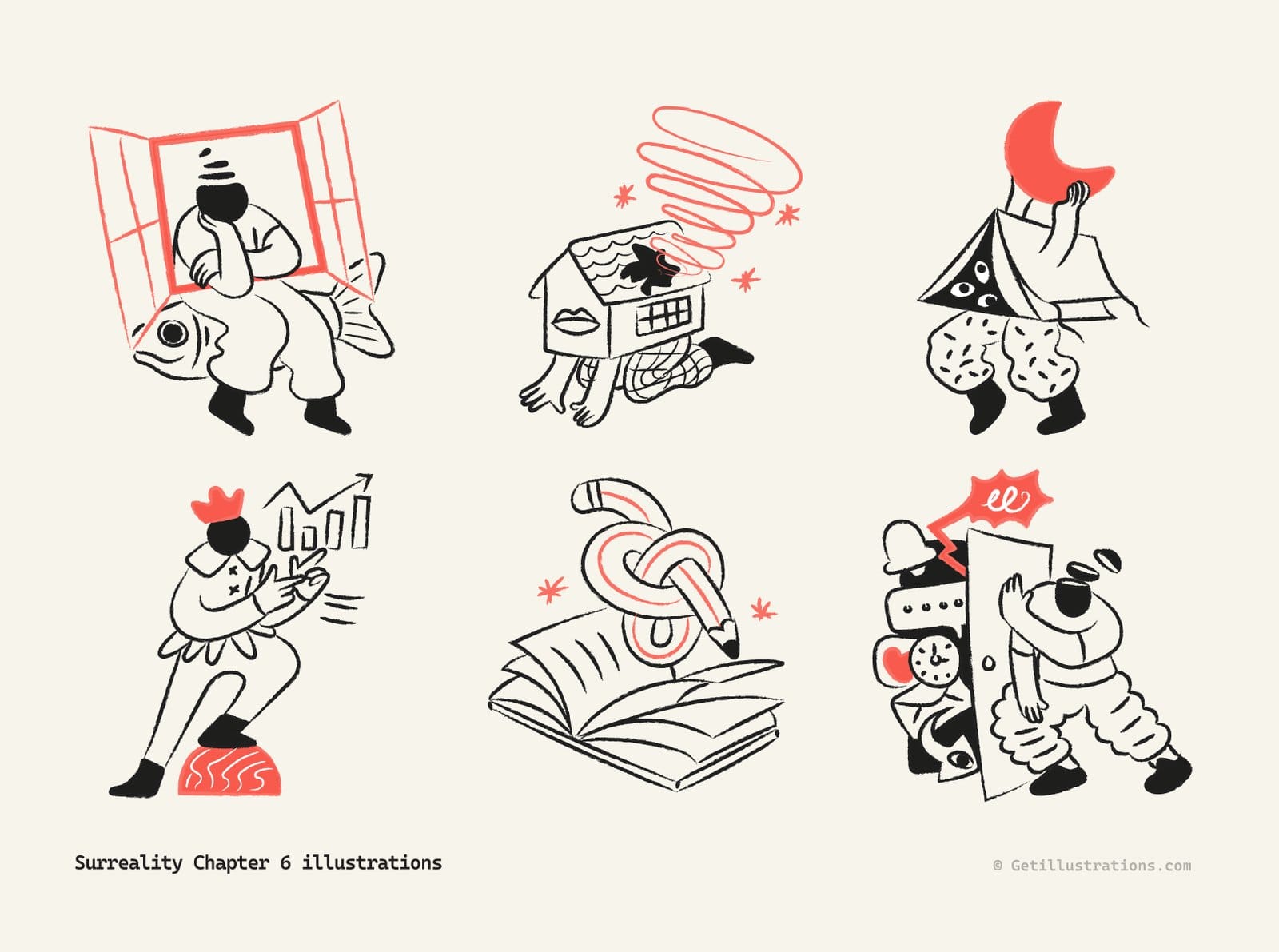
Surreality Chapter 6 above is what a stranger pack looks like as a set: a black brush line and one coral accent on every drawing. For a creative pitch with a sense of humour it's a gift. For a hospital board meeting, maybe not.
Free packs for a class project, with a visible credit
If you need free illustrations for presentations, the free illustrations page has whole packs you can use in personal and commercial work, as long as the deck carries a visible credit such as Illustrations by GetIllustrations.com. Each free pack keeps one style across its drawings, so the one pack rule still holds. Downloading needs a free account.
Collections when one deck needs more than one chapter
Some packs come in chapters in the same style, and collections group packs that belong together, so a long deck doesn't run out of relevant drawings halfway through. The Surreality chapters are one family like that. If the deck is about something no pack covers yet, you can order custom illustrations and name the pack you already use as the style to match.
The Figma plugin when the slides start life in Figma
Plenty of design teams build the deck in Figma and export the slides as images. Every pack page links our Figma plugin, listed as GetIllustrations Icons, Illustrations and 3D design assets, which puts the drawings straight into your Figma file. There's no PowerPoint, Keynote or Google Slides plugin, and with SVG and PNG downloads there doesn't need to be.
Can you use illustrations in a business presentation commercially
Paid licence: pitch decks, keynotes and client decks, no credit needed
Yes. The Standard and Extended licences name pitch decks, keynotes, YouTube videos, social media content and ads as covered uses, with no per use fees, no view limits and no credit required. The talk on the day is covered, and so is the PDF you send round afterwards.
Free packs: personal and commercial use with a visible credit
Free packs cover personal and commercial use too, with one condition: a visible credit, for example a line on the last slide reading Illustrations by GetIllustrations.com. Paid licences don't need it. If a credit line would look wrong in the room, use a paid pack.
What you may not do: resell or redistribute the files themselves
The drawings can go anywhere your slides go. What the licence doesn't let you do is sell the SVGs on or pass the pack to another company to use as its own. The exact wording is on the licence page, and it's worth reading before you hand source files to a client.
Questions people ask about illustrations in presentations
What size should an illustration be for a 16:9 slide
A 16:9 slide is 1920 by 1080 px at Full HD, so as a rule of thumb a drawing spanning half the slide needs at least 960 px of width, and a full width hero needs the whole 1920. The 2x PNG, at up to 2040 px wide, covers both, and on a 4K screen it still covers a half width drawing. An SVG doesn't have this problem at all.
Can Google Slides open SVG files
No. Slides answers with Unsupported image type, and its API documentation lists only PNG, JPEG and GIF. Use the 2x PNG from the illustration page, or recolour the SVG in the SVG Color Editor first and download a PNG at a typed width.
Can I change the colours of an illustration in PowerPoint
Yes, if you insert the SVG and use PowerPoint for Microsoft 365 on Windows or Mac. Graphics Fill on the Graphics Format tab turns the whole drawing one colour, and Convert to Shape lets you recolour each part separately on the Shape Format tab.
Are the illustrations drawn by people or made by AI
Every illustration in the library begins with a human illustrator. Four packs are AI remixes of an illustrator's artwork, and each of those carries a Remixed by AI mark on its cover, its page and its lightbox, so you always know which is which.
Do I need to credit GetIllustrations in my slides
Not on a Standard or Extended licence. For a free pack, yes: a visible credit such as Illustrations by GetIllustrations.com, and the last slide is the natural place for it.
If you only do one thing before Friday, pick one pack and use nothing else. The deck will look like one person made it.