
Christmas Illustrations and Icons for 2026: 15 Packs Drawn by Hand and Where to Use Them
Christmas illustrations and icons from 15 packs that begin with human illustrators, with layouts for social posts, email, banners and cards. Two are free.

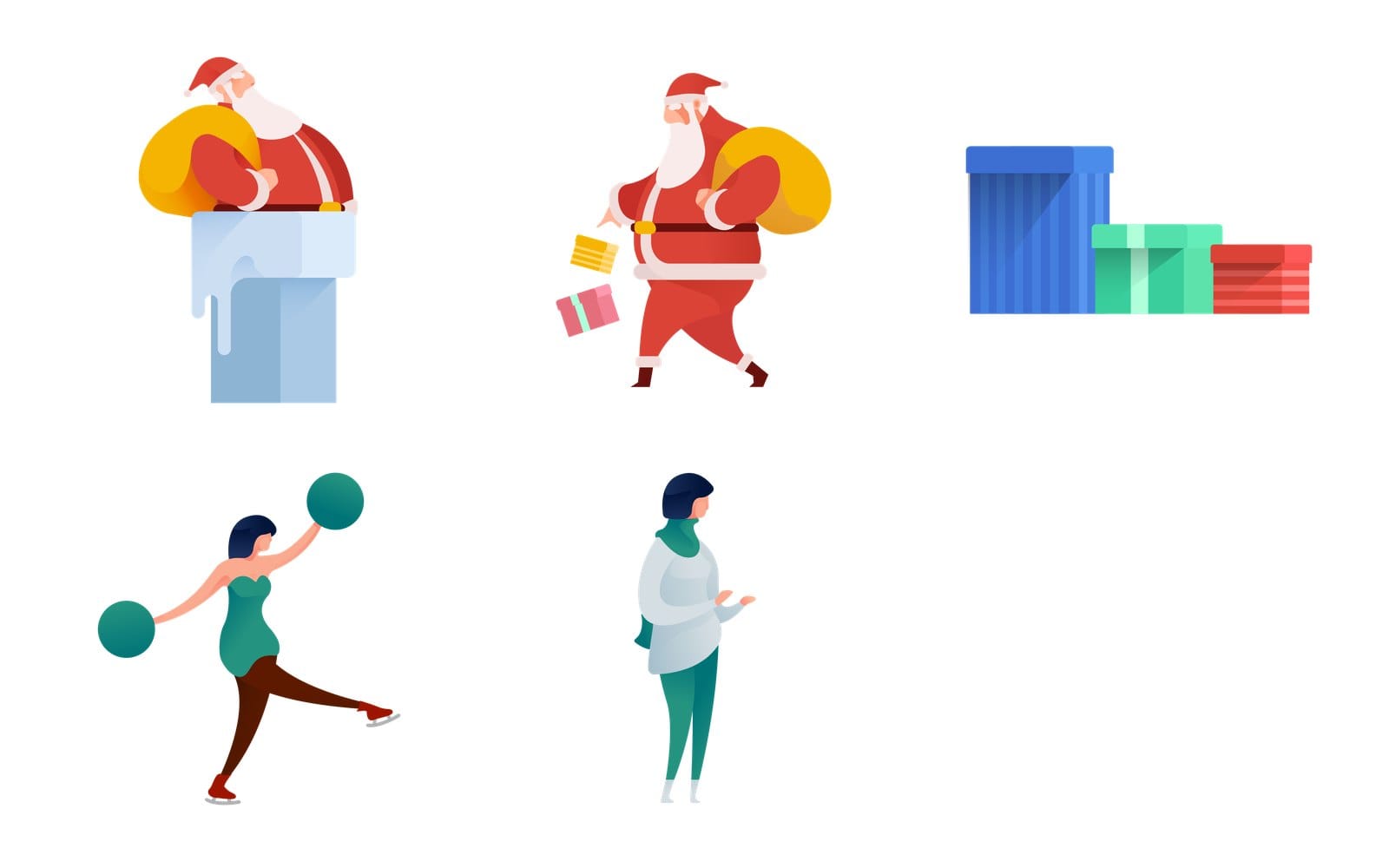
It's the second week of November, the marketing lead wants a Christmas campaign by Monday, and the brief is one line: "make it festive". You open a stock site, type christmas, and get over 1.6 million results in every style ever drawn. A Santa from one artist, a reindeer from another, a tree that looks like it fell out of a 2009 clip art CD, and no idea whether any of it can go on a product page.
This guide is the shortcut. It covers six Christmas illustration packs, the bigger sets with Christmas scenes tucked inside them, and six icon packs whose Christmas icons match, then gives a layout recipe for each place the art ends up: social posts, email, banners, web heroes and printed cards.
Every illustration here starts with a human illustrator. Two of the packs are free, and wherever a licence, a file format or a tool has a limit, I'll tell you.
If you read our Halloween illustrations and icons guide, the shape will look familiar, and that's on purpose.
What Christmas illustrations look good in 2026
What looks good this Christmas is mostly restraint: one style for the whole campaign, and art that still reads at phone size. Everything below lives on the illustration packs page, and the "Made by" cell on each pack page tells you whether human designers made it before you download.
| Pack | Drawings | Files | Free or paid | Best for |
|---|---|---|---|---|
| Hannah holidays and occasions | 50 | AI, SVG, PNG | Paid | Clean product brands, onboarding screens |
| Aurora Christmas | 25 | AI, SVG, PNG | Paid | Greeting cards, classic Santa and snowmen |
| Grain Christmas | 25 | AI, SVG, PNG | Paid | Posters and large heroes |
| 3D Christmas | 23 | PNG, Sketch, Figma, XD, Iconjar | Paid | App screens and feature cards |
| Clippy Christmas | 31 | AI, SVG, PNG, Figma | Free | Line accents, colouring pages, stamps |
| Free Christmas Illustrations | 11 | AI, SVG, PNG | Free | A cat mascot for small campaigns |
| Curvy World | 239 | AI, SVG, PNG | Paid | Full colour gradient scenes inside a bigger set |
| Notion illustrations | Over a thousand elements | AI, SVG, PNG, Figma, Iconjar | Paid | Sites already using the Notion style |
| ilcons Chapter 2 | 225 | AI, SVG, PNG, Figma | Paid | Spot illustrations next to copy |
Friendly outline scenes: Hannah Christmas illustrations
The Hannah holidays and occasions pack is 50 outline drawings in AI, SVG and PNG. The characters are rounded and warm, the line weight is even, and the colour sits in soft fills rather than gradients. If your product has a clean, slightly playful brand, this is the pack I'd open first.
Hand drawn Santa and snowmen: Aurora Christmas Illustrations
The Aurora Christmas pack holds 25 drawings in AI, SVG and PNG. It's the most classic of the set, with Santa, snowmen and gifts drawn with a looser, hand drawn feel. Good for greeting cards and anything where you want "Christmas" to land in half a second.
Halftone grain for posters: Grain Christmas Illustrations
The Grain Christmas pack is also 25 drawings in AI, SVG and PNG, with a printed halftone texture baked into the shading. It looks great large, on a poster, a landing page hero or an event cover. At 48 px the grain turns to mush, so keep it for the big spots.
Soft 3D for app screens: 3D Christmas illustrations
The 3D Christmas pack is 23 rendered drawings with soft lighting, the kind that sits well on an app onboarding screen or a feature card. One limit to know before you commit: it ships as PNG with Sketch, Figma, Adobe XD and Iconjar libraries, and there is no SVG or AI file, so you can't recolour it as a vector and you'll want to check the pixel size against any print job. If you need Christmas vector illustrations you can recolour, the other five Christmas packs here all come with AI and SVG.
Two free packs: Clippy and Free Christmas Illustrations
The Clippy Christmas pack is 31 black and white line drawings in AI, SVG, PNG and Figma, free to download. Last Christmas season it turned up on Google's first page for about 25 different free Christmas clip art searches, and it works as colouring pages, stamps or quiet accents on a busy layout. The Free Christmas Illustrations pack is 11 drawings of a cat mascot in AI, SVG and PNG, and it's the better pick when you want a character rather than objects.
Both are free for personal and commercial work with a visible credit to GetIllustrations. More on exactly what that means further down, and the full list of free sets is on the free illustrations page.
Christmas scenes hiding inside bigger packs
Some of the best Christmas drawings in the library aren't in a Christmas pack at all. The Curvy World pack (239 drawings, full colour gradients) has Santa squeezed into a snowy chimney, Santa walking with his yellow sack, a row of gift boxes, an ice skater and a woman wrapped in a winter scarf, and those are the drawings in the picture at the top of this article. The Notion illustrations pack (over a thousand elements, with Figma and Iconjar files) and ilcons Chapter 2 (225 spot illustrations) both carry Christmas scenes in their own house style.
Two more worth a look if your brand leans quirky. Flux Lifestyle has a decorated tree, Santa with his sack and a reindeer with stockings in clean line work, and Surreality Chapter 4 draws a Christmas tree hugging a gift and a snail living in an igloo. The sheet below shows those two Surreality drawings, plus a moustached genie rising out of a kettle with a present.
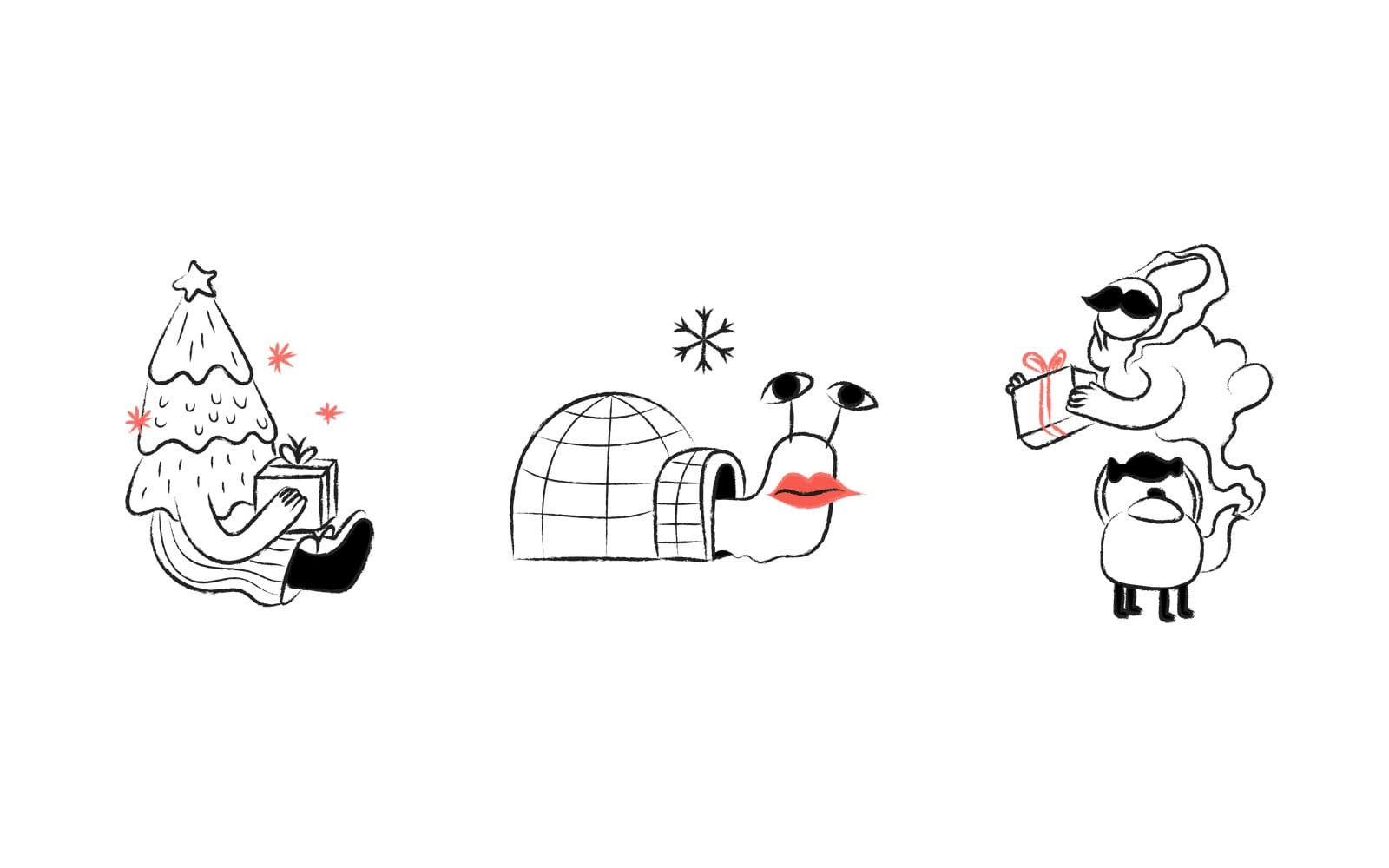
The point of looking inside the big packs is consistency. If your website already uses Curvy World or Notion illustrations, the Christmas drawings from the same set drop in without a style clash, and you don't buy anything new.
Christmas icons that match the illustration packs
Icons are where campaigns quietly fall apart. The illustration is a 2 px hand drawn line, the icons next to it are 1 px geometric, and the page looks assembled from two different companies.
Five of the six packs below, all on the icon packs page, have a Christmas or Winter section of their own, and the sixth has two reindeer icons worth knowing about. I've paired each one with the illustration styles above by line weight.
Micro Bold Icons for menus and app chrome
The Micro Bold Icons pack has its own Christmas section, drawn chunky so it survives at 16 to 24 px. Files are SVG, PNG, AI and Iconjar. Pair it with the 3D Christmas pack or Curvy World, where the illustrations have weight and the icons need to match.
Doodle Line Icons when the campaign is hand drawn
The Doodle Line Icons pack also has a Christmas section, in black ink line. It's the natural match for Aurora, Clippy and the Surreality drawings, because the wobble in the line is the same. Formats are SVG, PNG, AI and Iconjar.
Mini Bold Line Icons and its Winter set
The Mini Bold Line Icons pack has a Winter section rather than a Christmas one, which is handy if your campaign runs into January. It's built for the 24 px grid and sits well beside the Hannah and Notion drawings.
Native Line and Native Solid for product pages
The Native Line Icons and Native Solid Icons packs each have a Christmas category, in SVG, PNG and Iconjar. Because it's one family in two weights, you can use line for navigation and solid for active states without the style changing on hover. These are the safe pick when the illustrations are busy and the icons should get out of the way.
Flat Icons Vol 4 for colourful badges
The Flat Icons Vol 4 pack isn't a Christmas set, but it has a Festive Christmas Reindeer icon and a Reindeer with Winter Scarf icon that work as badges on a product card or a sale sticker. Formats are SVG, PNG, AI and Iconjar.
How to find the Christmas subset with the site search
The quickest route is the search results for christmas, which brings up illustrations and icons from across the library. Type santa, snowman, gift or winter into the "Search illustrations" box in the header and you'll surface the drawings hiding in the bigger packs too. Open the pack from a result you like, because the rest of that pack is what keeps your style consistent.
How to use Christmas illustrations in social media posts
Social is where most Christmas campaigns lose their look, one post at a time, each in a different style. This is the recipe that keeps a whole week of posts looking like one brand.
Pick one pack for the whole week of posts
Choose one pack and stay in it for every post, story and cover from the first of December onward. A follower scrolling past five posts from the Hannah pack will recognise the fourth one as yours before they read the name. Mixing Aurora on Monday with 3D on Tuesday throws that away.
Square crops and where the character looks
Most of these drawings are wider than they are tall, so a square crop will cut something. Crop toward the character's face and let the gift or tree fall off the edge, and keep the character looking into the frame, toward your caption, not out of it. For a carousel, repeat the same character in three crops: full figure, waist up, then tight on the face.
Keep line art on light backgrounds, full colour on dark
Black line packs like Clippy and Doodle Line vanish on a dark background, because the line is the drawing. Put them on white or a pale brand tint. Full colour packs like Curvy World and the 3D set have their own fills, so they hold up on a deep green or navy post.
Recolour the SVG to your brand red or green
Open the free SVG color editor and drop the SVG where it says "Drop an SVG here, or paste its code". Every fill, stroke and gradient colour shows up as a swatch, so click the Santa suit's red, type your brand red into the "Choose Color" picker, then press "Download SVG", or "Download PNG" for a file you can post straight away. It only works on SVG, which rules out the 3D pack, and files you drop into it are copied to our server.
How to use Christmas illustrations in email
Email is the channel with the most traps, and the first one is the file format.
Send PNG, not SVG
Since September 2025, Outlook on the web and the new Outlook for Windows stop displaying inline SVG images and show blank space instead, according to Microsoft message center notice MC1130385. An SVG sent as an attachment still opens, but an SVG in the body of the email doesn't render. Export PNG for anything inside the message and keep the SVG for the web.
One hero drawing, then two small feature blocks
The layout that works: one full width drawing under the headline, then two smaller drawings side by side, each with a short line of copy. From the Boldline Chapter 1 pack, that could be the dog with the Christmas shopping checklist as the hero, then the snowman team and the couple unboxing a gift below. All three share one bold line, so the email reads as one piece.
Start earlier than feels comfortable
In 2025 the global average point at which brands first mentioned Christmas in a subject line was 65 days before 25 December, by Dotdigital's 2026 analysis. For 2026 that works out to around 21 October, so plenty of brands are already in the inbox with Christmas by the time you read this. Finish the email design before your first send rather than the night before, because the first one is usually the rushed one.
Export at twice the size and write a real alt text
Export the PNG at double the displayed width (a 600 px column gets a 1200 px image) so it stays crisp on a phone. Then write alt text that names the drawing, "Santa carrying a yellow sack of gifts", because images are off by default in plenty of inboxes and the alt is the only thing some readers see. Leave it blank and the hero turns into an empty box with nothing to read.
| Channel | File to use | Size | The one rule |
|---|---|---|---|
| Social post | PNG | 1080 px square, crop toward the face | One pack for the whole week |
| PNG only | Twice the displayed width | Inline SVG shows blank in Outlook on the web | |
| Banner or hero | SVG on the web | Phone layout first | Keep the offer text off the art |
| Printed card or tag | AI or SVG | Set CMYK, check 300 dpi | The 3D pack has no SVG or AI |
How to design a Christmas banner or web page hero
A banner has one job, and the art is there to make the offer feel like a season rather than a discount. Here's how I'd build one, starting from the smallest screen.
Design for the phone first
Adobe Analytics put US online spending from 1 November to 31 December 2025 at 257.8 billion dollars, up 6.8 percent on the year, and on Christmas Day 66.5 percent of online sales came from smartphones, per Adobe's 2025 holiday report. Build the phone layout first: one character, the headline above it, the button below. Then widen it for desktop by adding space, not more drawings.
Red and green, or your own brand colours
Red and green read as Christmas instantly, and they also read as every other Christmas banner on the internet. If your brand is blue, a navy background with white snow and one warm red accent looks like you and still looks like December. Our color theory guide has the complementary and split complementary pairs if you want to work it out properly rather than guess.
Build the hero in the Design Studio
If you don't want to open Figma for a single banner, the Design Studio lets you place an illustration, add text and export the banner as PNG, SVG or PDF in the browser. A premium drawing you haven't bought exports with a watermark, and the free tier saves PNG at 1x only. For a full landing page, you'll still want your usual design tool.
Match the icon line weight to the illustration
If the hero is a Grain drawing with textured shading, put Micro Bold or Native Solid icons beside it, because thin icons look like a mistake next to that much weight. If the hero is Clippy or Doodle Line, keep the icons thin and inky.
Keep the sale message off the art
Don't write the offer across the illustration. Put the drawing on one side, the text on the other, and let the button carry the number. The art stays reusable for a second banner, and the text stays readable when the image is scaled down.
How to make Christmas cards and gift tags for print
Print is where the file format matters most, and where the 3D pack needs a second look.
Use the AI or SVG file for print, not the PNG
Christmas vector illustrations scale to any size without going soft, so for a card, a tag or a poster, open the AI or SVG from the pack and set your colours in CMYK before export. Every pack in the table at the top except the 3D set includes both. For a folded A6 card, a single Aurora drawing on the front with nothing else is the layout that prints best.
The 3D pack has no SVG or AI, so size it before you commit
The 3D Christmas drawings are PNG, so check the pixel dimensions against your print size at 300 dpi before you promise anyone a poster. They're excellent at card size and on screen. For anything larger, pick a vector pack.
Doodle Line and Micro Bold icons as stamps and sticker sheets
Icons make surprisingly good print assets. A sheet of Doodle Line Christmas icons on kraft paper works as gift tags, and the Micro Bold set printed at 30 mm becomes a sticker sheet for parcels. Both packs include AI files, so they scale to whatever size you print.
What to do when the Christmas illustration doesn't fit
When a drawing won't sit right, it's usually one of these, and none of them means starting over.
The colours clash with the brand
Recolour the SVG. The color editor picks up every fill, stroke and gradient stop, so a green tree becomes your teal in a couple of clicks, and even a gradient pack like Curvy World shifts without opening Illustrator. Save a second version while you're there if you need one for dark mode.
The line weight is wrong next to your icons
Switch the icon pack, not the illustration. Icons are quick to swap and the illustration is the thing people remember. The pairings earlier in this guide are a starting point, and the icon packs page is where to compare the rest.
The drawing you need doesn't exist
If no pack has a penguin holding your product, the AI illustration generator makes a new drawing in the style of one of our packs, so it can sit beside the rest of the set. The packs themselves are a different story, because every illustration in the library begins with a human illustrator. Four packs in the whole library carry a "Remixed by AI" label, and none of them appears in this article.
Can you use free Christmas illustrations commercially
Yes, with one condition, and it's spelled out on our licence page.
Free packs need a visible credit
The free packs (Clippy and Free Christmas Illustrations here) are free for personal and commercial work as long as you show a visible credit to GetIllustrations, something like "Illustrations by GetIllustrations.com" with a link, in your footer, your credits page or the post description. With that credit in place, a client website or a newsletter is fine.
Paid packs and All Access need no credit
A paid pack or an All Access plan comes with a commercial licence and no credit line. Plans are on the pricing page, and the Black Friday offer runs until the end of 25 December 2026, Pacific time, so it still applies to a Christmas purchase. If you want the long version of what "royalty free" means in practice, we wrote it up in our guide to commercial licences for stock illustrations.
What the licence allows for cards, templates and merch
Cards you print and send, banners, emails, social posts and app screens are all normal use. Where it gets specific is selling the illustration itself, as a template, a sticker pack or a product where the drawing is the thing being bought, so read the licence page before you do that. If you're still not sure, ask us before you list anything for sale.
Christmas illustration FAQ
Can I use free Christmas illustrations in a client project?
Yes. The free packs cover personal and commercial work, including client work, with a visible credit to GetIllustrations on the project. If the client won't allow a credit, a paid pack removes that requirement.
Which file format should I use for Christmas illustrations in email?
PNG, exported at twice the displayed width. Inline SVG shows as blank space in Outlook on the web and the new Outlook for Windows since September 2025, so keep SVG for the website.
Are these Christmas illustrations drawn by people or made with AI?
Every illustration in the library begins with a human illustrator, and the "Made by" cell on each pack page in the table above says "Human designers". Four packs across the library carry a "Remixed by AI" label, and none of them is in this guide.
Can I change the colours to match my brand?
Yes for any pack with SVG or AI files, which is every pack in the table except the 3D set. The free SVG color editor changes fills, strokes and gradient colours in the browser, and the AI file opens in Illustrator if you'd rather work there.
When should I start sending Christmas emails?
On average, brands first mentioned Christmas in a subject line 65 days before 25 December in 2025, which puts the 2026 start around 21 October. If that date has passed, start with the design, so your first send isn't the rushed one.
Do the Christmas icons match the illustration packs?
They match when the line weight matches. Doodle Line goes with the hand drawn packs, Micro Bold and Native Solid with the heavier full colour and 3D drawings, and Mini Bold Line with the clean outline sets like Hannah.
Before Monday comes round, open the illustration packs page and choose the one pack the whole campaign will live in. Everything else in this guide gets easier once that choice is made.