Vectorize any image into a
clean, layered SVG. Free.
Drop a PNG, JPG or WebP. Vectorizer Lab traces it into smooth Bézier shapes with editable colour layers, moves every edge to where the anti-aliasing says it really is, keeps hair-thin lines whole, and scores the result against your original. The conversion runs in your browser and costs nothing.
Open Vectorizer Lab, it's free →
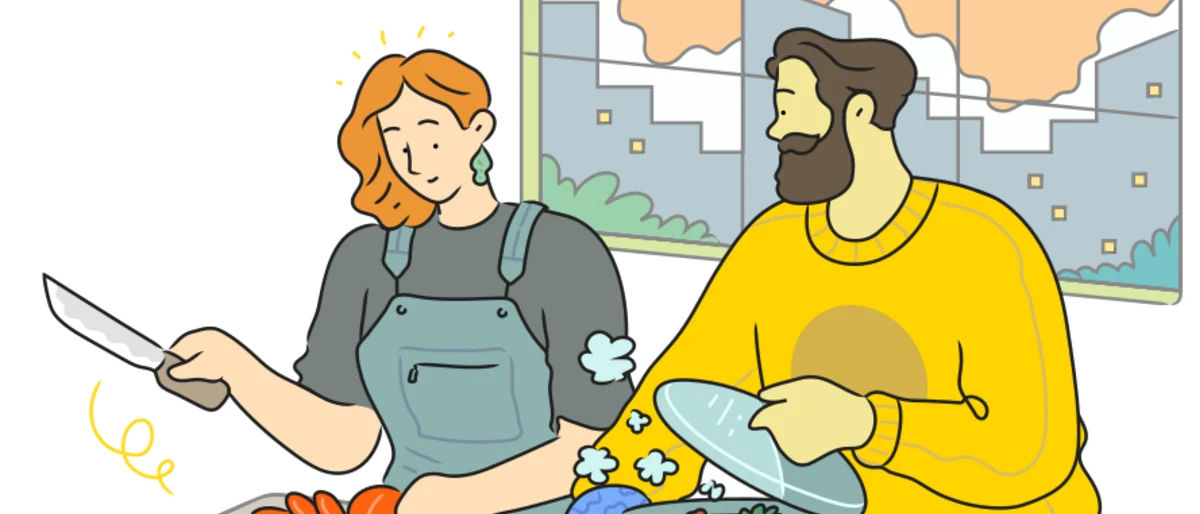
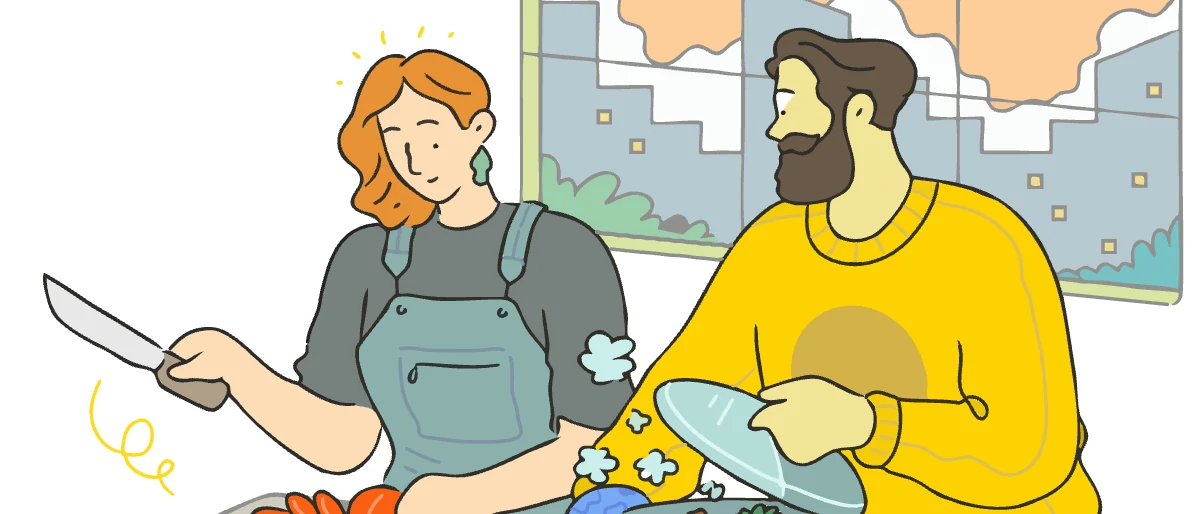
- Editable layers one shape per colour, lines as strokes
- Scored every result checked against the source
- Two engines Auto keeps the better one
- No install the tracer runs in your browser
Eight styles, converted in the tool
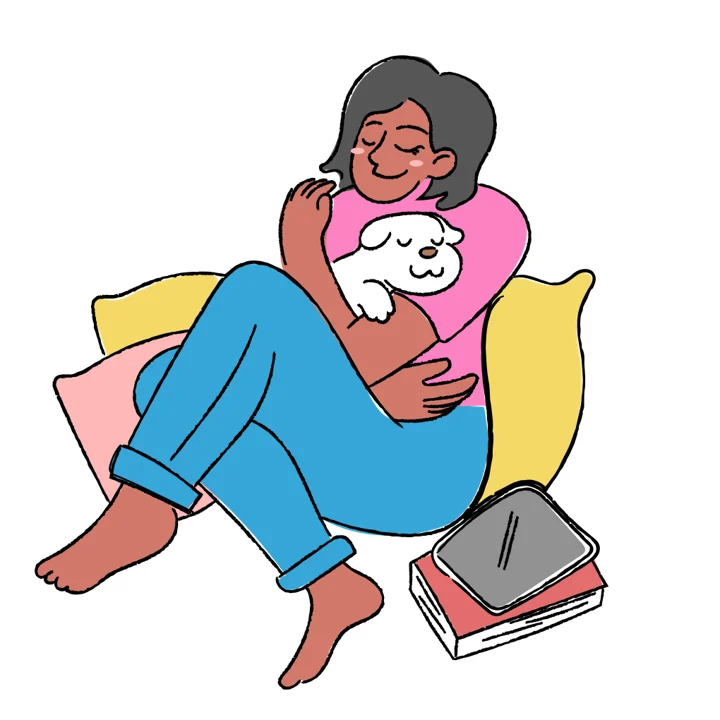
Library illustrations in eight styles, converted with Auto at the default balance and nothing retouched. Move your mouse over a pair: both pictures zoom in on the same spot, the PNG's pixels on the left and the SVG's curves on the right. The chip is what Auto chose.
 PNG
PNG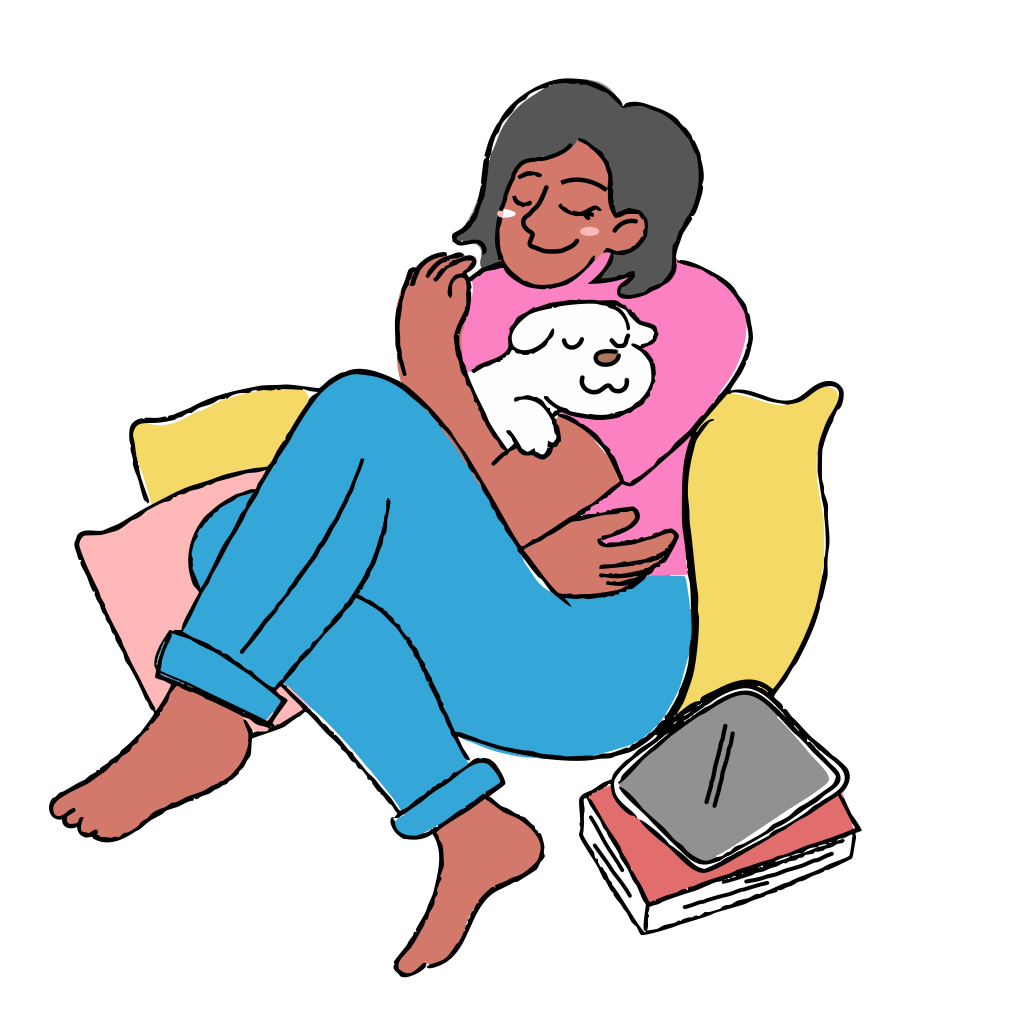 SVG
SVG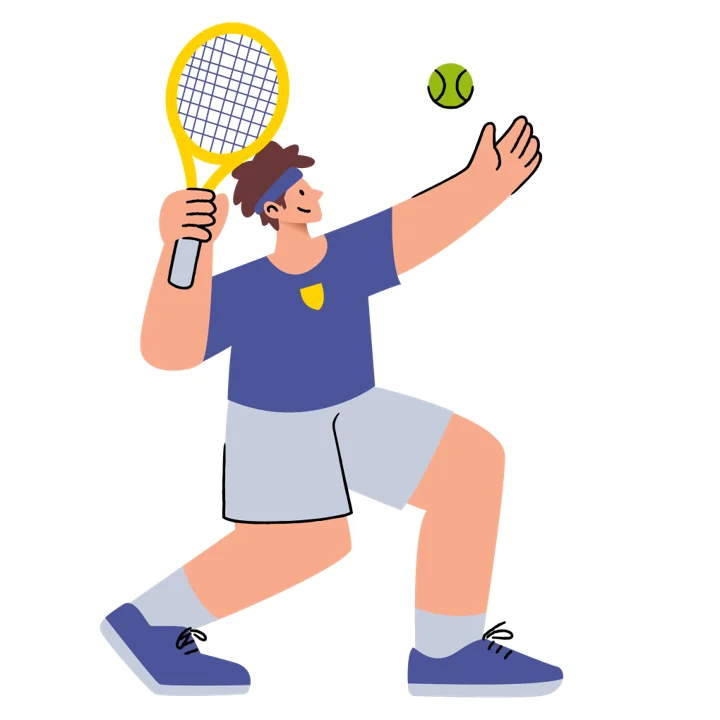 PNG
PNG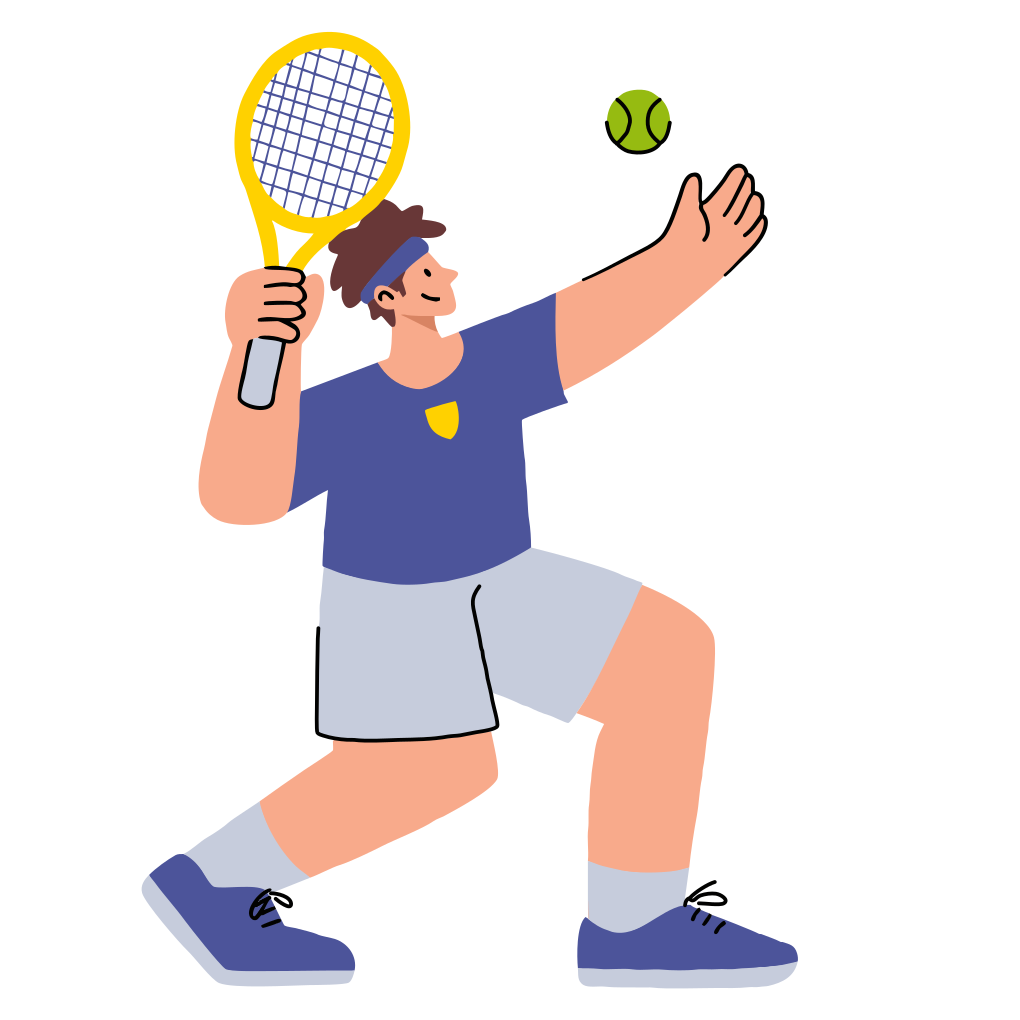 SVG
SVG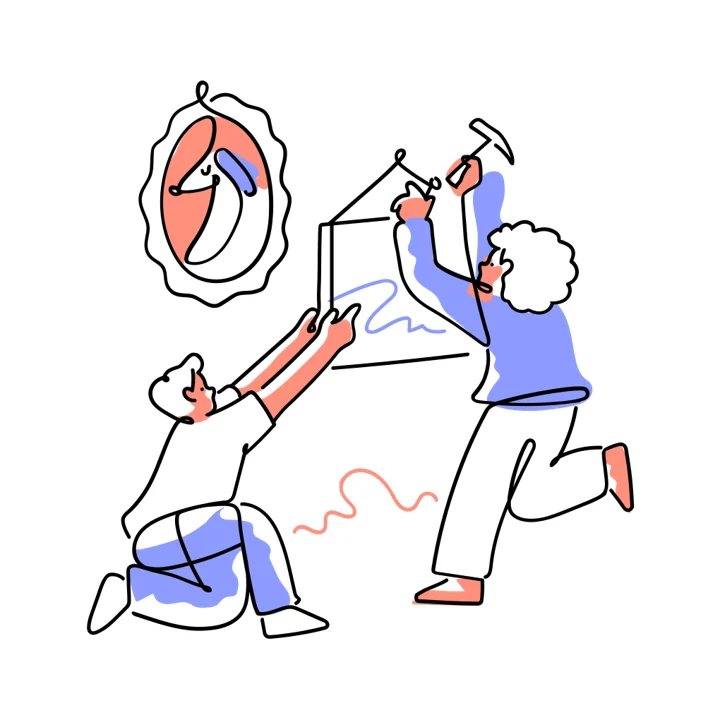 PNG
PNG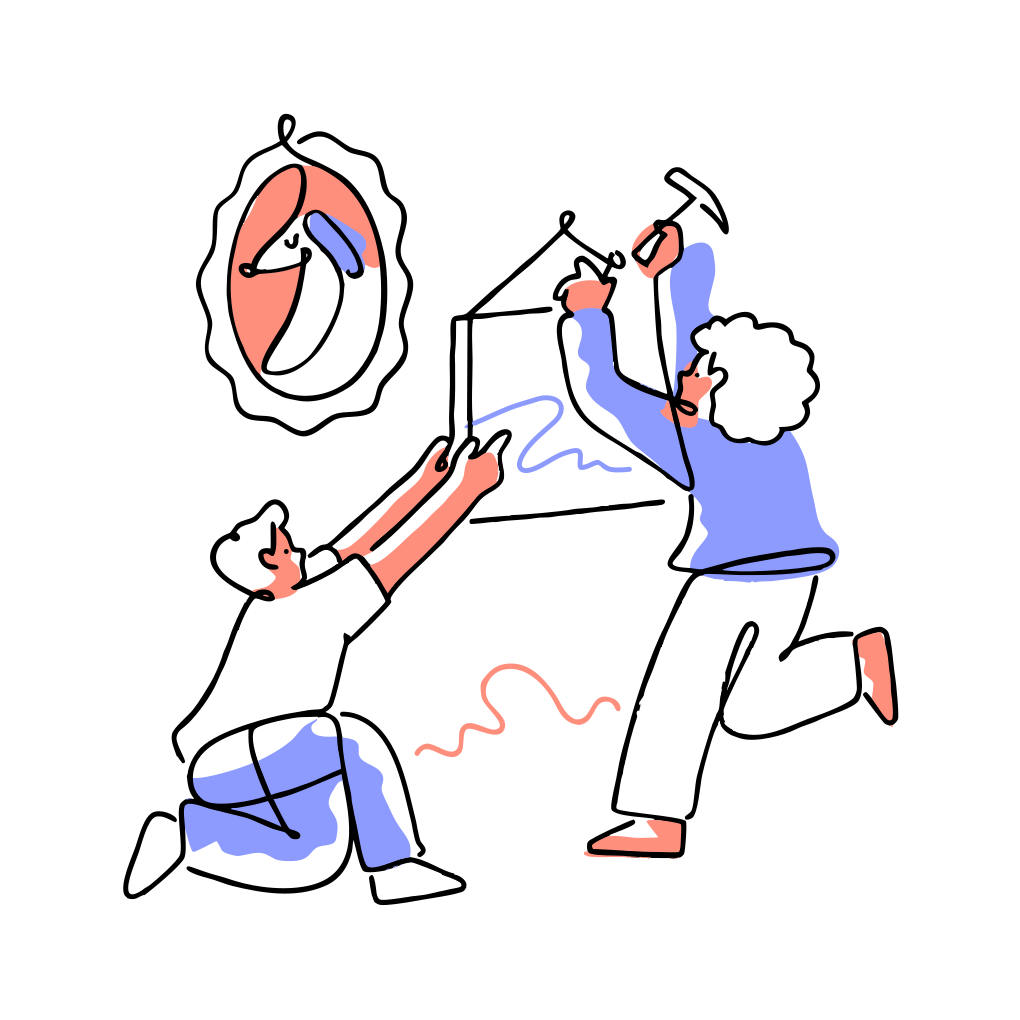 SVG
SVG PNG
PNG SVG
SVG PNG
PNG SVG
SVG PNG
PNG SVG
SVG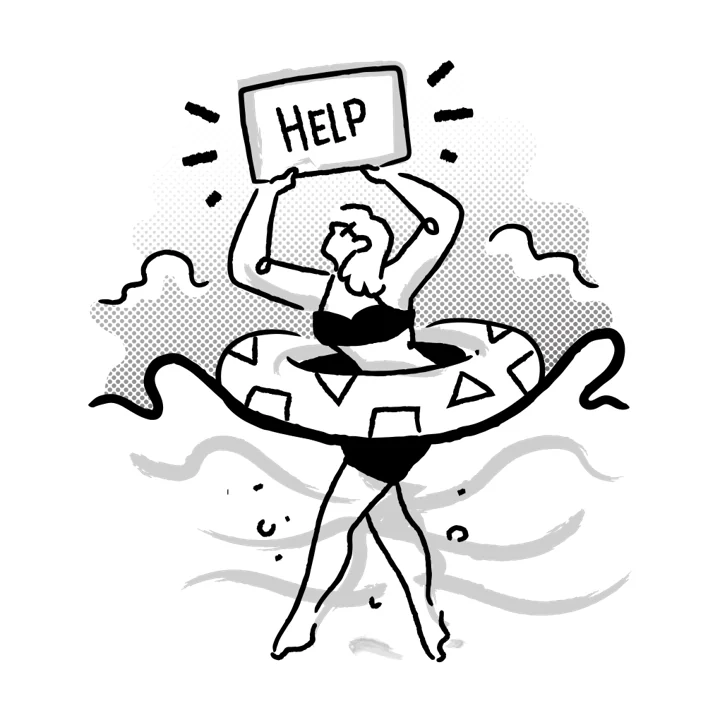 PNG
PNG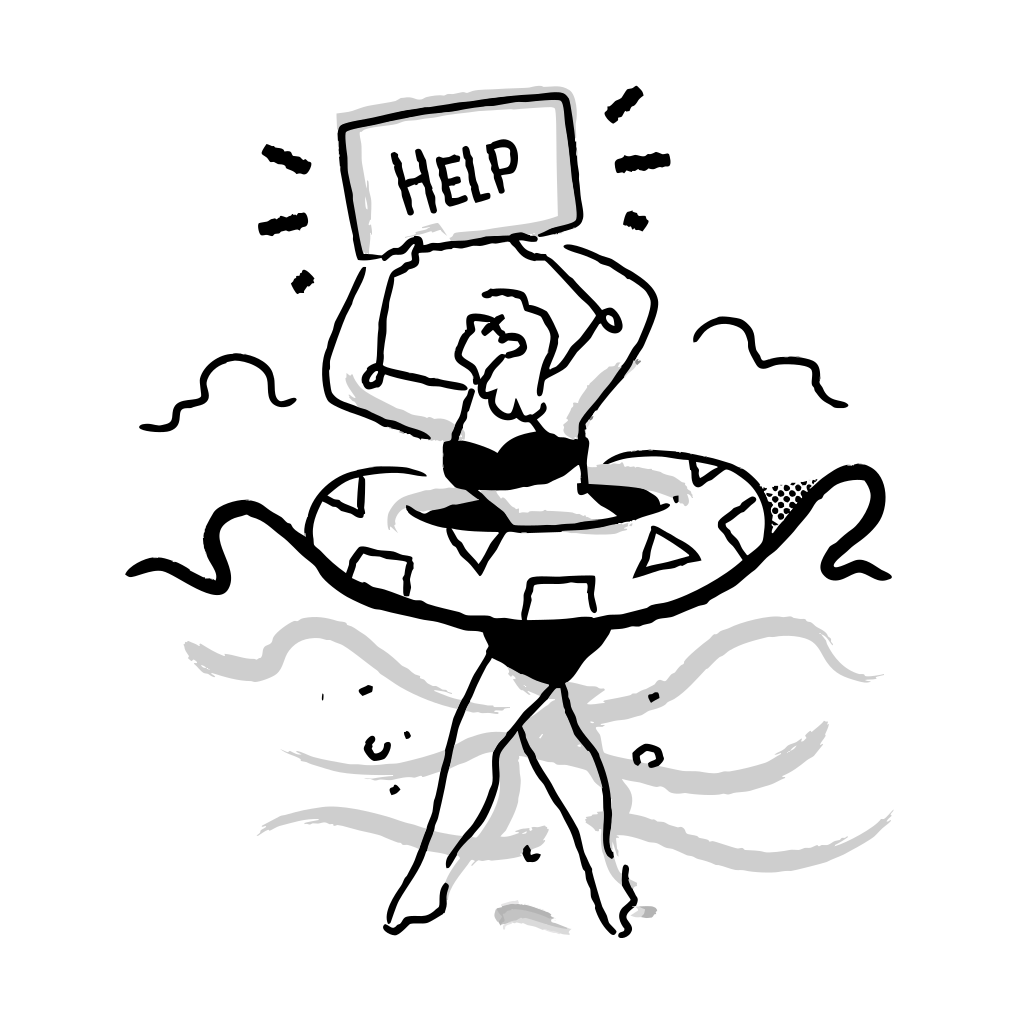 SVG
SVG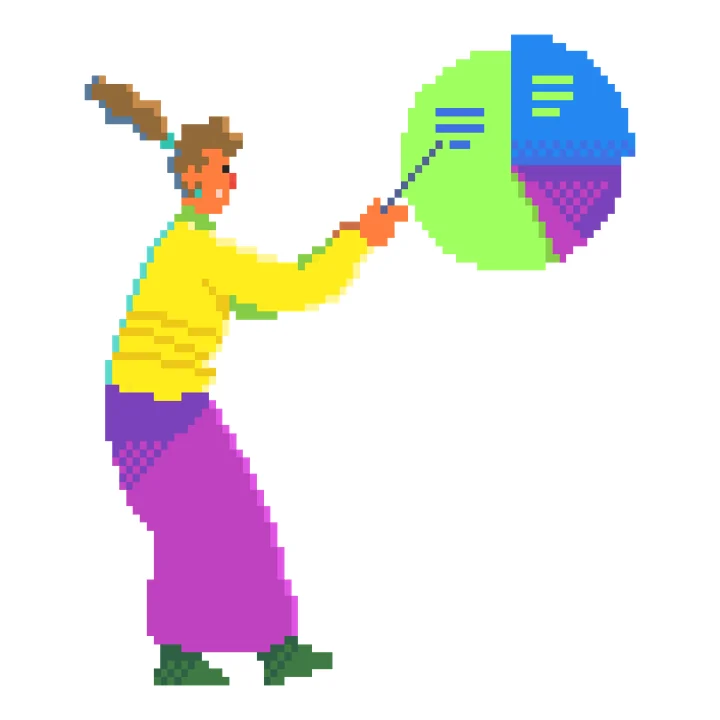 PNG
PNG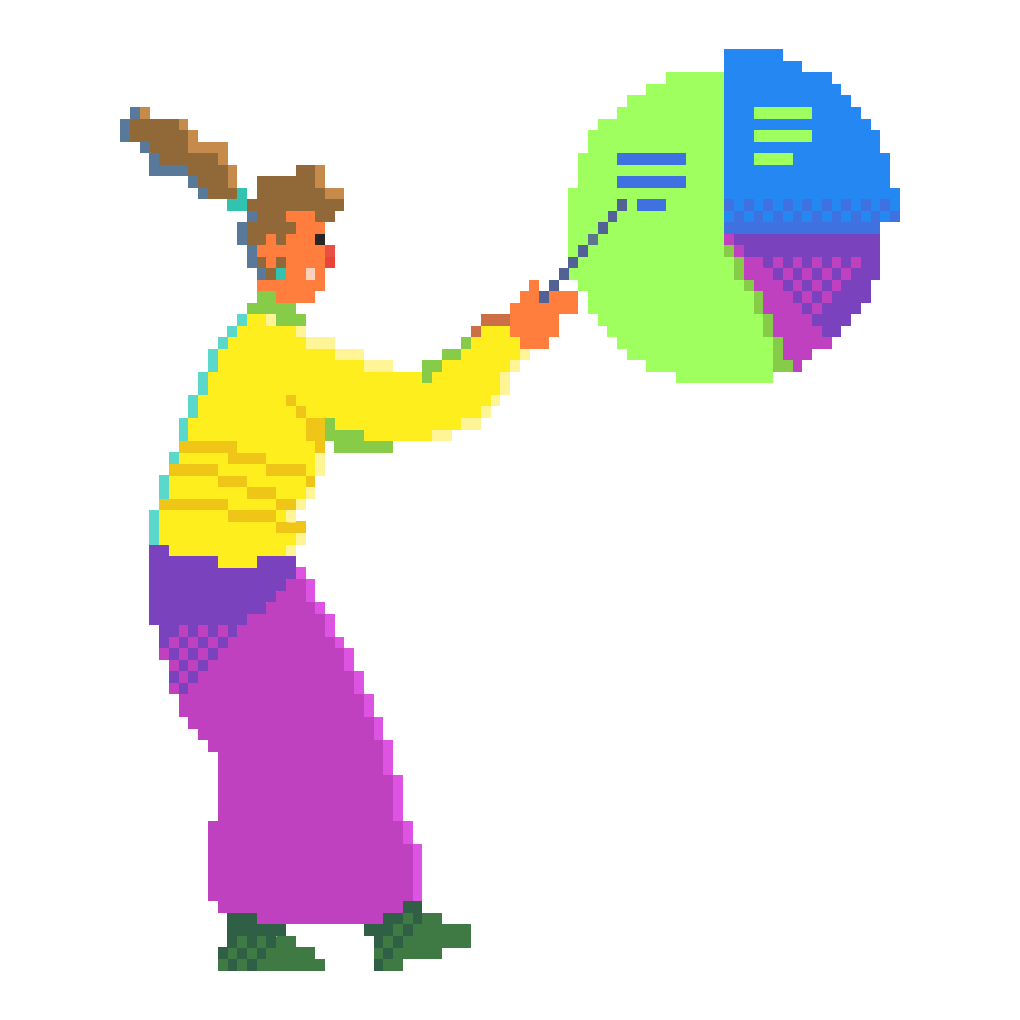 SVG
SVGWhat Vectorizer Lab does, for free
Most converters trace pixels and hand you a pile of jagged shapes. Vectorizer Lab treats the image the way an illustrator would redraw it, then checks its own work: every SVG is rendered back and compared with your image, so Auto can search the settings and keep the candidate that scores best for the size you asked for.
-
Lines are real strokes
A drawn line is found as a line: thinned to its centre, redrawn as one stroked path with a width you can change in Figma or Illustrator. A brush taper keeps its shape; hair-thin veins and small lettering stay whole in their true colour.
- Sub-pixel tracing
Edges land where the anti-aliasing says they are, so a 6-px eye is a circle, not a staircase.
- Editable layers
One path per colour region, circles and boxes as real ellipses and rectangles, lines and dots in their own groups, every element named.
- Details survive the palette
A gold emblem on a red banner or a grey patch on a dark wing keeps its own shape and colour at 8 colours or 32.
- Shading as gradients
Banded shading merges into one shape with a linear or radial gradient where that earns its bytes.
-
Auto, with a real score
Searches colours, cleanup, smoothing, corners and fill mode across a pool of workers, scores every candidate against your original (mean and detail-weighted colour difference, pixels visibly off, nodes) and shows each one as it lands. Hover a row to preview it.
- Pixel art too
Small sprites trace with nearest-neighbour sampling; a sprite blown up to any size is recognised from its run lengths and traced as exact blocks.
- Two engines, one score
The native tracer and the VTracer core sit behind the same pre- and post-processing; Auto can try both and keep the better result.
- Similar colours in one go
Click a colour and every colour within a ΔE range of it lights up on the canvas: recolour or merge them at once, the fix for a tone the palette split in two.
-
Edit on the canvas
Click a shape to hide, recolour or solo just that one. Hide or recolour whole colour layers, remove the background with one click, fit the result under a node budget. Every edit shows on the stage and goes into the export, without a re-trace.
- Remove background
One click hides the backdrop and every edge-touching shape of its colour; the export leaves it out and can trim to the content.
- Brand palette lock
Type your hex colours and the trace uses only those, lines included; Auto keeps the count fixed and searches the rest.
- See it work
A sweep and a stage pill while it traces, a terminal log of every step and every choice Auto made, a live preview while you drag a slider.
- Presets for every style
Icon, flat, painterly, line art, poster, pixel art, 3D render, halftone: a starting point per style, and the tool hints which one fits your image.
- Batches with a report
Drop a folder: every file converted or Auto-searched in turn, a review grid on the page, and report.json + report.html in the ZIP.
Six steps, and the first two are usually enough
Drop, press Auto, download: that is the whole job for most pictures. The other four are there when you want to look closer, tune, or fix a colour.
- 1Drop your imagePNG, JPG, WebP, GIF, AVIF or SVG, one file or several. Paste from the clipboard works too.
- 2Press AutoThe search tries colour counts, cleanup sizes, smoothing, corners and fill modes, scores each candidate and keeps the best. Watch it in the log; hover any row to preview it.
- 3CompareWipe the vector over the original, onion-skin it, show the difference heatmap, hold Space to peek, switch on the anchors to see every node.
- 4TuneMove the balance slider towards fidelity or fewer nodes, pick a preset, lock a brand palette, or fit the result under a node budget. A live preview follows the sliders.
- 5Fix colours and backgroundClick a shape to hide or recolour it, select a colour and every tone near it to merge them, remove the background with one click. No re-trace needed.
- 6ExportDownload the SVG at the image's real size, copy it into Figma or Illustrator as editable shapes and strokes, or export PNG at 1x to 4x. Batches come as one ZIP with a report.
Open Vectorizer Lab → Free. No account, no install, no watermark.
What it exports
Everything renders in the page and downloads straight from it.
| Format | What you get | Best for |
|---|---|---|
| Layered SVG | Clean cubic Bézier paths, one per colour region; even lines as real strokes with a width, circles and boxes as ellipses and rectangles; everything named, grouped by colour with the lines and dots in their own groups, at the image's real size; optional trim to the content; the settings link inside the file | Editing in Figma, Illustrator, Inkscape or Affinity; icons and logos that must scale |
| Copy SVG | The same SVG on the clipboard | Pasting straight into a design tool as editable shapes |
| Cutout SVG | Non-overlapping shapes with holes cut, one named layer per colour | Cutting machines, boolean-safe editing |
| PNG | 1x, 2x or 4x, transparent or on white or black; copy to the clipboard too | Previews, social, docs |
| Palette | The visible colours as CSS custom properties and a JSON list | Design tokens, recolouring in code |
| Batch ZIP | Every dropped file converted with the same settings, or a fast Auto each, with a review grid on the page and report.json + report.html in the ZIP | Converting a whole pack at once |
| Settings link | A URL that opens the tool with your exact settings | Sharing a recipe with a teammate |
What people make with an image vectorizer
A few starting points, with the tools and packs that pair with each.
Logos and icons from a PNG
The only copy of a logo is a screenshot? Trace it, tidy the layers, and export an SVG that scales to a billboard. The SVG Color Editor recolours it afterwards.
Illustrations back into vectors
Flat and painterly artwork, ours or yours, comes out as editable colour layers. Packs like Journey already ship as SVG; this is for the images that don't.
Line art and sketches
Ink drawings and outlines keep their strokes whole, in their true colour and width, ready to restyle or animate.
Pixel art into curves
Sprites and pixel scenes, including anything you made in Pixel Lab, become smooth vector shapes without the staircase.
Posters from photos and renders
Glossy icons, 3D renders and photos come out posterised into colour bands with gradients where the shading is smooth. The balance slider sets how many bands you keep.
Whole sets at once
Drop a folder's worth of images, tune the settings on the first one, then convert them all into one ZIP with the same recipe.
Plain JavaScript, Web Workers and a little WebAssembly, in your browser
The native engine
Lanczos upscale to a trace scale, k-means++ palette in CIELAB, regions split at drawn edges and cleaned of halos, crack-following contours refined by the anti-aliasing to sub-pixel positions, Taubin smoothing, corners by turning angle, Schneider's cubic fit. Fills are palette colours, per-shape means or least-squares gradients.
The quality loop
Each candidate SVG is rasterised back and compared with the source: mean ΔE, a detail ΔE that weighs pixels on edges and thin lines up to five times, and the share of pixels visibly off. Auto is a coordinate-descent search over that score plus a size term, parallel across a pool of workers.
A second engine
The VTracer core, written in Rust and compiled to WebAssembly, sits behind the same pre- and post-processing with its colour-cluster and watershed modes. Auto can try both engines and keep the better score.
Lines as lines
A thin, elongated region is thinned to its skeleton, split into branches at junctions, put back on the centre of the stroke's anti-aliasing, fitted once, and measured for width along its length. An even line becomes one stroked path; a taper keeps its filled band. Built and tuned by the GetIllustrations team against a benchmark of library illustrations.
- Plain JavaScript
- Web Workers
- WebAssembly
- CIELAB
- Cubic Béziers
- Skeletons and strokes
Questions about the free image vectorizer
Is Vectorizer Lab free to use?
Yes. Vectorizer Lab is free, there is no account to create and no watermark on exports. It runs entirely in your browser, so there is nothing to install either.
What kind of images does it convert best?
Flat and painterly illustrations, icons, logos, line drawings and pixel art. Photos and rendered 3D work too, but they come out posterised into colour bands, which is what any tracer does; the balance slider decides how many bands you keep.
What is the difference between Vectorizer Lab and the SVG Color Editor?
The SVG Color Editor recolours an existing SVG. Vectorizer Lab makes the SVG in the first place, from a PNG, JPG, WebP or GIF, and hands you editable colour layers you can then recolour in either tool.
How is the result scored?
Every SVG is rendered back to pixels and compared with the source in CIELAB colour space: a mean colour difference, a detail-weighted one that counts pixels on edges and thin lines up to five times, and the share of pixels visibly off. Auto searches colours, cleanup, smoothing and fill mode and keeps the candidate with the best score for the size you asked for.
What does the Auto balance slider do?
It sets what Auto optimises for. At 0 every pixel matters and the SVG carries every detail it can; at 100 it aims for the fewest nodes and the smallest file. The middle keeps details a person would notice and drops the ones they would not.
Will the SVG be editable in Figma, Illustrator or Inkscape?
Yes. Shapes are plain paths with clean cubic Bézier curves, stacked big-to-small so there are no hairline gaps; even lines are real strokes with a width you can change, circles and boxes are ellipses and rectangles, and every element is named and grouped. Copy SVG puts them on the clipboard as editable objects; Download saves the file at the image's real size.
Can I fix colours after the trace?
Yes, without re-tracing. Click a layer to select its colour and every colour within a ΔE range of it, then recolour or merge them at once; click a shape on the canvas to hide or recolour just that one; lock a brand palette so the trace uses only your colours. The export follows every edit.
Can it remove the background?
Yes. One click hides the backdrop and every shape of its colour that touches the image edges, and the export leaves it out; tick Trim to get the tight box around what is left.
What are the two engines?
The native engine traces contours, refines each edge to where the anti-aliasing says it really is, and fits curves with a corner-aware Bézier fitter. The second engine is the VTracer core (Rust, compiled to WebAssembly). Auto can try both and keep the better score.
Can I convert several images at once?
Yes. Drop several files and a batch bar appears: convert them all with the current settings, or run a fast Auto on each, and download the results as one ZIP.
Can I use the SVGs I make commercially?
Anything you create from your own images is yours to use however you like. Vector versions of GetIllustrations packs follow the licence of the pack they came from.