
How to Export a Vector as a Transparent PNG at Any Size (Illustrator, Figma, Inkscape, Canva and in the Browser)
Vector to PNG done properly: the exact export steps in Illustrator, Figma, Inkscape, Canva and the browser, and the right size for retina, email and print.

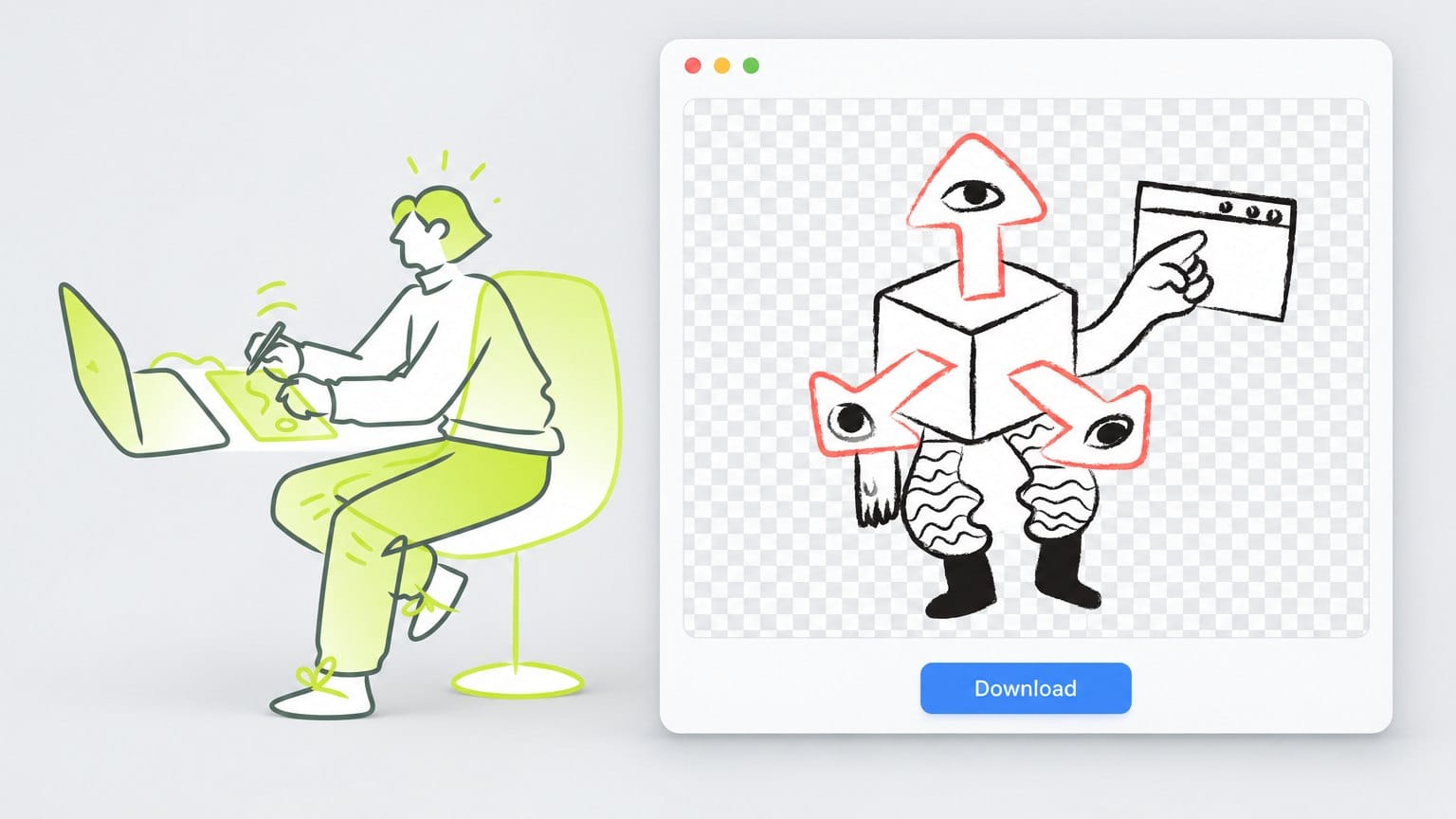
You've got the illustration you want. It's an SVG from a pack, or an artboard in Illustrator, or a frame in Figma, and the person who asked for it wants "a PNG with no background, big enough for the hero". Then the export lands with a white box around it, or it looks crisp on your screen and fuzzy on theirs.
Going from vector to PNG cleanly comes down to two settings, the background and the size. Below are the exact steps in Illustrator, Figma, Inkscape and Canva, three ways to do it in the browser on our own site, the size to pick for a website, an email, a slide or a print job, and a quick check before you send the file anywhere.
What does vector PNG mean
A PNG is pixels, a vector is maths
A vector file (SVG, AI, EPS, PDF) stores shapes as curves and coordinates, so it can be drawn at any size without going soft. A PNG stores a grid of pixels at one fixed size. "Vector PNG" is shorthand for a vector drawing that has been exported to PNG, and usually the point of asking for one is a transparent background.
Adobe Stock's help page says the same thing: PNG versions of vector art are pixel based, they can have transparent backgrounds, and resizing them can hurt quality, while AI, EPS and SVG stay sharp at any size. If you want the longer version, our post on what a vector image is covers the formats properly.
What you keep and what you lose when you export
You keep the colours and the transparency, exactly as they look at the size you chose. You lose the ability to scale up, the layers, the editable strokes and the text as text. Keep the SVG or AI file as the master and treat every PNG as a disposable copy you can make again in a minute.
When you need a PNG instead of an SVG
Email clients, social networks, some slide tools and plenty of CMS image fields want a raster file. On a website SVG is usually the better choice, because it stays sharp on every screen and a simple drawing is often lighter as SVG. When a platform refuses SVG, export the vector as a PNG at the right size and move on with your day.
How big should the PNG be: 1x, 2x or 3x
This is the part the converter sites skip, and it's the part that decides whether the result looks sharp. A vector has no pixel size until you give it one, so pick the size from where the image will be shown. Here's the rule of thumb, place by place.
| Where it goes | Displayed width | Export this | Why |
|---|---|---|---|
| Website or app on a retina screen | 400 px on the page | 800 px (2x), or 1200 px (3x) for thin lines | Two or three device pixels per CSS pixel, each way |
| 600 px column | 1200 px, with the width attribute set to 600 | Outlook on the desktop reads only the width attribute | |
| Slides and documents | The width it takes on the slide | Double that width | Holds up when projected or saved as PDF |
| Print at 300 dpi | A full A4 sheet | 2480 by 3508 px | 300 pixels per printed inch |
Screens and retina displays: export at 2x and display at 1x
A retina or high density screen uses two or three device pixels for every CSS pixel, in each direction. An illustration shown 400 pixels wide on the page needs an 800 pixel PNG to look crisp there, and 1200 pixels for the sharpest phones. Export at 2x as the sensible default, and go to 3x only when the drawing is small on the page and full of thin lines.
Email: a 600 pixel column wants a 1200 pixel image with a width attribute
Many email templates are built on a 600 pixel column. Export the PNG at 1200 pixels, then set the img tag's width attribute to 600 so it displays at the column width and stays sharp on retina screens. Email on Acid points out that Outlook on the desktop honours only the width attribute, not a CSS width or max width, which is why that attribute matters so much.
Slides and documents: match the slide width, then double it
Measure how wide the illustration sits on the slide, in pixels, then export at double that. Decks get projected and saved as PDF, and a 2x PNG holds up through both. Going past 2x mostly inflates the file.
Print at 300 dpi: multiply inches by 300, so A4 is 2480 by 3508 pixels
Print wants 300 pixels per inch at the printed size. Canon's Print Studio Pro manual gives the A4 figure: about 2480 by 3508 pixels, roughly 8.7 million pixels. A drawing that only takes up 4 inches across the page needs 1200 pixels, and no printer can add detail that isn't in the file.
One more thing on dpi. The dpi value stored in a PNG is a label, not a resolution. Pixel dimensions decide sharpness, so size the pixels and let the label be whatever the exporter writes.
How to export a transparent PNG in Illustrator
Open File, Export, Export for Screens
Export for Screens is the right tool for PNGs because it exports whole artboards at several scales in one go. Go to File, then Export, then Export for Screens. Tick the artboards you want on the left.
Click the gear next to PNG and set Background Color to Transparent
In the Formats list choose PNG, then click the small gear icon next to it to open the format settings. Set Background Color to Transparent. It's an easy setting to skip, and a white Background Color here is one reason "transparent" exports land on white.
Add 1x, 2x and 3x scales and know they land in subfolders
Add as many scales as you need and export them together. When you export 1x, 2x and 3x in one run, Illustrator writes each size into its own subfolder named 1x, 2x and 3x inside the export location, which is handy for a dev handoff. Adobe's own write up of the feature describes exactly that layout.
If the background still comes out white, look for a hidden white rectangle
Usually the artboard isn't the problem. A white filled rectangle sits behind the art, often locked, and white on a white artboard is easy to miss until it exports as a solid background. Open the Layers panel, find the rectangle, delete it and export again.
How to export a PNG from Figma
Select the frame and use the Export section in the right sidebar
Select the frame or group, then scroll the right sidebar down to Export and click the plus button. Choose PNG as the format. If the frame clips its content, anything hanging outside it gets cut off, so make sure the whole drawing sits inside the frame before you press Export.
Pick a scale or type a width such as 1024w
The scale menu lists multipliers like 1x, 2x and 3x, but you can type your own. Figma's help page explains the syntax: a number with x is a multiplier, w fixes the width and h fixes the height. Type 1024w for a PNG exactly 1024 pixels wide, or 512h for one exactly 512 pixels tall.
Hide the frame fill with Show in exports to keep transparency
A new frame starts with a white fill, and that fill goes into the PNG. In the Fill section, untick Show in exports for the frame's fill and the background stays transparent while the white stays on the canvas for working. Figma PNGs are always 32 bit RGBA, so there's no setting to switch transparency off.
Why Figma's 2x is 144 dpi and why the DPI tag barely matters
Figma tags 1x exports at 72 dpi, 2x at 144 and 3x at 216. Those numbers are metadata that follow the multiplier, and a 1600 pixel wide export prints just as sharp tagged 144 as it would tagged 300. SVG and PDF only export at 1x, which is fine because they're still vectors.
How to export a PNG in Inkscape
Open File, Export and pick Document, Page, Selection or Custom
Since version 1.2 Inkscape has one Export dialog under File, Export, or Shift Ctrl E. The first tab, for a single file, has four area buttons: Document, Page, Selection and Custom. Selection is the one for an illustration you've clicked on, Page for the whole page.
Set Width, Height or DPI: the default 96 dpi equals 1 pixel per user unit
Inkscape's default export resolution is 96 dpi, which makes one SVG user unit exactly one pixel. For a 2x export type 192 in the DPI field, or type the pixel width you want and Inkscape works out the dpi for you. Pick PNG from the format menu and press Export.
Keep the background transparent or set its alpha in Document Properties
Inkscape exports with a transparent background by default. If you need a solid background, open File, Document Properties and give the Background Color an alpha of 255. The 1.2 release notes confirm that the page background colour is what gets used for a non transparent export.
Batch Export for several sizes at once
The second tab, Batch Export, writes every selected object or page as its own file. Add a row per format and size and Inkscape produces the lot in one run, which beats exporting six illustrations one by one.
How to download a transparent PNG from Canva
Share, Download, choose PNG
Click Share, then Download, and choose PNG under File type. JPG throws the transparency away, so pick PNG whenever the background has to disappear.
Switch on Transparent background and move the Size slider
Under the file type you'll find a Size slider, a Quality choice of Compress, High or Limit size, and a Transparent background toggle. Switch the toggle on, drag Size up for a larger export, and click Download.
What free accounts cannot do here
Canva's help centre says transparent PNGs and the size options are available to Canva Pro, Teams, Education and Nonprofit accounts. On Canva Free you can still download a PNG, just not a transparent one at a size you choose. If that's you and you already have the SVG, the SVG Color Editor below does the job in the browser.
How to convert a vector to PNG in the browser without installing anything
All three tools below run on getillustrations.com and are listed on our tools page. Each one does something a little different, so pick the one that matches your file.
SVG Color Editor: load the SVG, tick Custom size, type Width and Height, press Download PNG
The SVG Color Editor is the straight route from SVG to PNG. Drop the SVG in and recolour it if you like. Then tick Custom size, type a Width and Height, and press Download PNG.
Leave Custom size unticked and the PNG comes out at the SVG's own viewBox size, which can be smaller than you need. The background stays transparent, and if your width and height don't match the drawing's proportions the art is fitted inside and centred rather than stretched. The download is named with its pixel size, so a 1600 by 1200 export is easy to find in a folder later.
Vectorizer Lab: PNG at 1x, 2x or 4x with a Transparent, White or Black background
Vectorizer Lab is a tracer. It turns a PNG, JPG, WebP, GIF, AVIF or SVG into a layered SVG first, and then exports. Its PNG export has a size menu with 1x original, 2x and 4x, and a background menu with Transparent, White or Black.
There's a Copy PNG button too, and it follows the Trim setting, which crops away the empty margins. Use the lab when you only have a raster to start from and want both a vector and a clean PNG out the other end. If you already have an SVG, the Color Editor keeps the original curves untouched.
Design Studio: Export PNG with the Transparent background checkbox at 1x to 4x
The Design Studio is our design editor that runs in the browser. Its export window offers PNG, JPG, SVG and PDF, a Transparent background checkbox that appears for PNG only, and a Scale setting of 1x, 2x, 3x or 4x. On a free account the export is capped at 1x and carries a small GetIllustrations.com label in the corner, and the larger scales need a paid plan.
What happens to the file you drop in
Every file you add to these tools is copied to our server the moment you drop it in. If a file can't leave your machine, use Inkscape, which is free and runs offline.

How to check a PNG before you ship it
View it at 100 percent, not fit to window
Open the PNG in a browser tab or an image viewer and set the zoom to 100 percent. Fit to window hides blur because it shrinks the image. If the edges look soft at 100 percent they'll look soft on the page.
Drop it on a dark background to catch a white halo
A transparent PNG sometimes keeps a faint white fringe where its smooth edges were blended into white, usually because the white was removed after export instead of being left out of it. Put the PNG on a black or dark grey layer and the halo shows up at once. The fix is to export again from the vector with the background switched off, not to erase the fringe by hand.
Read the pixel size, not the dpi label
Check the dimensions in the file info. A 400 by 300 PNG tagged 300 dpi still prints sharp at only just over an inch wide, and a 2400 by 1800 one tagged 72 dpi prints beautifully at 8 inches. Pixels decide, the label doesn't.
Keep the SVG or AI file as the master
Name the PNG with its size, something like hero_1600.png, and keep the vector next to it. When the design changes you export again from the master instead of upscaling a PNG.
If all you have is a small PNG, our guide on how to increase image resolution explains what upscaling can and can't recover, and the Upscaler Lab is the place to try it. To get back to a vector instead, how to convert PNG to SVG covers tracing.
Where to get vector illustrations that already come as PNG and SVG
Free packs with SVG, PNG and the Illustrator file, for personal and commercial work with a credit link
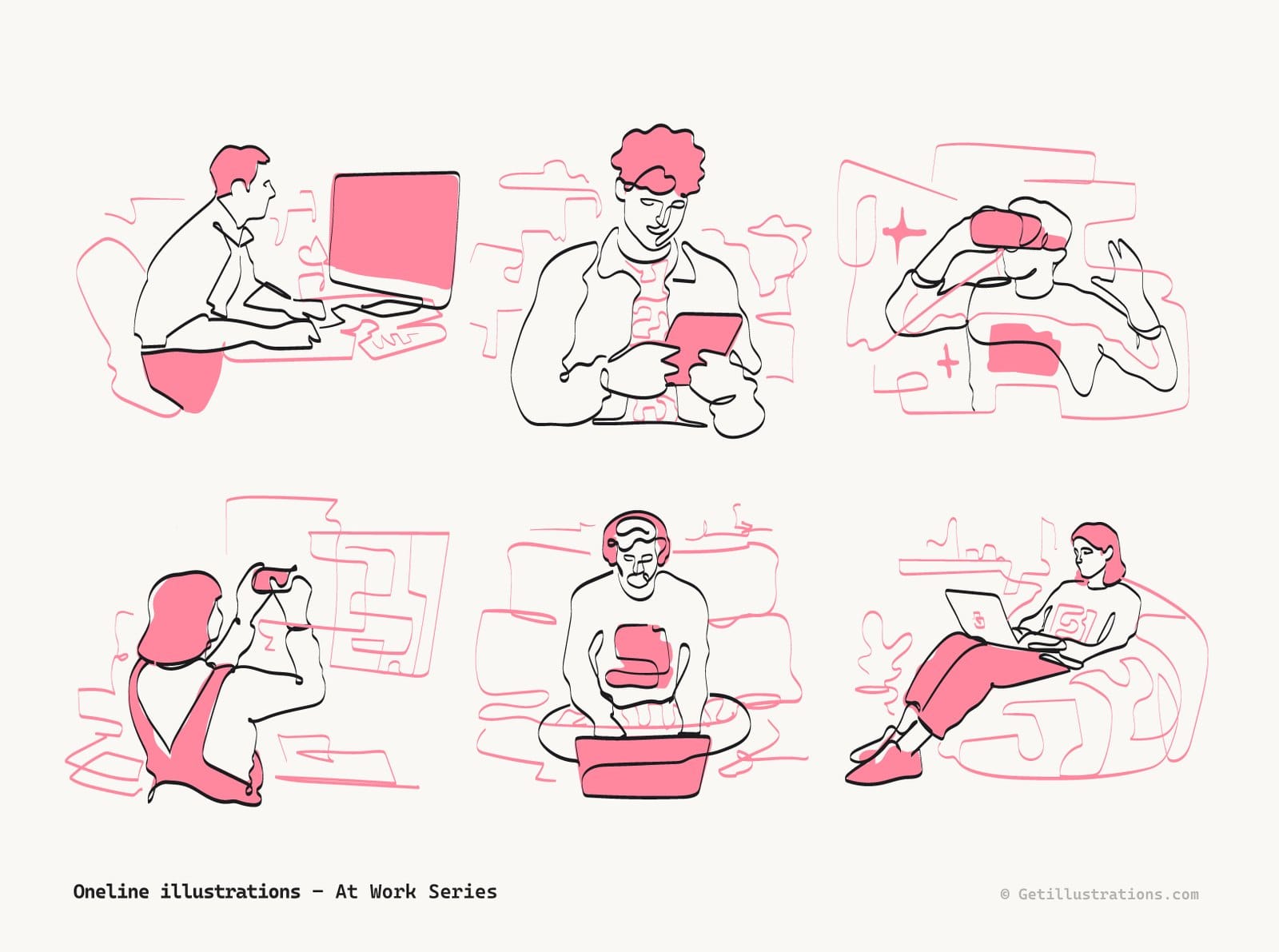
If you'd rather skip the exporting and just want free vector PNG files, every pack on our free illustrations page comes with SVG files and PNGs at two sizes, and most packs include the Adobe Illustrator source too. The larger PNG is rendered at up to 2040 pixels wide, enough for a retina hero about 1000 pixels across. You can use them in personal and commercial work with a visible credit link to GetIllustrations, and the licence page has the full wording.
The Claude Mascot pack is a good one to practise on. It's free, and its pixel art has hard edges, so you can tell at a glance whether an export came out sharp.
Every pack starts with a human illustrator, and the four AI remixed packs are labelled
Every illustration in the library begins with a human illustrator. Four packs are AI remixes of the studio's own hand drawn originals, and each one carries a Remixed by AI label on its cover, its page and in the preview, so you always know what you're downloading. Those remixes are conditioned only on the studio's own drawings, never on anyone else's work.
One consistent style across a whole site or deck
The reason to export from a pack rather than grab stray vector art PNGs off the web is consistency. PNG illustrations from one of our illustration packs share one style and one palette, so a hero, a row of feature cards and a 404 page look like one set.
Frequently asked questions about vector to PNG
Is a PNG a vector file
No. A PNG is a raster image made of pixels at a fixed size. It can be exported from a vector, and it can keep a transparent background, but it can't be scaled up without losing sharpness.
What size PNG should I export for a website or app
Export at twice the width the illustration will be displayed at, so a 500 pixel wide hero wants a 1000 pixel PNG. Use 3x only for small, detailed drawings on phones. If the platform accepts SVG, use that instead and skip the question entirely.
How do I export a PNG at 300 dpi for print
Work out the printed width in inches and multiply by 300 to get the pixel width. A full A4 sheet needs about 2480 by 3508 pixels. In Figma type a width such as 2480w, in Illustrator or Inkscape set a scale or width that reaches that count, and don't worry about the dpi label the file ends up with.
Why does my transparent PNG have a white background
Either the export setting wasn't transparent, or a white shape sits behind the art. In Illustrator check Background Color in the PNG settings of Export for Screens, in Figma untick Show in exports on the frame fill, and in Canva switch on Transparent background, which Canva Free doesn't offer. If that doesn't fix it, look for a white rectangle behind the art, often a locked one.
Can I turn a PNG back into a vector
Yes, by tracing it. Vectorizer Lab traces a PNG into a layered SVG in the browser, and our PNG to SVG guide walks through the settings. Tracing a clean flat illustration works well, tracing a photo gives you an approximation.
Want a file to practise on? Grab any pack from our free illustrations page, open one SVG and export it at 2x with the background switched off.