
How to Make AI Illustrations in a Consistent Style, Step by Step
Make AI illustrations in one consistent style, built on packs drawn by hand by human illustrators. Write prompts that work, edit results, get PNG or SVG.

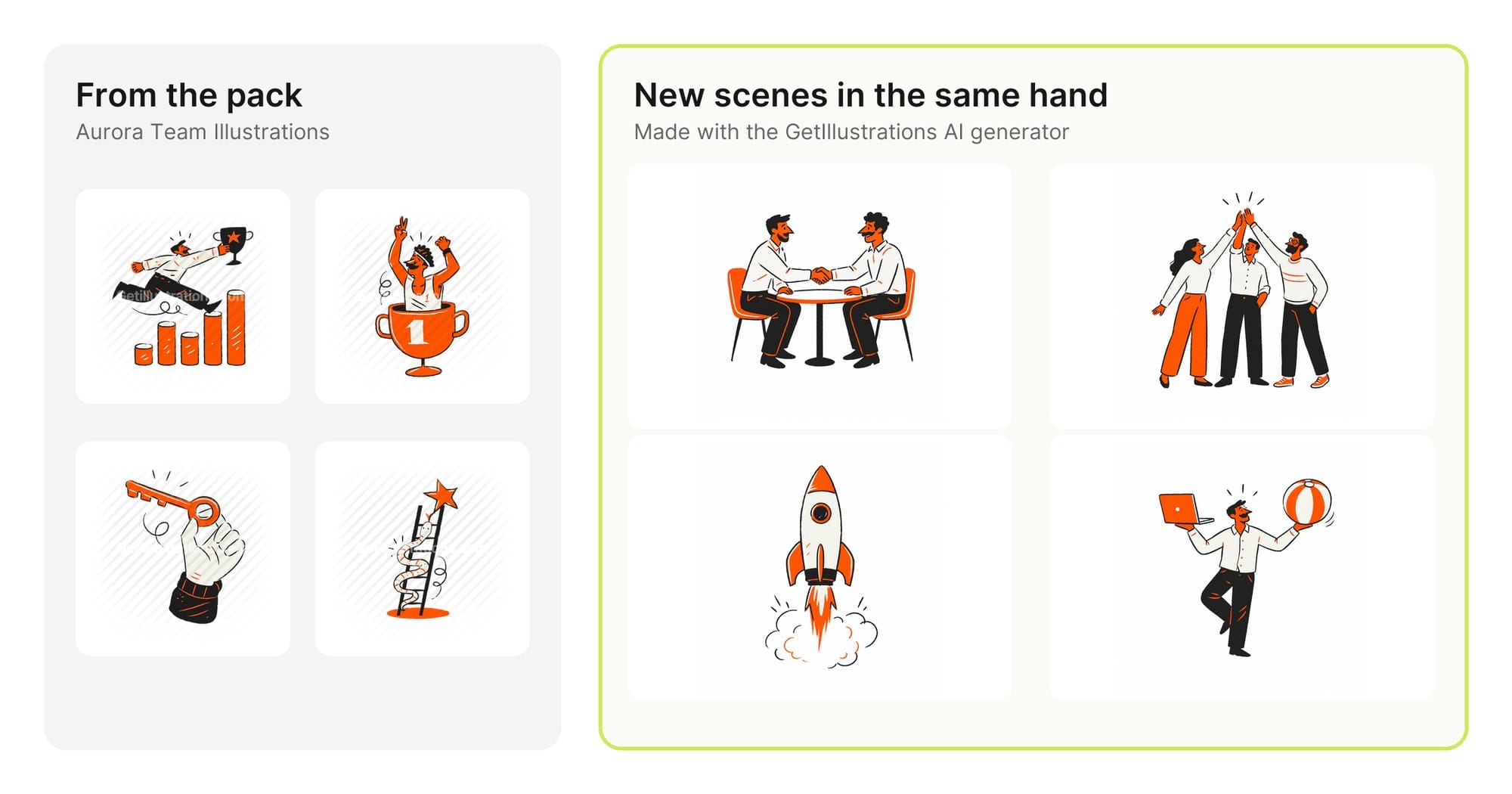
You make one AI illustration for your homepage and it looks great. Then you need a second one for the pricing page, and it comes back in a completely different hand.
Thicker lines, new colours, faces drawn another way. By the fifth picture, your site looks like it was decorated by five strangers.
That's the real problem with AI illustrations. One good picture is easy now. A whole set that looks like one illustrator drew it is the hard part, and most guides skip it.
One thing first: every illustration in the GetIllustrations library begins with a human illustrator and is drawn by hand. Our AI generator doesn't replace that work. It builds on it, turning the styles our artists created into custom illustrations for the scenes your pack doesn't have yet.
This guide covers the hard part: why AI art drifts, how to keep a set consistent, prompts that work, how to fix a picture without starting over, and what you're allowed to do with the result. I'll use our own AI illustration generator for the examples, because it was built around this exact problem, but most of the advice works with any tool.
Human made illustrations come first
Every pack on GetIllustrations is designed and drawn by our own illustrators, line by line, the way illustration has always been made. That library is what you buy from us, and it stays human made.
The AI illustration generator is a new tool that sits on top of that work. It takes a style a person created, shows an image model four of that person's drawings, and uses them as the reference for a custom scene you describe. The character design, the line work and the palette all come from people, and the model only draws the new scene.
We're also clear about where AI is involved. A handful of packs we remixed from our own originals carry a Remixed by AI label on their page, and anything you make in the generator is an AI illustration in a human made style. You can read more about how we work on our human made illustrations page.
Why AI illustrations don't match each other
An image model doesn't remember your last picture. Every time you press generate, it starts from zero and picks a look that fits your words. Ask for "a flat illustration" twice and you get two different ideas of what flat means.
Style words are the weak point. "Flat vector", "hand drawn" and "minimal" each cover thousands of real styles, so the model fills the gap with whatever it saw most often. You get the average of the internet, and the average changes from picture to picture.
The usual fix is to name a famous artist. That works a bit better, and it's also the part of AI art that gets people into ethical and legal trouble. There's a cleaner way.
How to make AI illustrations in a consistent style
Consistency comes from what you show the model, not from what you tell it. Five habits make a set hold together.
Start from a finished style, not a style word
Pick an existing set of illustrations that already looks the way you want your site to look. Its line weight, palette, faces and shading are already decided, so the model has far less to guess.
Our generator starts here. Every style on it comes from our own illustration packs, drawn by hand by our illustrators, so the look you pick is one a person designed and drew.
Show the model real drawings from that set
A picture tells a model more about style than any paragraph can. Our generator sends the model four drawings from the pack you chose, with an instruction to copy how they are drawn (the linework, the palette, the texture) and never what they show.
On a single pack you can tap up to four drawings on the style board yourself, or let the generator pick a spread. If you choose, pick drawings close to the scene you want: people for a scene with people, objects for an object.
The picture at the top of this page shows it working. On the left are four drawings from the Aurora Team pack, and on the right are four new scenes the generator drew in the same hand.
Leave the style out of your prompt
Once the style comes from the drawings, your prompt only has to describe the scene. Adding "flat, minimal, pastel" on top fights the references and pulls the result away from the pack.
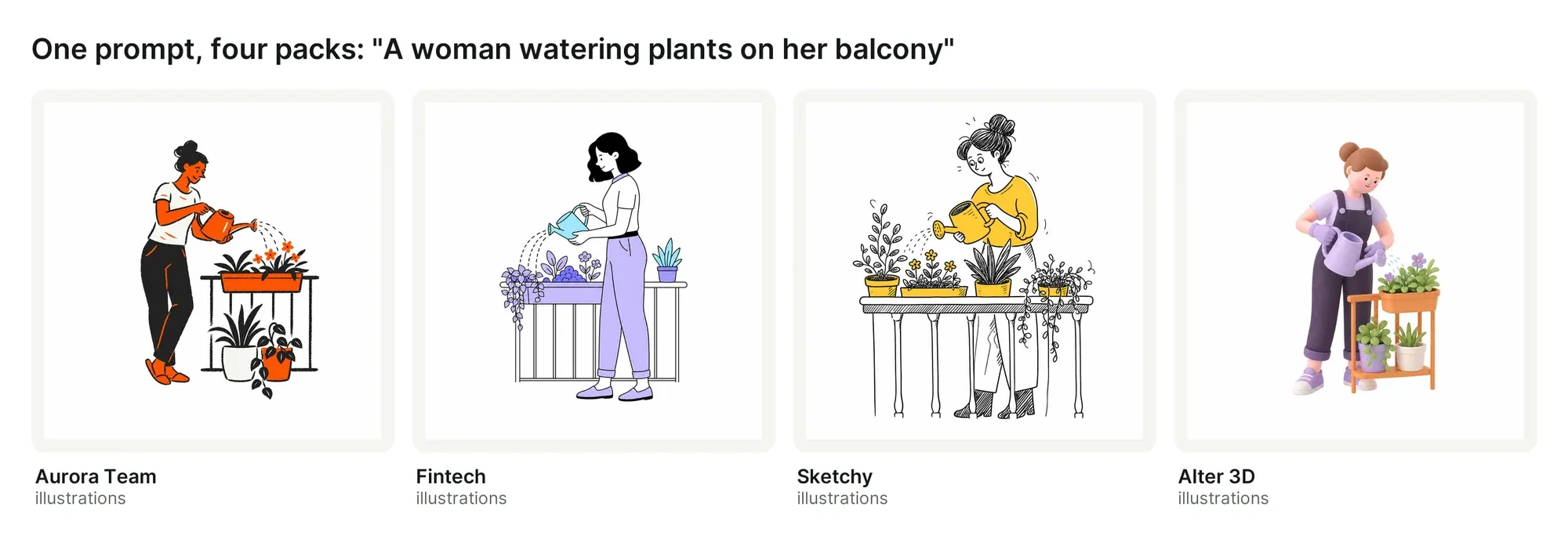
Write who is in the picture and what they're doing. The four balcony scenes near the top of this guide show why: one short prompt, four packs, four different hands, and not a single style word in the prompt.
Use one pack and one model for the whole set
A pack is one set, drawn in one hand. A style on our generator, like Hand drawn, blends several packs, which is great for exploring and less great for a set that has to match. When you're making five pictures for one landing page, pick one pack.
Stick to one model too. Each model reads the same four drawings a little differently, as you'll see further down, so switching halfway through a set shows.
Keep the same shape and settings
Five illustrations in five different shapes rarely look like a family, even in the same style. Decide on square, wide or tall for the section they'll live in, and keep it.
The Copy setup link button saves your pack, model and settings into one link. Keep it for yourself or send it to a teammate, and the next picture in the set starts from exactly the same place.
How to make illustrations with AI, step by step
Here's the whole process on the GetIllustrations AI generator, from an empty page to a finished file.
- Open the generator and press Change style. Browse the styles, or switch to Packs and search for one by name.
- Pick a pack for an exact match. Tap up to four drawings on the style board, or leave it and the generator picks a spread for you.
- Choose a model. GPT Image 2 is selected by default, and it's the one I'd start with.
- Open the settings and choose a shape, a resolution and, if you need it, a transparent background.
- Describe the scene in plain words and press Generate Illustration.
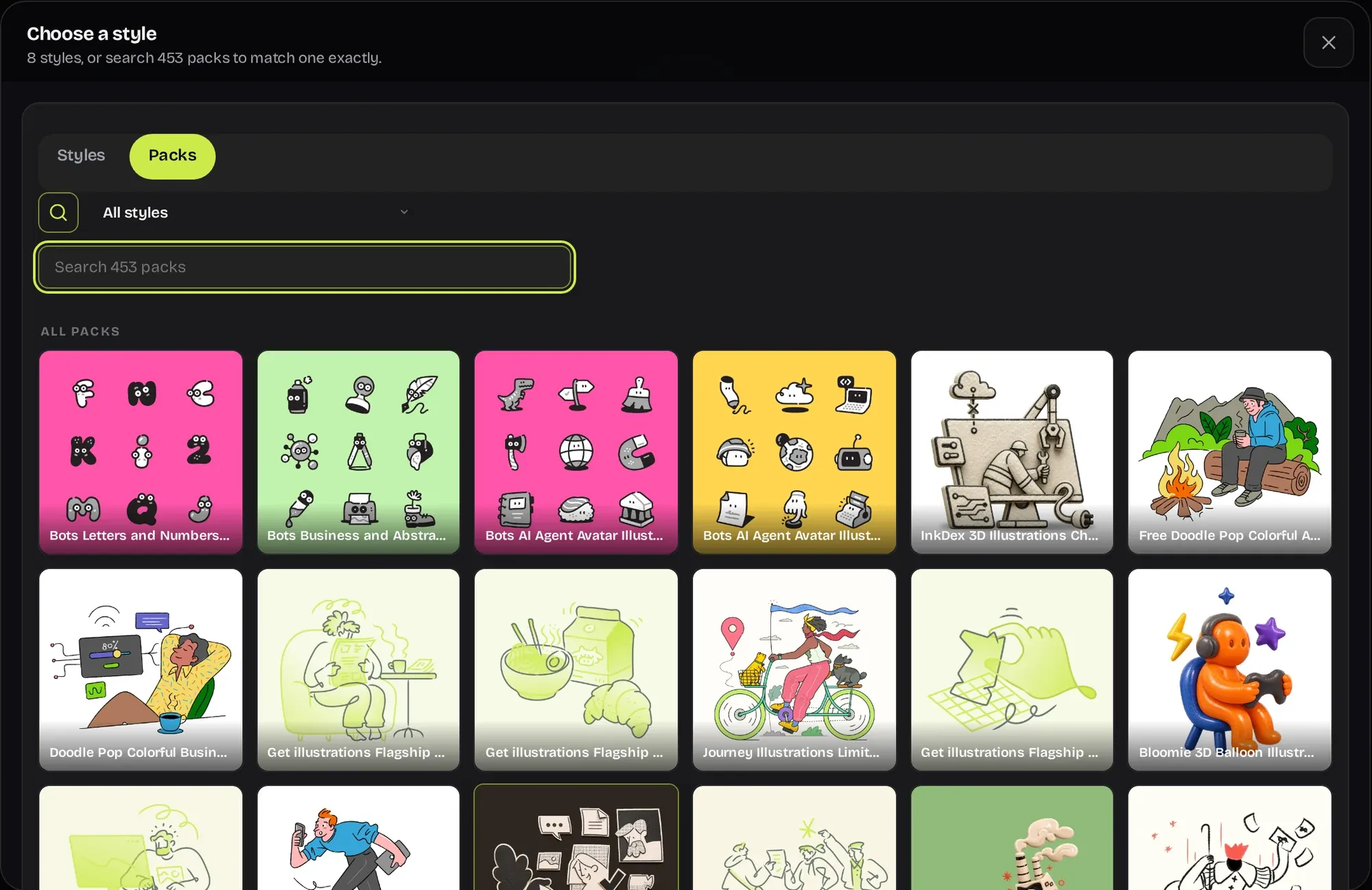
The picker shows every style first. Pick one and you'll see the packs inside it, with a Use the whole style button if you'd rather keep your options open.
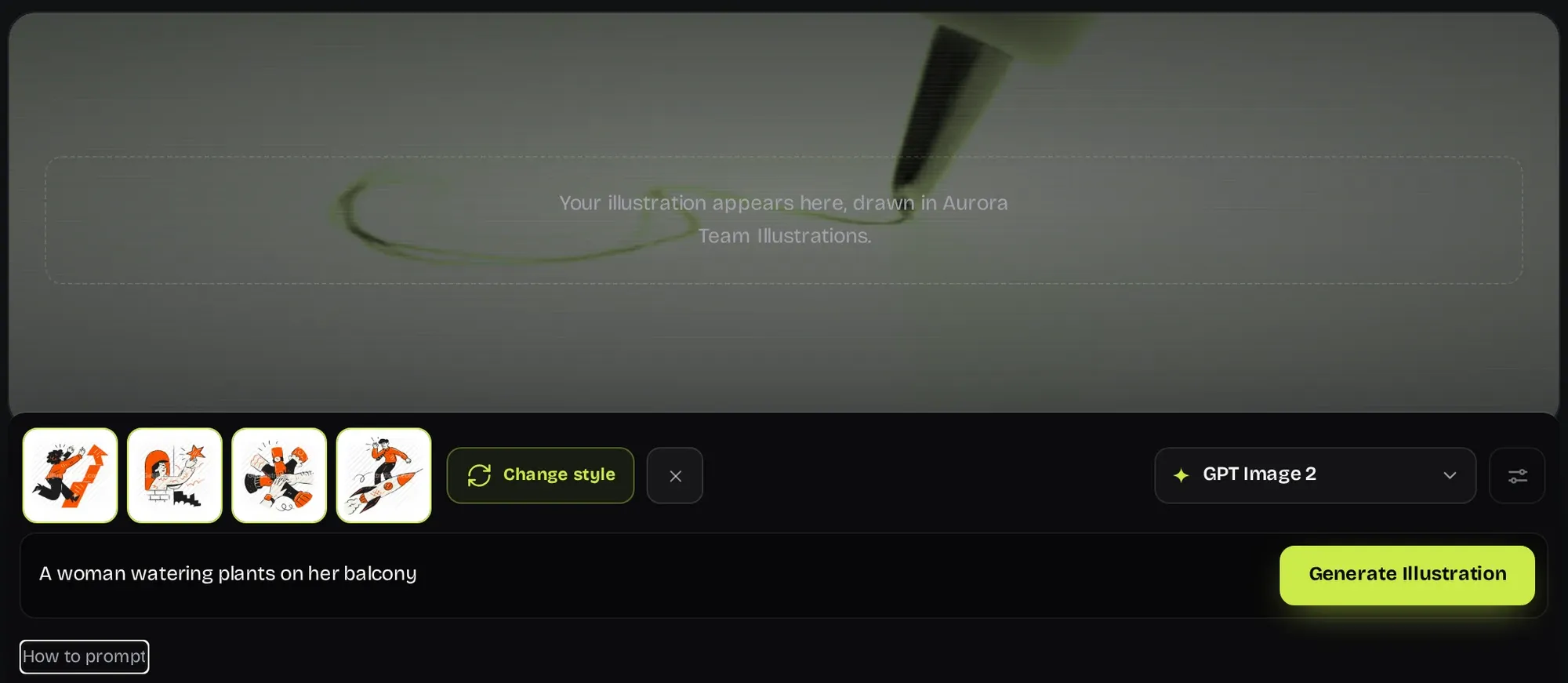
Your prompt can be anything from 8 to 400 characters. If you aren't signed in yet, pressing Generate asks you to create an account or log in, and your style and prompt are still there when you come back.
What the settings do
Shape gives you square, 4:3, 3:4, wide at 16:9 and tall at 9:16. Wide suits a hero banner, tall suits a phone screen or a story.
Resolution is 2K, which is 2048 pixels on the long side, or 4K at 4096 pixels, which takes longer. Most models follow it. Transparent asks the model to draw the subject with no background at all, and only GPT Image 2 can do that, so the box is greyed out on the other models.
Avoid lets you list things to leave out of the picture, like text or logos. The page itself says it's no guarantee, so treat it as a nudge. Image models are bad at absence, and a word in that box lowers the odds without ruling anything out.
Reading the result
GPT Image 2 usually takes about a minute. The example below took 59 seconds, and under heavy load in our tests its median was 84 seconds.
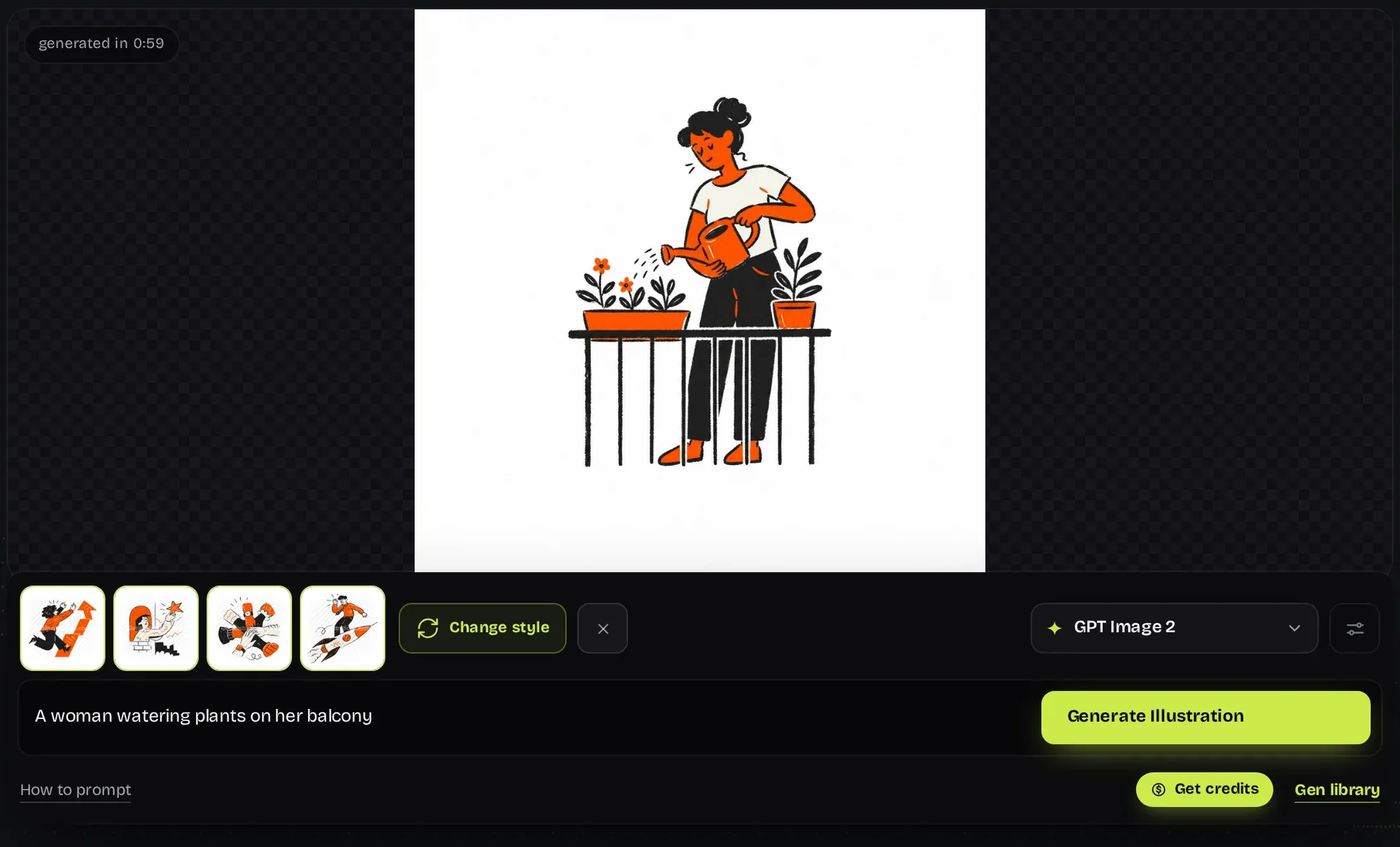
Under every illustration, small thumbnails show the four drawings it was made from, next to a link to their pack. You always know where a style came from, and one click opens the pack with the matching originals.

How to write AI illustration prompts that work
Image models draw nouns. They're good at people, objects and places, and poor at ideas like growth, trust or innovation. A strong prompt names what's in the picture, not what it's about.
The simplest pattern is who, doing what, with what. "A woman carrying a large parcel to a door" beats "delivery" because it leaves the model nothing to guess.
| Instead of | Write |
|---|---|
| a deal | two people shaking hands, close up |
| marketing | a person speaking into a megaphone |
| delivery | a woman carrying a large parcel to a door |
| growth | a small plant sprouting from a stack of coins |
| remote work | a man on a video call at his kitchen table |
A few more rules we learned in testing:
- Describe colours by name. Write "dark blue", not a hex code, because models read hex codes poorly.
- Put any words you want in the picture in quotation marks, like a banner that says "SALE".
- One subject beats five. Crowded prompts come back cluttered and often cropped.
- Skip camera talk and art words. The pack already decides how it's drawn.
What happens with abstract prompts
Since the 6 October update, the generator reads your prompt before it draws anything. A writing step turns what you typed into a clear brief for the image model, so even a short or abstract prompt becomes a concrete scene.
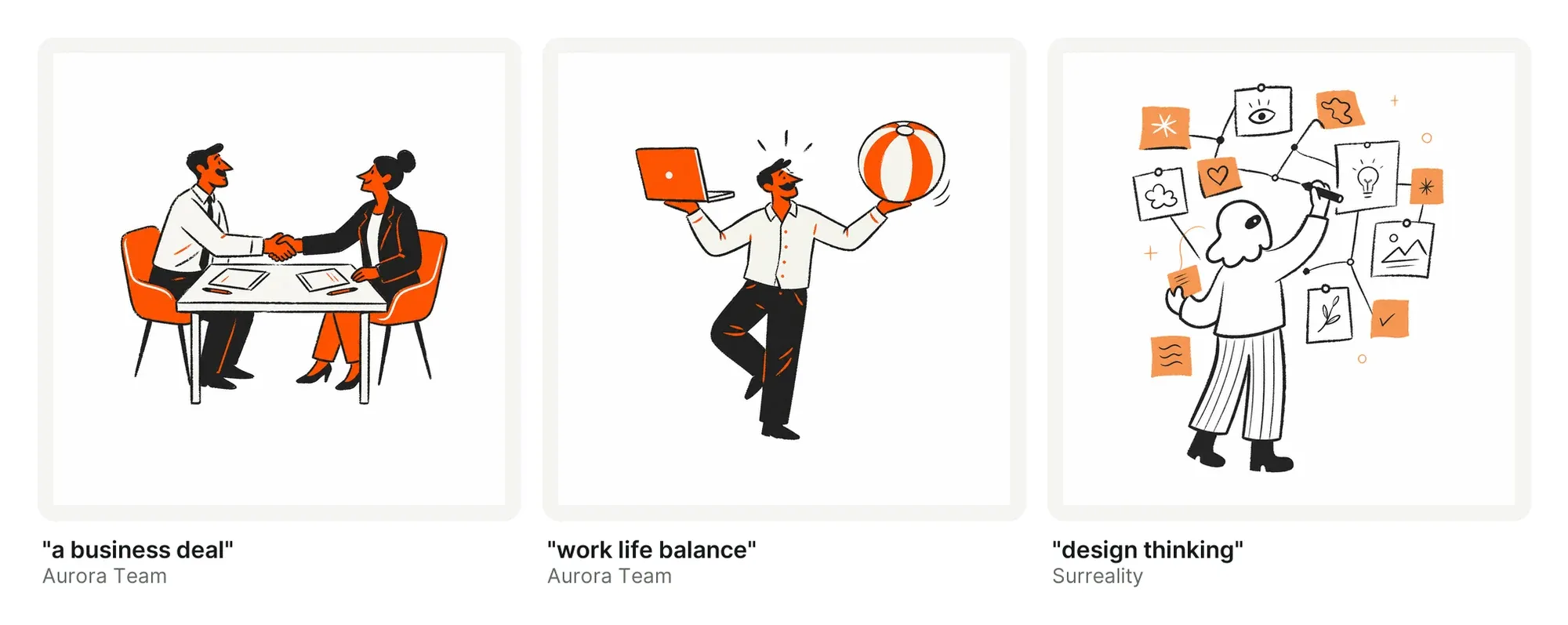
"A business deal" became a handshake across a table, which is what most people mean. "Work life balance" became a man balancing a laptop in one hand and a beach ball in the other. When the obvious picture isn't the one you want, describe the one in your head.
AI illustrations for each part of a website
Websites and apps need art in very specific places, and each place suits a different shape. These prompts are starting points for the common ones.
| Where it goes | Shape | A prompt to start from |
|---|---|---|
| Homepage hero | Wide | a small team around a laptop, celebrating |
| Empty state | Square | a person looking into an empty cardboard box |
| Onboarding | Square | a woman waving hello from an open doorway |
| 404 page | 4:3 | a hiker holding a map with a big hole in it |
| Blog header | Wide | a person writing in a notebook at a cafe table |
Use the same pack for all of them and the whole site reads as one piece of work. Our guide has more prompt tips for the generator if you want to go further.
Which AI model should you use for illustrations?
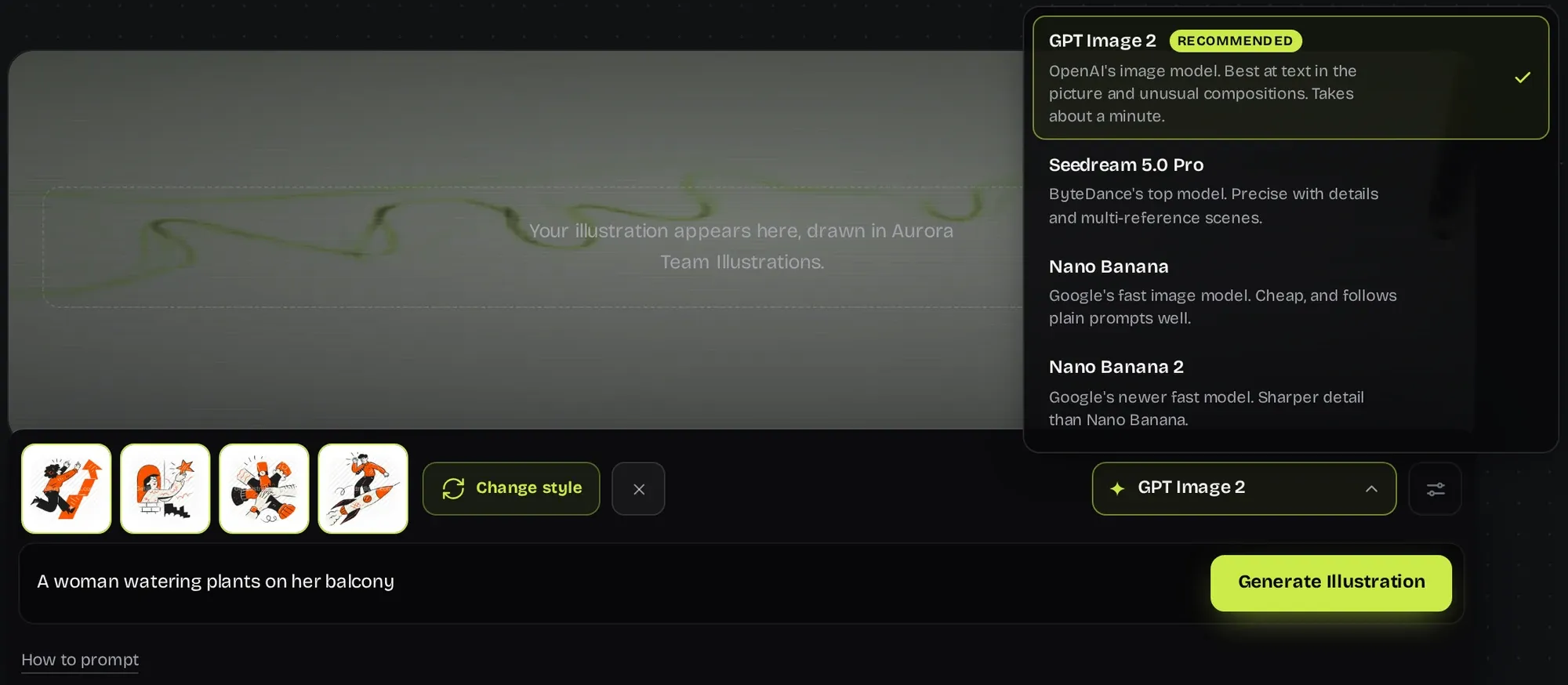
The generator offers four image models. They all get the same four drawings and the same brief, but each one has its own habits.
For the 6 October update we ran the same 30 prompts on 9 packs through every model and graded each result blind, without knowing which model made it. A picture counted as usable if a designer would use it as delivered, or after a fix of a minute or less.
| Model | Good for | Usable in our test | Time under load |
|---|---|---|---|
| GPT Image 2 | Most jobs, text in the picture, transparent backgrounds | 96% | 84 seconds |
| Seedream 5.0 Pro | Fine detail and scenes with several references | 89%, graded in its own run | About 250 seconds, the slowest |
| Nano Banana | Quick ideas and plain prompts | 89% | 40 seconds, the fastest |
| Nano Banana 2 | Sharper detail than Nano Banana | 75% | 53 seconds |
Start with GPT Image 2. It scored highest, it handles text in the picture, and it's the only one that draws transparent backgrounds. Try Nano Banana when you're exploring ideas and want quick results, and Seedream 5.0 Pro for detailed scenes when you don't mind waiting.
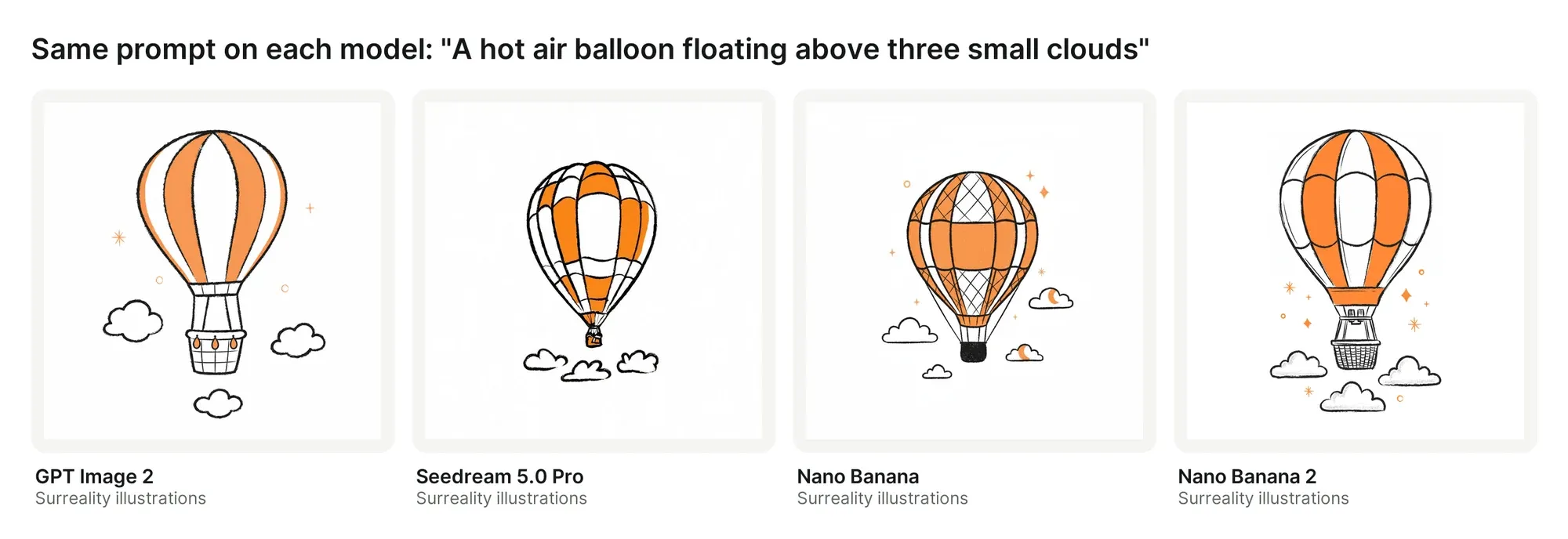
Same pack, same prompt, four models. All four kept the pack's orange and ink, but each made its own choices about the stripes, the basket and the little stars.
How to edit an AI generated image without starting over
Without an edit step, all you can do is roll the dice again. You ask for a blue jacket, and you get a blue jacket on a different person in a different pose.
The Edit button works on the illustration you already have. Press it, write what should change, and press Apply the change. It keeps the original's shape and size, and everything you didn't mention is supposed to stay put.
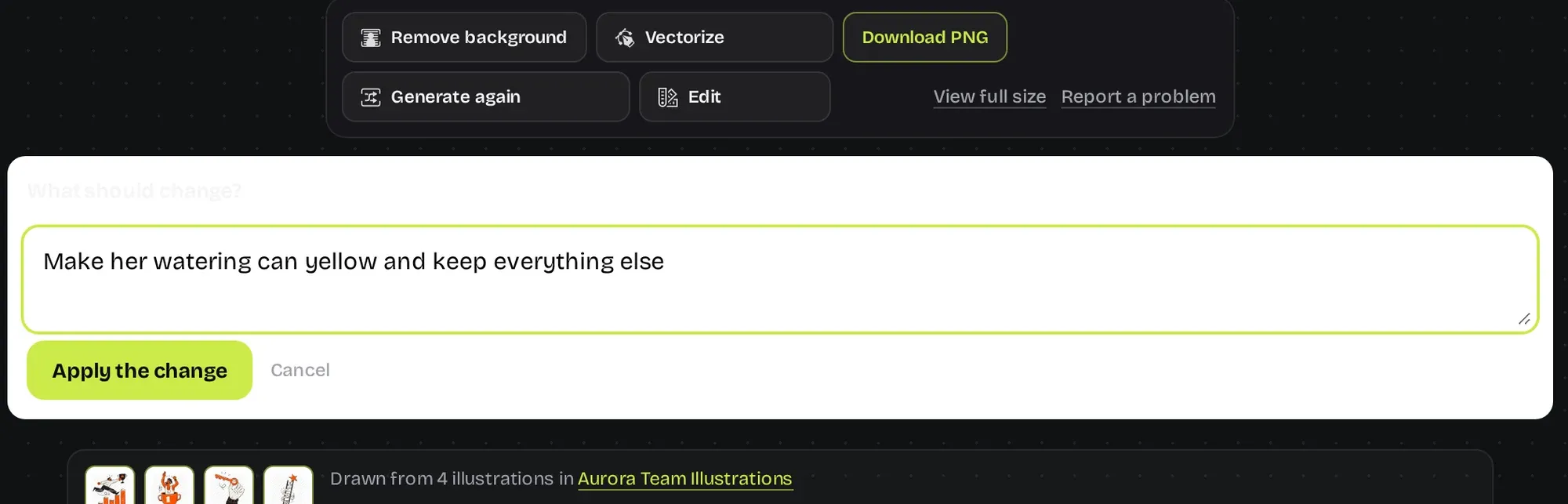
Keep edits to one change at a time and name the thing you want changed. "Make her jacket blue, keep everything else" works far better than "make it look better".
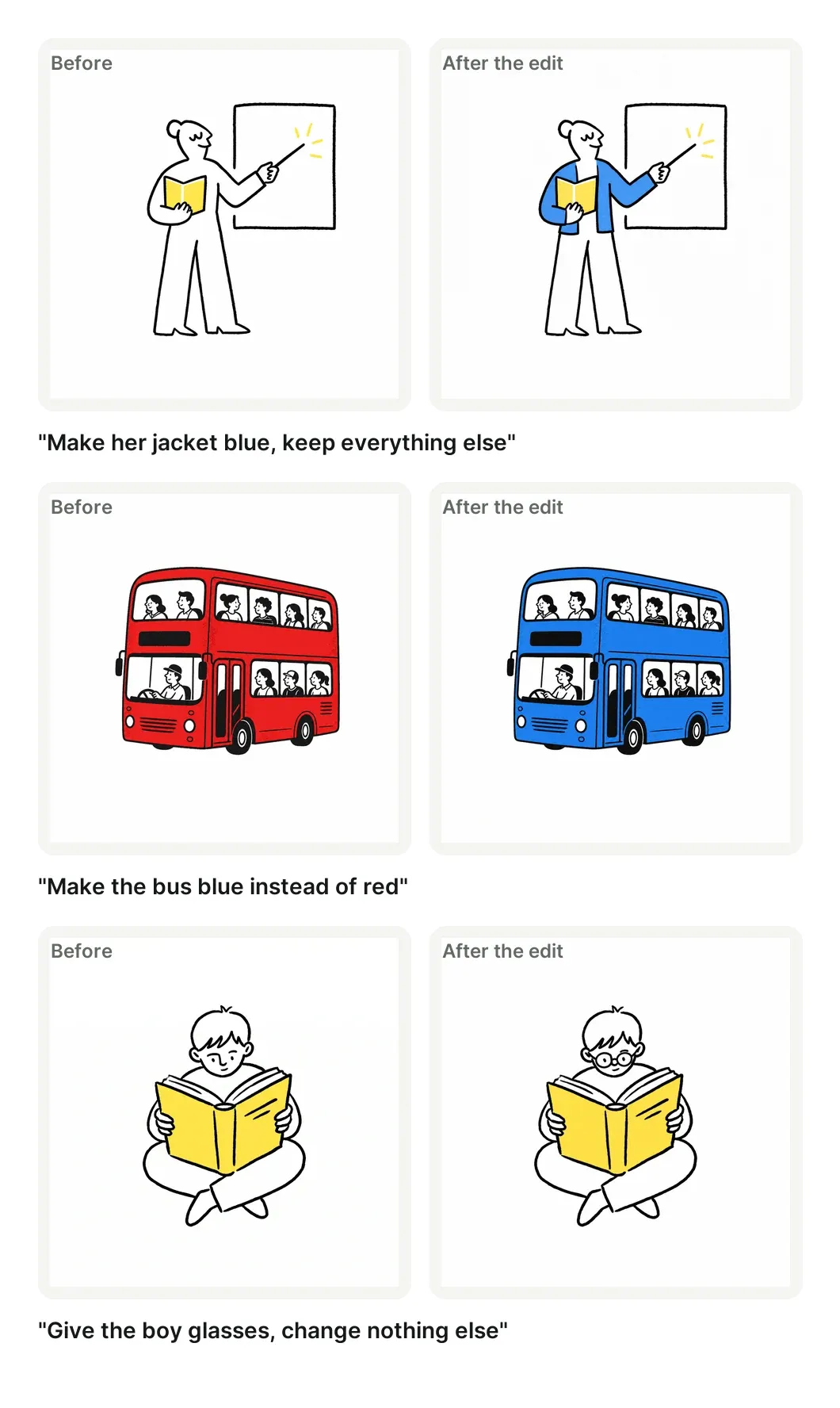
In our tests every edit made the change it was asked for, but some also drew the subject a little larger or changed a small detail nobody mentioned. Check the result against the original before you replace anything on your site.
The main prompt box now spots change requests too. Type something like "make it bigger and remove the background" there, and the generator stops before drawing, gives your credits back and points you to Edit.
What to do when an AI illustration comes out wrong
Even good models miss sometimes. Extra fingers, a subject cut off at the edge, or a sign with garbled letters are the usual suspects.
Work through it in this order:
- Small problem in a good picture? Use Edit and describe the fix.
- Wrong idea altogether? Rewrite the scene in more concrete words and generate again.
- Still fighting it? Try another model. Some prompts suit one model better than another.
- Picture is simply broken? Press Report a problem.
Report a problem asks what went wrong, with reasons like wrong hands or body, not what I asked for, cut off at the edge, wrong text, or not matching the pack. For illustrations from the last seven days your credits come back straight away, within a fair limit, and each illustration can be reported once.
Every new illustration now also goes through an automatic quality check. For now it only records what it finds, while we tune it on real prompts. Once it's tuned, we plan to switch it on so that a picture that fails is redrawn once at no extra cost.
How to get a transparent PNG or an SVG from an AI illustration
Every illustration downloads as a PNG. For a cut out, press Remove background, or draw it transparent from the start with GPT Image 2.
Vectorize turns the illustration into an SVG, and the download button switches to SVG for that version. It's traced by an outside tracing service, so it works best on flat styles with clean shapes and few colours.
For full control over layers and colours, our free Vectorizer Lab lets you trace the PNG yourself, and this guide on how to convert PNG to SVG walks through it.
Need it bigger for print? Run the PNG through Upscaler Lab, and read how to increase image resolution to work out how many pixels your print size needs. To change colours in an SVG, the SVG colour editor does it in the browser.
Can you use AI illustrations commercially?
On our generator, yes. Illustrations you make carry the same licence as the rest of your plan, including commercial work for clients, so you don't need a separate licence for them.
What you can't do is resell or redistribute them as stock assets. We don't claim ownership of the illustrations you make, and we can't promise they're exclusive or protected by copyright. The full terms are on our licence page.
Ownership is a separate question from permission. In January 2025 the US Copyright Office said AI generated material can be protected only where a human author decided enough of its expressive elements, and that a prompt alone isn't enough. In practice, you can use the illustration, but you may not be able to stop someone else from using a picture that looks like it.
If that matters, as it does for a logo or a mascot, use a human illustrator. For everything else, the safest habit is the one this guide is built on: borrow a style from drawings whose owner allows it, never from a living artist's name. The generator also refuses prompts for real people, brands, logos or licensed characters.
AI illustration, illustration pack or a human illustrator?
They're good at different jobs, and plenty of sites use all three.
An illustration pack is the fastest way to a full, matching set. Every picture in it was drawn by hand as one set, and you can see exactly what you're getting before you start. Collections put several packs that work well together in one place.
The AI generator fills the gaps. When your pack has a person on a laptop but you need a person watering plants, you make that missing scene in the same hand instead of settling for something close.
A human illustrator is still the answer for a mascot, a brand system or anything you need to own outright. Our custom illustration team takes those on. The comparison in our generator guide goes deeper on when to use which.
What's new in our AI generator
A running log, newest first, so you can see what changed since your last visit.
6 October 2026: better prompts, real edits and a quality check
- Every prompt is turned into a clear brief before it's drawn. You can write in your own language, and words you want shown in the picture keep the language and spelling you typed.
- The new Edit button changes an illustration you already have, and sends only your own illustration to the model. Edit text that points at another picture is turned away before any charge.
- Typing a change into the main prompt box no longer draws a new picture. The generator points you to Edit and your credits come back.
- Report a problem is new, with credits back for recent illustrations within a fair limit. An automatic quality check now looks at every new illustration, recording only while we tune it.
- Subjects that touch the edge of the frame are shrunk a little and given a margin, and new accounts' free illustrations now run on GPT Image 2.
The model list changed too. GPT Image 2 stays the recommended model, Nano Banana and Nano Banana 2 are new, and Seedream 5.0 Pro stays. Seedream 4, Seedream 4.5 and Nano Banana Pro came off the list after falling short in our blind tests.
24 September 2026: a new console
Style, model and settings now sit in one bar above the prompt. If you press Generate before signing in, your prompt and style wait for you while you log in, and a new showcase on the page shows where these illustrations can go.
23 September 2026: its own home
The generator moved to its own page, so it's easier to find and to bookmark.
4 September 2026: choose your model
You can pick the image model for each illustration, instead of every picture going to the same one.
20 August 2026: launch
The first version let you generate a new scene in the style of one of our packs, pick up to four drawings to borrow from, remove the background, turn the result into an SVG, and keep everything in one library.
Questions people ask about AI illustrations
How do I keep AI illustrations in the same style across a whole website?
Generate every picture from the same pack, with the same model and the same shape, and keep style words out of your prompts. Let the drawings set the style and the prompt set the scene.
Can I write my prompt in another language?
Yes. The generator turns your prompt into an English brief before drawing, so you can write in Spanish, Arabic, German or whatever you think in. Words you want written in the picture stay in your language.
Is it okay to prompt for the style of a famous artist?
It's legally murky and unfair to the artist, and with a pack you don't need it. A style drawn by someone whose work you're allowed to borrow gives you a closer match anyway.
What size are the files?
Most models draw 2048 pixels on the long side at 2K, or 4096 pixels at 4K. You can download a PNG, a version with the background removed, and a traced SVG.
Do AI illustrations look as good as hand drawn ones?
For a single scene in a clear style, often close enough that visitors won't notice. Up close you'll spot simpler details and the odd wobbly hand. That's why our library stays drawn by hand, and the generator is there for the custom scenes in between.
Are the illustrations on GetIllustrations made by AI?
No. Every pack is designed and drawn by our own human illustrators, and the few packs we remixed from our own originals are clearly labeled. The AI generator is a separate tool that uses those hand drawn styles to make custom illustrations you describe.
Ready to try it? Pick a hand drawn pack, describe one scene, and see how close it gets.